

This Support note is suitable for:
- ABSS Accounting
- ABSS Premier
Printer Error #5 when using Windows 8, 7 or Vista
How do I overcome a Printer Error 5 in the latest versions of Windows?
If you are using Windows Vista or later you may experience a Printer Error 5 when attempting to print from your MYOB software. This error can sometimes occur even when you're not trying to print, or if you don't have a printer installed.
To overcome this issue, the first thing to check is to make sure you have the latest printer driver installed for your printer. Refer to the printer manufacturer's website to download the current printer driver for your printer, or use the CD that came with the printer. Instructions for installing the printer driver should also be provided on the CD or the manufacturer's website.
Alternatively, if you receive this error and you don't have or need a printer connected, you can try installing a generic printer driver or maybe a free PDF writer (which will work the same as a printer driver). Speak to an IT professional for information about doing this.
If the error persists, you can turn OFF the User Account Control (UAC) in Windows. See below for instructions. After printing your document, you can turn UAC back on.
To turn off UAC in Windows 8 and 7
- Close out of your MYOB software.
- Open the Control Panel.
- In Windows 7, click the Windows Start button and choose Control Panel.
- From the Windows 8 Desktop, right»click in the bottom—left of the screen and choose Control Panel.
- Click User Accounts.
- Click Change User Account Control settings.
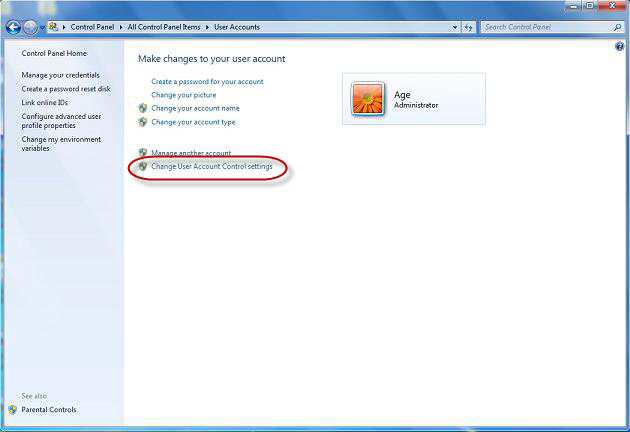
- Click and drag the slider to the lowest position, in other words Never notify.
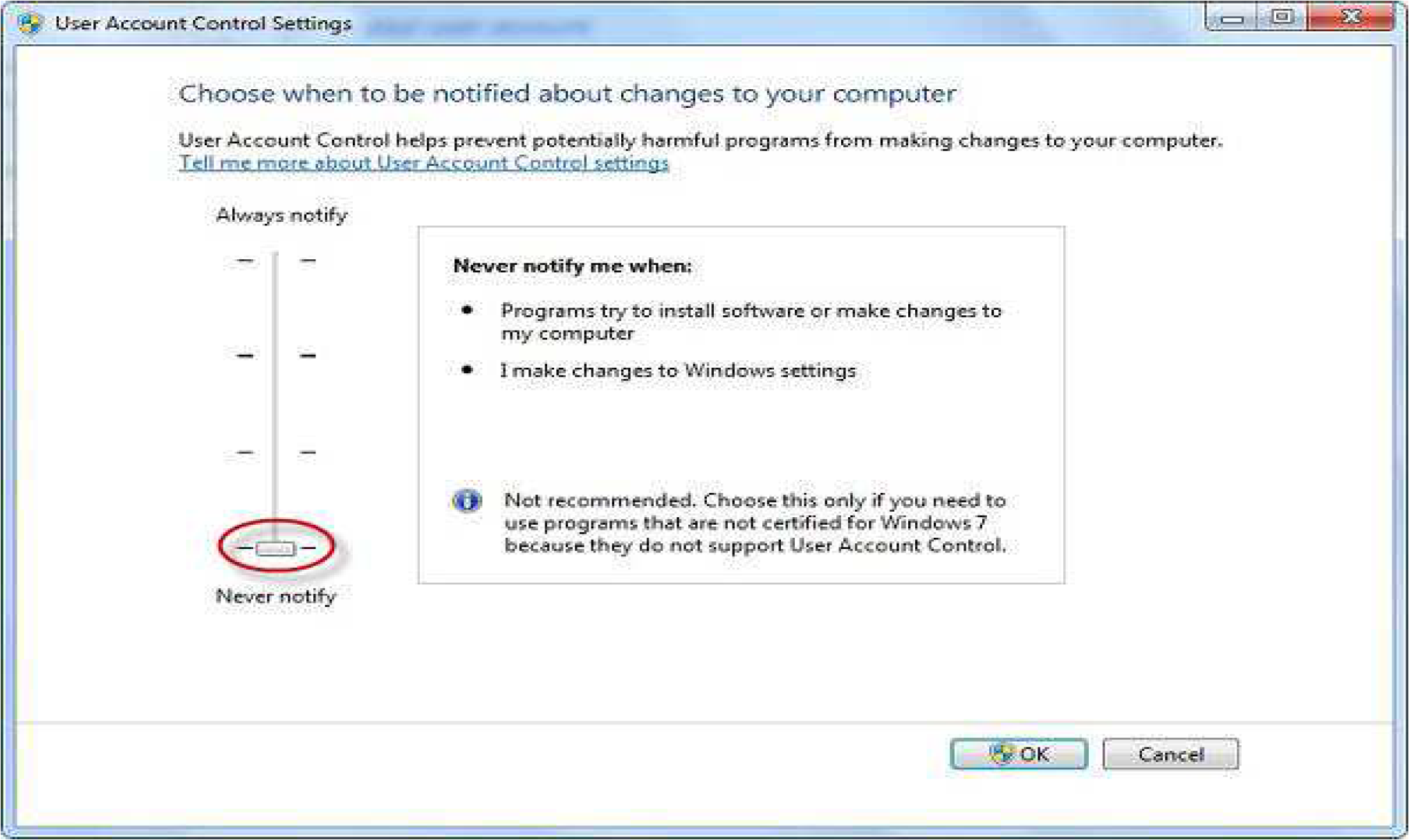
- Click OK.
- Restart your computer to complete this change.
- Print your document.
Turn UAC back on by repeatin th g e steps above and setting the slider at step 5 to the desired position.
To turn off UAC in Windows Vista
- Close out of your MYOB software.
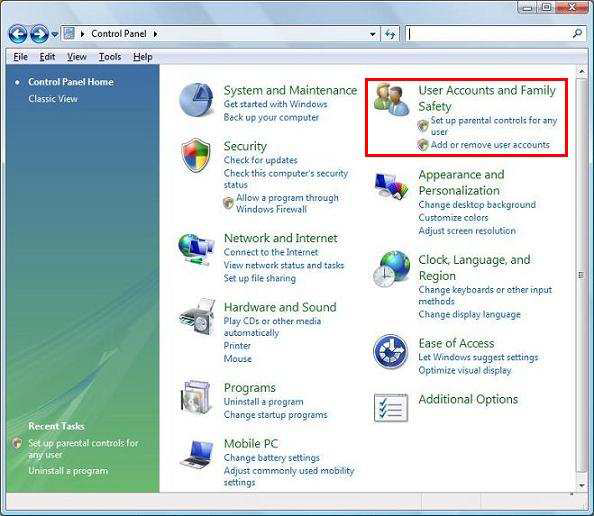
- Click the Windows Start button and choose Control Panel. In Windows Vista click User Accounts and Family Safety.
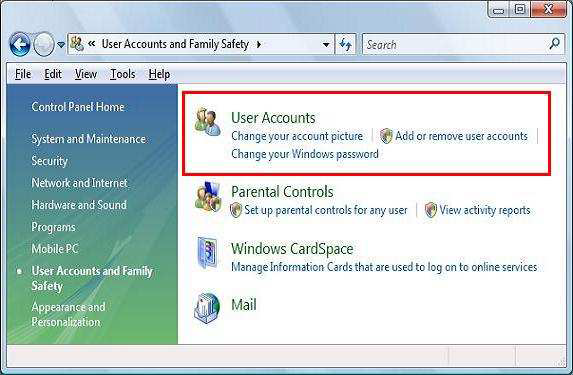
- Click User Accounts. You may need to select a User Account, if so, choose any account.
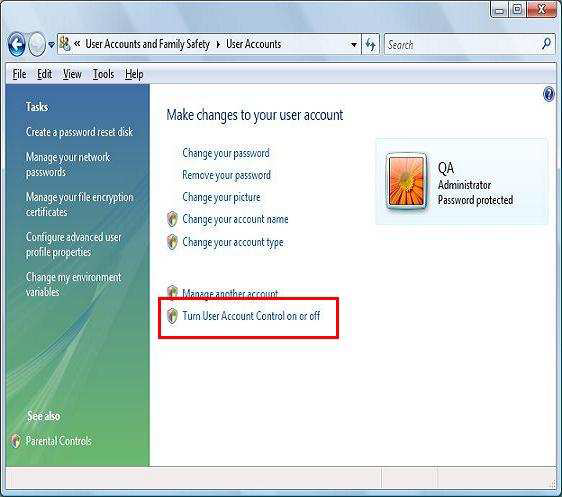
- Click Turn User Account Control on or off.
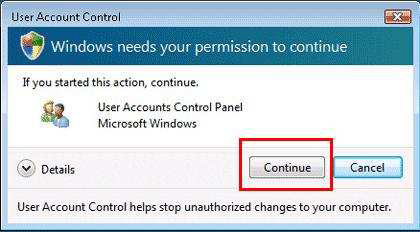
- You will be prompted with a window entitled Windows needs your permission to continue.
- Click Continue to this message. If you are not setup as an Administrator user on this machine, you may be prompted to enter Administrator Username and password.
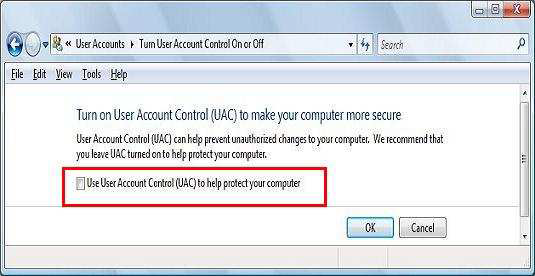
- Deselect the option Use User Account Control (UAC) to help protect your computer then click OK.
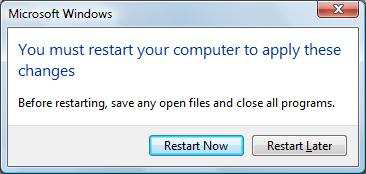
- You will be prompted to restart your computer. Click Restart Now.
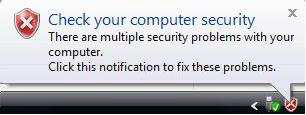
- You may get a warning to Check your computer security. This is a standard message that Windows recommends User Account Control to be always turned on.
- Print your document.
- Turn UAC back on by repeating the steps outlined above and selecting the option Use User Account Control (UAC) to help protect your computer at step 7.
Comments
0 comments
Please sign in to leave a comment.