

This Support Note is suitable for:
- ABSS Accounting
- ABSS Premier
|
Introduction As you enter more data into your company file, the company file increases in size. This size increase can result in slower performance over a network and potentially company file corruptions. By performing regular company file maintenance, you can make sure the company file runs as efficiently as possible and reduce the risk of file corruption. This support note guides you through the steps involved in performing company file maintenance. |
Optimising
Over time, as data is entered and deleted from a company file, particularly where transactions are deleted, blank spaces are left behind in the file, making it larger than it needs to be and requiring more resources than necessary.
The Optimisation Assistant compacts the company file removing the blank spaces from your company file in a process similar to that performed by Disk Defragmenter on your hard disk. The Optimisation Assistant also updates what are known as company file indexes which are lists of the order in which information is stored to facilitate retrieval.
We recommend running the Optimisation Assistant on a regular basis to make sure that your data is stored in the most efficient structure and to ensure that there are no issues within the file.
The Optimisation Assistant can be launched two way, either from within the ABSS company file or alternatively from the ABSS folder from the start menu.
To optimise the company file from within the company file, go to the File menu and choose Optimise Company File.
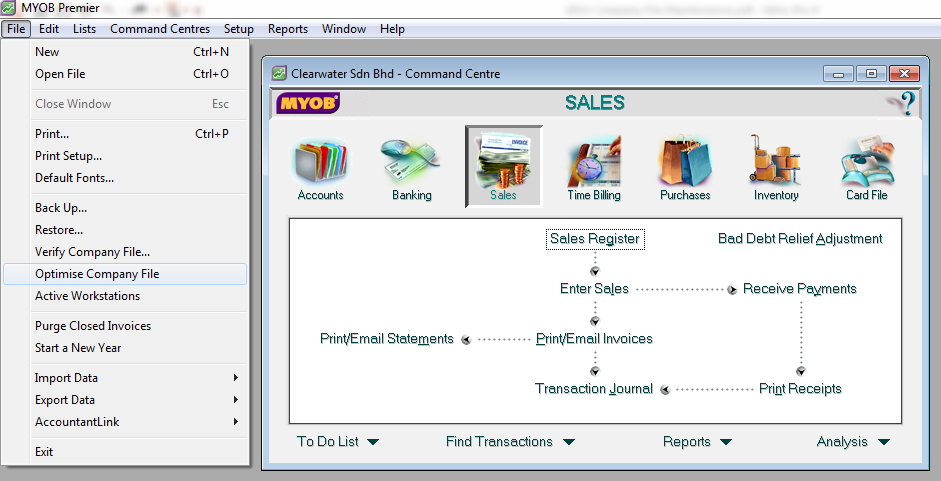
To optimise your company file without opening it:
Go to the Windows Start Menu, choose All Programs, ABSS, ABSS Tools and click ABSS Optimisation Assistant.
Click Next and click the Find File button to select the company file you want to optimise. Click Next twice more and the optimisation will begin.
|
Important Note: Company file optimisation should only be performed locally not across a network. Optimising across the network takes increases the time required to compete the process and increases the chance of company file corruptions and. If you company file is stored on a server we would recommend to either optimise from the server, or to copy the file locally. |
Error received during the optimisation assistant
When the Optimisation Assistant is running, it searches the company file for spaces within the data structure and re-orders the data. It is also a good tool to identify any company file corruptions within the file. If you receive any error messages, see support note 2106 Errors in your Company File. Alternatively, contact ABSS Technical Support for assistance.
Rolling Over Financial Year
If your file size is increasing, another good option to reduce the company file size is to roll the company file over. When a roll over is completed, ABSS will purge transactions that are no longer required from the ABSS company file.
For more information on rolling over and purging please refer to Support Note 1003 End of Year Roll Over and Transaction Purging.
You can view what the current financial year within your ABSS Company file is at present in the Company Information window. To access this window go to the Setup and choose Company information. You will find the current financial year in the bottom right of this screen.
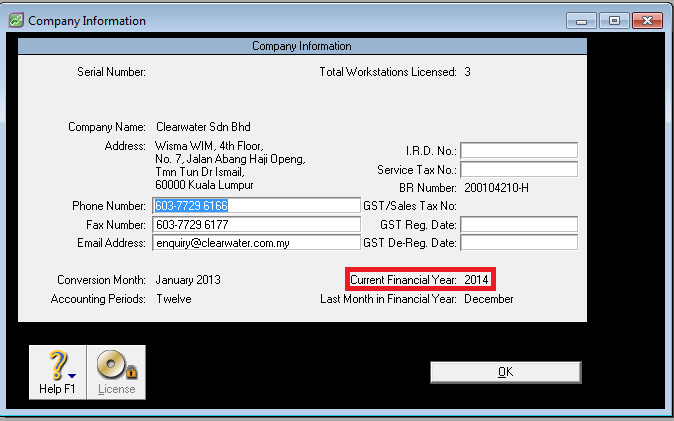
Starting a new financial year
When rolling over your ABSS company file, extensive changes are made to the structure and data within the company file. It is very important that a backup is taken before rolling over, as once completed, the changes are irreversible.
For more information on rolling over your financial year, refer to Support Note 1000 - End of Financial Year Guide.
Deleting cards that are no longer used
After completing the roll over procedure and starting a new financial year, certain customer and supplier cards may no longer have associated sale and purchase transaction information. If there are no transactions associated with a card, it can be safely removed from the file.
Purging contact logs
Contact log entries are not purged out in the roll over process but if you wish you can purge these manually.
To do this, go to the Card File command centre, then go to the File menu and choose Purge Contact Logs.
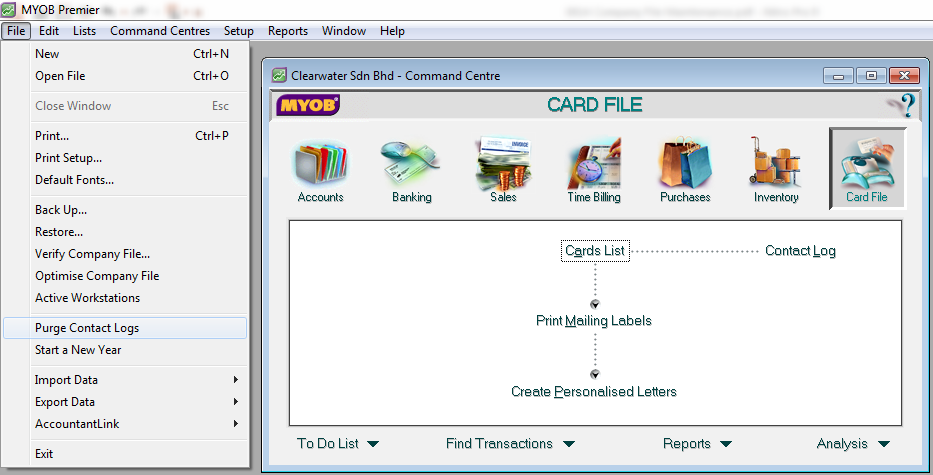
Slow network speed
If you are still experiencing issues with the speed of ABSS, and have optimised and followed the steps above, we would recommend you to ask your IT department to check your network for any network speed issue.
Disclaimer: This information is of a generic nature. For specific advice regarding your particular circumstances please seek assistance from your Accountant, Tax Officer or your IT Consultant as appropriate
Comments
0 comments
Please sign in to leave a comment.