

This support note is suitable for.
- ABSS Accounting
- ABSS Premier
|
Introduction Backing up your ABSS data is an important process that you should perform on a regular basis. Familiarizing yourself with ABSS's backup process will ensure your valuable ABSS data is secure and can be quickly restored if needed. Backups are also important for the purpose of retaining historical records and the ability to access information from previous financial years. For example, it may be necessary to reprint an employee's Payment Summary for a previous year. |
Solution Summary
BACKUP
To backup a Company File, with the file open, go to File -> Backup and click Continue. Select a destination for the backup file and click Save.
RESTORE
To restore a Company File, with any Company File open (even the Clearwater sample file) go to File -> Restore select the backup file to restore from and click Open. You then select the destination for the restored Company File and click Save. A confirmation message will appear, click OK to restore and log into the file.
Before Backing Up Your ABSS Data File
For added security, the following is recommended:
- Consider the storage media being used to store your ABSS backups. Due to the reliability and efficiency of the various high capacity storage media now available, we no longer recommend you use floppy disks for secure backup purposes. CD—Rom Burners and Zip Drives are a better option.
- Make multiple copies of your backed up data and store one or more copies of it off—site. This is especially recommended for backups taken at critical times such as immediately prior to Starting a New Financial Year.
- Setup your Company File so that when closing it, you are prompted to print the Session report, backup your Company File, and Verify your Company File when it is closed. You can access these preference options by going to Setup choosing Preferences then clicking Security.
How Often Should I Backup my ABSS Company File?
Ideally, your ABSS Company File should be backed up after each session, with the Session Report printed before closing the file. Should something happen to your Company File, you will be able to restore the backup of the last session and then use the Session report to enter the missing data.
Can I backup my ABSS Company File to CD
There are currently only two types of CDs available:
- CD-R - This is the most widely used type of CD. Please note that data can only be copied to these CDs by using the software supplied with the CD writer. Therefore, ABSS cannot save data (backup) direct to a CD-R type CD. For information on copying data to a CD-R type CD, please refer to your CD writer's operating instructions.
- If using this type of CD for archiving data, backup your ABSS data to your hard drive and then use the CD writer software to copy the backup zip file to a CD.
- CD-RW - This type of CD is known as a re-writable CD, as data can be both written to, and deleted from it. Software which is supplied with some CD writers allows for this CD type to simulate a hard drive. This means that data can be saved directly to the CD.
- If you are using a CD-RW type CD, and, your CD writer software includes this feature, then you will be able to backup your ABSS data directly to the CD (See the Note at step 2 of How do I backup my ABSS data?). However, you will need to refer to your CD writer's operating instructions on how to activate and use this feature.
How Do I Backup My ABSS Data?
To backup your ABSS data, please follow the following steps:
Step 1: With your Company File open go to File and select Backup.
The window below shows the Company File Backup window.
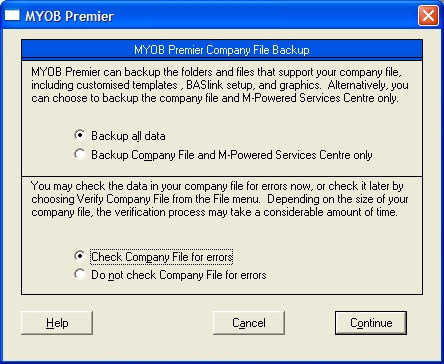
The Backup all data option will include the following ancilliary data in addition to your Company file and M-Powered Services Centre:
- Customised forms and reports.
- Your BASlink setup template(s) and any saved BASlink reports.
- Changes to Excel spreadsheet report templates.
- Customised mailmerge and Excel report templates.
- Images linked to cards and inventory items.
On a day to day basis, a backup of your Company file and M-Powered Services Centre only will be sufficient. However it is good practice to periodically perform a full backup of all data.
We recommend you select the Check Company File for Errors option. This will verify your Company File for errors before backing it up.
Step 2: Click Continue. The picture below shows the Backup window, which will then be displayed.
Note: The Backup window may appear slightly different to that shown depending not only on your version of ABSS Software but also on your version of Windows. However, the principals of specifying the file name and its destination drive/folder are the same.
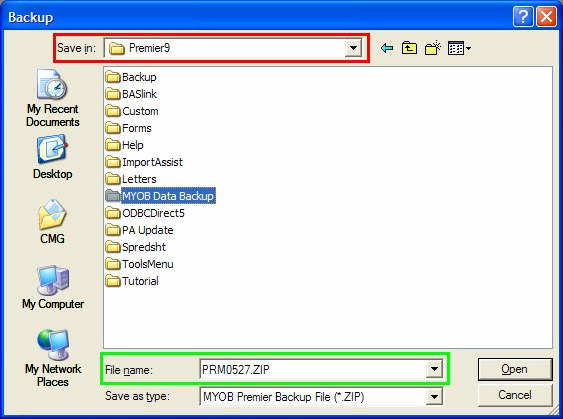
Using the Save In menu along the top of this screen, select the destination drive for your backed up data. After selecting the drive, the folders of that drive will appear in the main panel. Double click the folder icons to navigate to the folder where you would like your backup data to be stored.
In the window shown above, the user has created a folder named ABSS Data Backup. In this example, by double—clicking its icon, the ABSS Data Backup folder is selected as the destination folder. Currently, the Premier folder, as shown in the Save In field in the rectangle, is the destination folder. If you are using ABSS Accounting/Plus the folder will be called ABSS 15.
By default ABSS will use the system date (in the American Date format and with the ABSS prefix) to name the backup file in the File name field in the green rectangle. This name can be easily changed by placing your cursor in the File Name field and over typing the name of your choice. We recommend giving the file a name that will help you identify exactly when this backup was taken. For example, 2018-5-27 AM or BankLastReconciled-30-4-18. When renaming the backup file, it isn't necessary to include the ‘.zip’ file name extension.
Note: If using CD-RW type CDs, and the software supplied with your CD Writer allows this type of CD to simulate a computer drive you should be able to select the CD writer when clicking the Save In menu. Refer to the operating instructions of your CD writer software.
Step 3: Click Save. ABSS will then begin to backup your ABSS data to the destination drive/folder.
How do I restore my ABSS data?
If restoring or opening your ABSS data from a CD-R type CD
Please refer to the section titled How to open or restore my Company File from a CD.
What happens when my ABSS data is restored?
When restoring ABSS data, your ABSS program reads the zip file and then creates a duplicate of the Company File(s) as it was when it was backed up. Once restored, ABSS will open the Company File.
Before restoring your ABSS data
We recommend you use Windows Explorer to create a new folder on your hard drive into which your ABSS data can be restored. This will prevent the possibility of overwriting your current working data.
Restoring your ABSS data
Previous versions: The various windows may appear slightly different to those used in the examples. However, the principles of navigating though these screens will be the same.
1 With your current Company File open, go to File and select Restore, then follow the prompts to close the open Company File.
2 With the Select File to Restore window displayed, click the Look In menu shown in the red rectangle and select the drive containing your ABSS data backup.
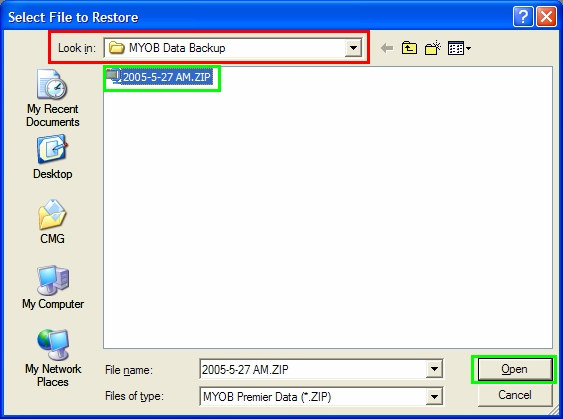
After selecting the drive, the folders of that drive will appear in the main panel. Double click the folder icon(s) to navigate to the folder where your backup data was saved.
Once the backup file appears, you can click it and select Open or simply double-click the file.
Note: If you are unsure of where your backup data is stored, use the Windows Search function to search for files with a ‘zip’ file name extension (please refer to Windows Help for information on how to search for files).
The picture below shows the Save As window. The Restored ABSS Data folder as shown in the Look In menu, was created by the user for the purpose of saving restored Company file.
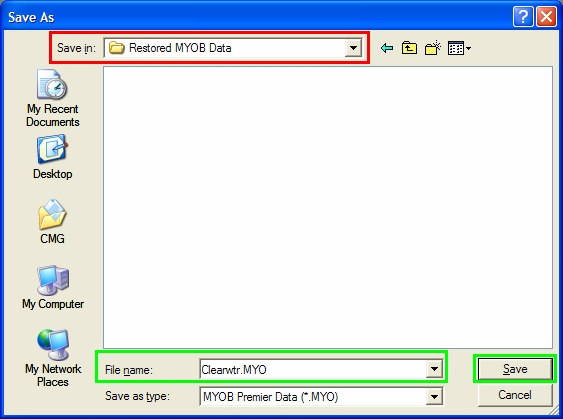
If you want, you can change the File name which appears in the rectangle shown in green.
By default, ABSS will use the name of the backed up Company File as the name of the restored Company File. To change the default name, place your cursor in the File Name field and over type it.
3 Click Save. ABSS will then begin to restore your ABSS data to the destination folder. Once restored, ABSS will open your Company File.
The Backup All Data option was used to backup my ABSS Data. What data has been restored?
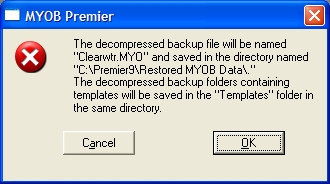
ABSS will restore your ABSS Company File to the destination folder selected in the Save As window. In addition to this, ABSS will create a folder within the destination folder named TEMPLATES. Within this folder will be other folders containing the other ABSS data that was backed up. This explained in the dialog window shown on the next page. It appears when you click Save.
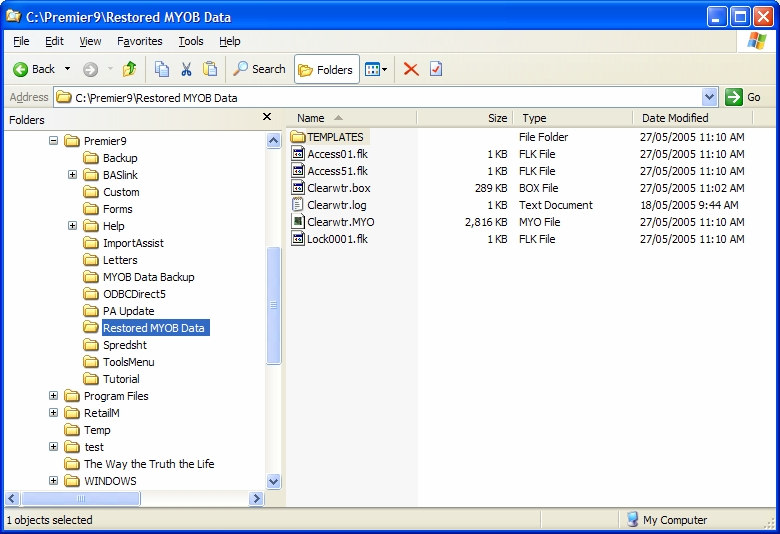
The window below shows an excerpt from Windows Explorer after restoring ABSSdata that was backed up using the Backup All Data option. The Company File (Clearwtr.myo) has been restored to the user created destination folder named Restored ABSS Data. The TEMPLATES folder was also created in the destination folder with sub-folders containing the other backed up data.
Can ABSS data be restored using another method?
There are two other methods that can be used to restore your ABSS data.
From the Windows Start Menu
If ABSS is closed:
- Open ABSS from the Windows Start menu.
- When the Welcome flash screen is displayed, click Open to display the Open window.
- Click the Files of Type menu along the bottom and select All Files (*.*). You can now follow on from step 2 of the section titled Restoring your ABSS data.
Using a third party application
ABSS's backup function uses a common industry compression technology. Therefore, your ABSS data can be restored by using most third party utilities including, Pkzip and WinZip.
How Do I Restore/Open My ABSS Data from a CD?
CD-RW type CDs
If your CD writer software enables you to access a CD—RW type CD as an additional drive, then you should be able to both open and restore a Company File from the CD writer.
If you are unsure whether or not your CD writer software provides this feature, then follow the below information for CD—R type CDs.
CD-R type CDs
Restoring a Company File
ABSS data that has been backed up (in a zip format) and copied to a CD, can be restored directly from the CD by following the steps from the section titled How Do I Restore My ABSS Data — at step 2. At step 2, you should be able to select the CD from the Look In drop down list.
As ABSS cannot write to this type of CD, you will need to specify a folder on your hard drive into which the restored file will be saved — see step 3.
Opening a Company File
ABSS writes data to Company Files when opening them. Because ABSS cannot write data to a CD—R type CD, when opening a Company File directly from one of these CDs, an access error (usually an I/O error) will be reported. The following steps explain how to overcome this error:
- Using Windows Explorer, copy your Company File from the CD to your hard drive.
- Once you have copied the file to the hard drive, highlight the Company File then go to File and choose Properties.
- Clear the Read Only option then click Apply and then OK.
The Read Only file attribute is applied to all files when copied to a CD, and remains as Read Only when a file is copied back to the hard drive. When active, this attribute prevents data from being written to a file. Therefore, before ABSS can open a Company File copied from a CD, the Read Only attribute will first need to be disabled.
For detailed information on using Windows Explorer and changing file attributes, please refer to Windows Help. You will now be able to open your Company File.
Comments
0 comments
Please sign in to leave a comment.