

This support notes are suitable for:
- ABSS Accounting
- ABSS Premier
|
Introduction The Company Data Auditor function first appeared in the 2005 releases of MYOB accounting software. This feature enables you to perform several company file maintenance tasks from a single window. It consolidates many tasks into one location. Together with the Company Data Auditor, another important new capability was introduced: Audit Trail Tracking. Based on log-in user IDs, MYOB can automatically generate information which enables you to identify which user recorded or changed which transactions and/or records in your company file and at what time. You can be selective about what information you track as the system enables you to specify the type of events you want the Audit Trail to capture. This Support Note steps you through activating and configuring Audit Trail tracking to automatically capture the information you need. |
How do I start the Company File Auditor?
- Go to your Accounts Command Centre.
- Click Company Data Auditor.

The Company Data Auditor window appears:
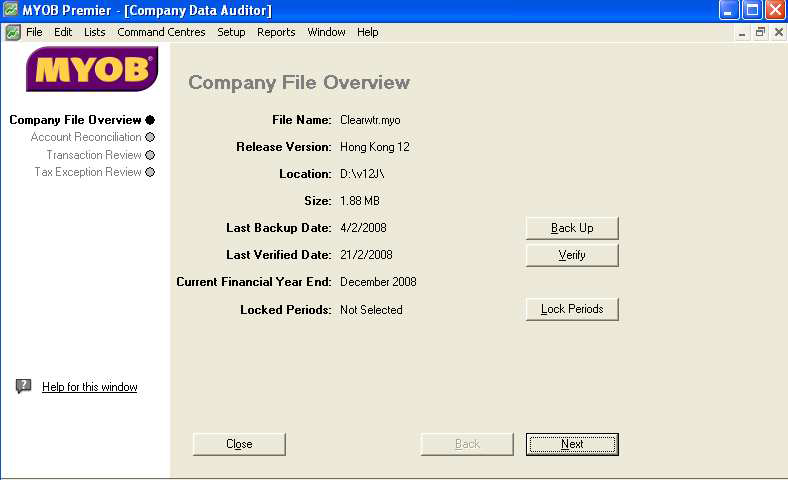
A Company File Overview is displayed providing information on various aspects of your data file. This window shows you:
- the company file name
- the MYOB Program version
- the location of the company file on your hard drive or other network location
- the size of the company file
- the date on which the company file was last backed up
- the date on which the company file was last verified
- the latest month of locked periods, if one has been specified
- the date of the payroll tax tables.
The Company File Overview window has buttons that enable you to:
- Perform a Back up of your company file
- Verify your data
- Lock periods
- Load Tax Tables
Once you are ready to proceed, click Next. The Account Reconciliation Review is displayed
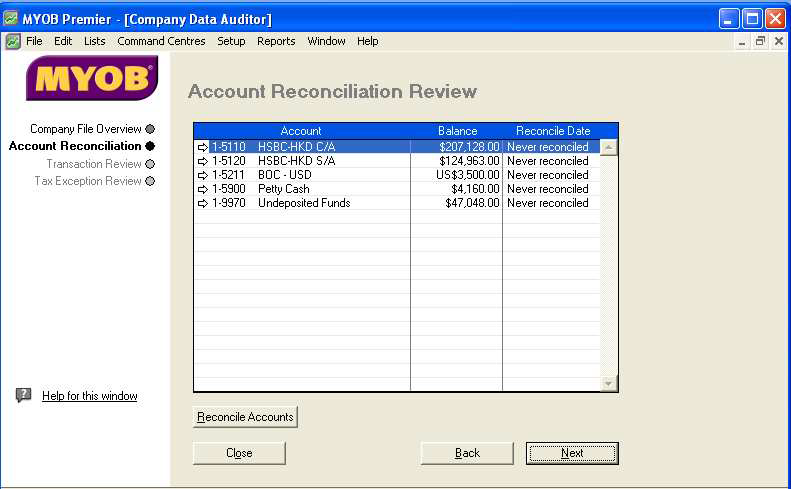
It displays information on the status of any bank accounts that you track through your MYOB software such as the last reconciliation date.
If you want you can click the white arrow next to each account to view the account information window. You can also click the Reconcile Accounts button to perform the reconciliation.
For information on reconciling your bank accounts and finding transactions that cause an out-of- balance situation please refer to Support Note Finding transactions that cause out of balance amounts.
Once you are ready to continue, click Next.
The Data Exception Review window is displayed:
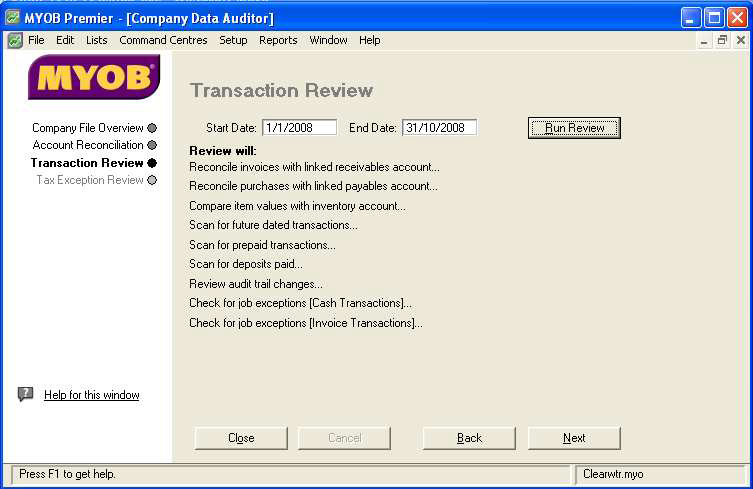
To check for data exceptions:
- Enter the Start Date and End Date for the period you wish to review.
- Click Run Review.
As listed in the above window, the Company Data Auditor will perform the following actions:
- A reconciliation of your receivables
- A reconciliation of your payables
- A reconciliation of any inventory items you have
- A scan for any accidentally future dated transactions
- A scan for any prepaid transactions
- A review of audit trail changes
For the review of audit changes to be available, you need to activate a certain security preference. To do this:
- Go to the Setup menu and choose Preferences.
- Click the Security tab.
- Mark the last checkbox in the list labelled Use Audit Trail Tracking (System-wide).
- Click OK.
The audit trail tracking system relies on individual user id's to enable you to identify who has recorded which transactions. Therefore it is important to make sure that each user who accesses your data file has a unique log on ID and that their password remain known only to them and the administrator. For more information refer to Support Note User ID and Password.
What changes does the Audit Trail capture?
The specific transactional, tax, accounts and system changes that are tracked are:
Transactional (invoices only, not orders or quotes)
- Change of card selection.
- Change of ID #.
- Change of Date.
- Change of amount on any line.
- Change of account on any line.
- Change of item selection.
- Change of job selection.
- Deletion of transaction
Tax-related
- Change or deletion of tax code on any line.
- Change of tax amount.
- Adding transactions with a tax code other than the default code for the selected card or account. (invoices only, not orders or quotes)
- Adding transactions with a changed taxable amount. (invoices only, not orders or quotes)
- Change of the account's tax code. (tracked only if there is at least one recorded transaction on the file)
- Change of the linked account selection in any of the Tax Code Information windows.
Accounts-related
These changes are tracked only if there is at least one recorded transaction for the account or on the file.
- Change of the current account number.
- Change of the account‘s opening balance.
- Addition of a new ledger account.
- Deletion of a ledger account.
System settings
- Change of the linked account selection in any of the Linked Accounts windows in the Setup menu.
- Change to the Lock Periods Security preference. A change of the lock period date, as well as activation and deactivation of the preference is tracked.
- Change to the Transactions Can‘t be Changed; They must be Reversed Security preference.
- Change to the Use Audit Trail Tracking Security preference.
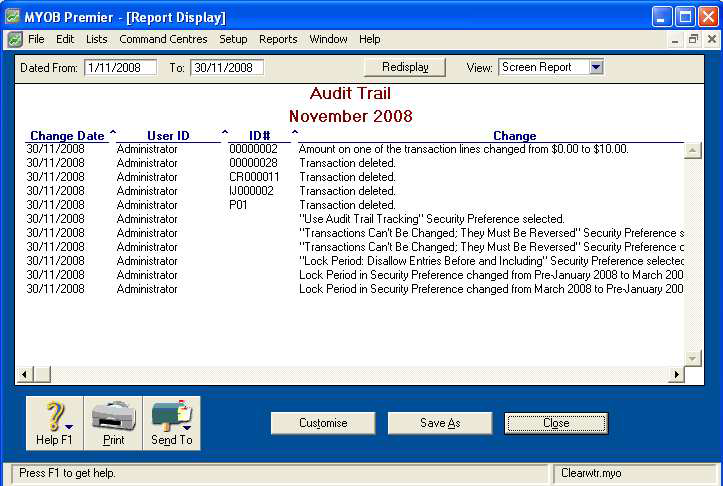
How do I print the Audit Trail Report?
- Go to the Index to Reports and click the Accounts tab.
- Scroll down the list of reports to the heading marked Audit Trail.
- Choose the Audit Trail report.
- Click Customise to specify a data range for the report. If you want you can run the report for a particular user ID.
In addition to the above processes, the Company Data Auditor will also check the following:
- Tax amount exceptions on Sales and Purchases.
- Tax code exceptions for Invoice transactions and Cash transactions.
When the review has completed, the result of each process is indicated by either a green check mark or a red question mark as shown below.
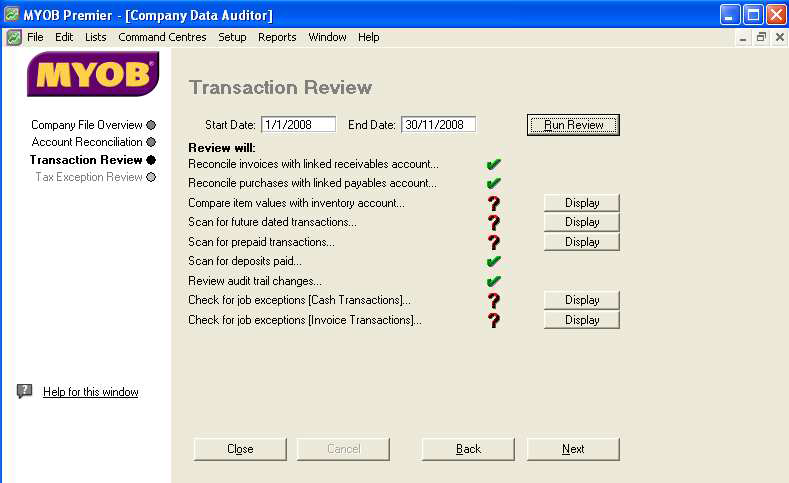
Where a red questions mark appears, the Company Data Auditor is indicating that there may be an error within a given transaction. A Print Report button will also appear next to the red question mark. It enables you to identify transactions that may be incorrect.
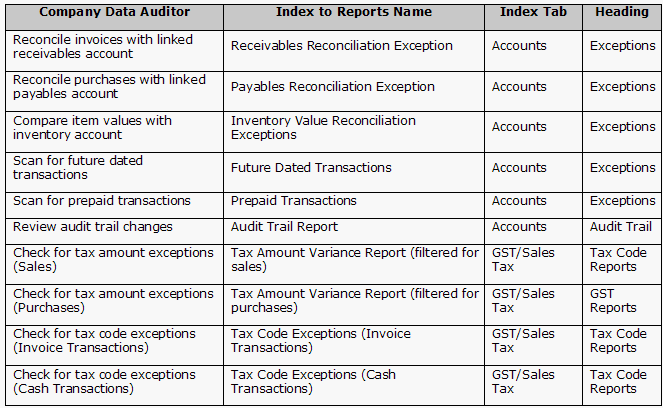
Because these reports are available in the Index to Reports, if you want you can display them rather than physical printing them. The following table shows which report relates to which review process.
What if the Reconcile invoices with receivables account shows a check mark but my receivables reconciliation report shows an out of balance amount?
This means that at some point, a customer payment has been recorded with a Finance Charge. At a later time, if only one of the two transactions that are recorded when a finance charge is applied this will cause an out of balance amount. Please refer to Support Note Finding and deleting Finance Charges.
What if I have a question mark next to reconcile receivables or payables but I get a ‘Nothing to Print’ message when I click Print Report?
Your Receivables and Payables opening balance figure has been changed. Go to Setup choose Balances then Account Opening Balances to view and modify the balances for your linked accounts for tracking receivables and payables. Also run a Receivables Reconciliation Report or Payables Reconciliation Report as appropriate to help determine the out of balance amount.
New features in the 2006 release
A new step, new fields, additional checks and new reports have been added to the Company Data Auditor:
- The Company Overview now displays the current financial year.
- The Data Exception Review step has been divided into two steps: the Transaction Review and the Tax Exception Review.
- Scan for paid deposits is now part of the Transaction Review. It checks for all deposits on sales orders or purchase orders. The New report: Deposit Transaction can be displayed if there are any deposits.
- Check for job exceptions (both cash and invoice transactions) are now part of the Transaction Review. These are transactions that have provision for a job number and no job number was entered. job exceptions exist only if the system preference Warn if jobs Are Not Assigned to All Transactions is selected. If any exceptions exist, the lob Exception [Cash Transactions] report or job Exception [Invoice Transactions] report can be displayed.
- Reconcile tax code details with linked accounts is now part the Tax Exception Review. It compares the value of the tax collected and tax paid transactions with the current balance of the linked tax account. A New report: Tax Code Reconciliation Exception can be displayed if the comparison is out of balance.
- The Print buttons that appeared when the review discovered exceptions are now named Display buttons. When you click the Display button, the Report Display window appears, where you can review, customise or print the report. Previously, you could only print reports from the Company Data Auditor.
- A new summary report that displays the results of the current run of the Company Data Auditor is now available for printing when you click the Finish button in the last step of the Auditor. This report is not available from the Index to Reports, only from the Auditor.
Comments
0 comments
Please sign in to leave a comment.