

This Support Notes is suitable for:
- ABSS Accounting
- ABSS Premier
|
Introduction Periodic inventory is a system of accounting for inventory whereby:
This support note explains how you can implement periodic inventory in your MYOB company file. |
Before implementing this method it is advisable to check with your accountant as to its suitability for your business. Do not use this system if you want your MYOB accounting software to track inventory for you using a perpetual inventory system.
How can I account for inventory under a periodic inventory system?
There are two methods you can choose from.
Method 1: Show the Purchases account only in the Profit and Loss statement
- Create a Stock On Hand (Asset) account and a Purchases (Cost of Sales) account. Both accounts should be Detail Accounts (Postable).
- Create the inventory items and mark them as I Buy This Item and I Sell This Item. The linked Expense Account for Tracking Costs must be the Purchases (Cost of Sales) account. Select a relevant Income account for tracking sales.
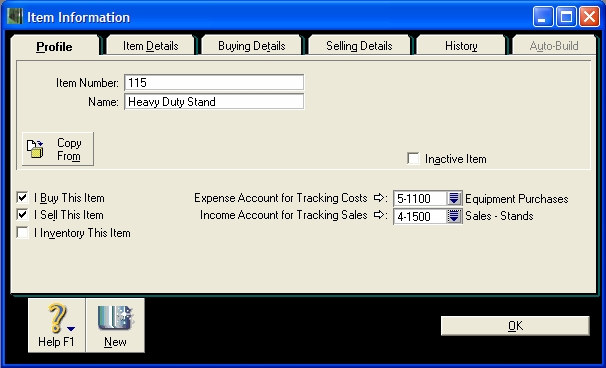
- Note: The I Inventory This Item check box should never be marked when using this method.
- This means that when stock is purchased, it is immediately expensed to the cost of sales account. When stock is sold, there is no entry to cost of sales. In order to be able to report the value of stock you have on hand, end of period journals must be recorded. This is discussed below.
- If at the beginning of the fiscal year there is a balance in the Stock On Hand account you need to prepare a General Journal entry to debit the Purchases (Cost of Sales) account and credit the Stock On Hand (Asset) account. The amount entered needs to be the value of the Stock on Hand as at the end of the previous financial year.
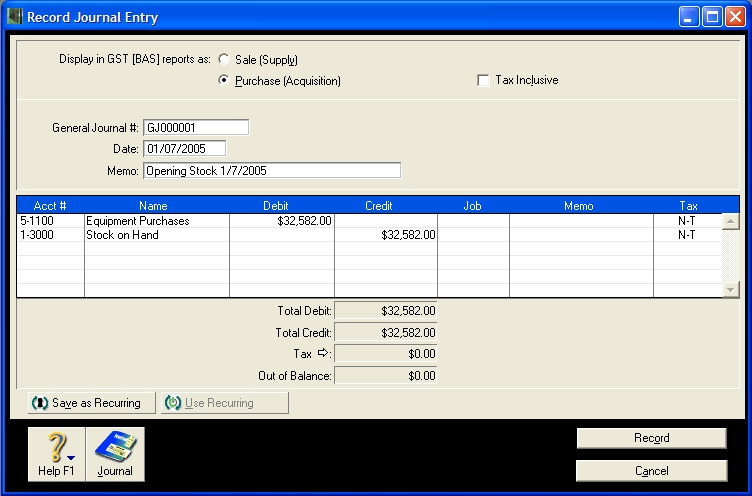
- The effect of the general journal entry will leave the Stock on Hand (Asset) account with a zero balance.
- At the end of the financial reporting period, (i.e. Month, Quarter or Year) you need to make an adjustment to the Purchases (Cost of Sales) account to reflect the value of stock still on hand. First, perform a stock-take and accurately value the stock on hand at the end of the financial reporting period. Then, prepare a General Journal entry to reflect the value of stock counted in the stock-take. Debit the Stock on Hand (Asset) account and credit the Purchases (Cost of Sales) account for the value determined in the stock-take.
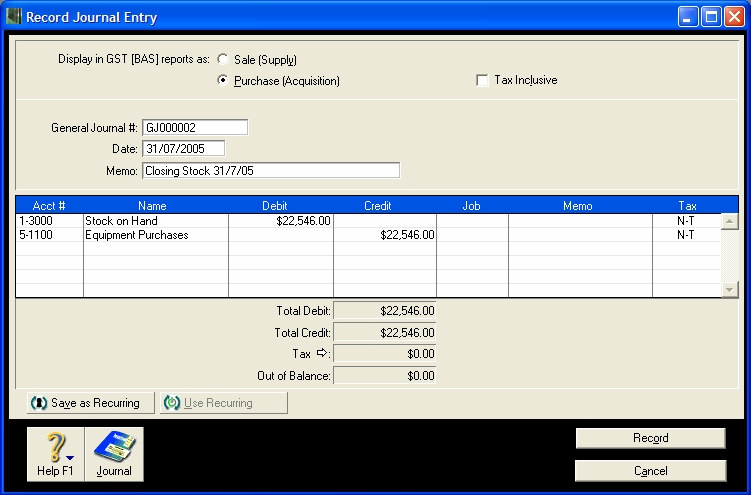
- Print the Profit & Loss Statement and Balance Sheet reports.
- On the first day of the next financial period, prepare a General Journal Entry to reverse the effects of the Closing Stock adjustment. Debit the Purchases (Cost of Sales) account and credit the Stock on Hand (Asset) account for the same value entered in Step 4.
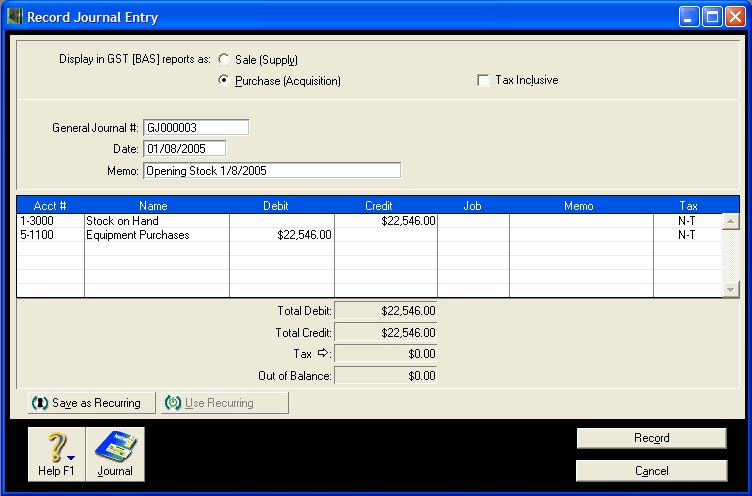
- After the journal entry has been performed, the Stock on Hand (Asset) account should be returned to a $0 balance. At the end of future financial reporting periods, repeat Steps 4 and 5 to accurately reflect the true Cost of Sales figure in your Profit & Loss Statement and show the value of stock on hand in the Balance Sheet.
Method 2: Show the opening and closing stock accounts in the Profit and Loss Statement
To use this method, the data file must be set up as having 13 accounting periods per year. To check if you have 13 accounting periods you need to go to the Setup menu and choose Company Information. If your data file is set to 12 Accounting periods, you will not be able to use this method until you Start a New Year and change the number of periods to 13.
- Create the following asset accounts:
- Opening Stock (Cost of Sales) account
- Closing Stock (Cost of Sales) account
- Purchases (Cost of Sales) account
- Stock on Hand (Asset) account
- Note: All accounts should be Detail Accounts (Postable).
- Create the inventory items and mark them as I Buy This Item and I Sell This Item. The linked Expense Account for Tracking Costs must be the Purchases (Cost of Sales) account. Select a relevant Income account for tracking sales.
- At the beginning of the fiscal year, create a General Journal entry to show the Opening Stock balance in the Profit and Loss statement. Debit the Opening Stock (Cost of Sales) account for the amount that was shown as Stock on Hand in the 30th of June Balance Sheet and credit the Stock on Hand (Asset) account.
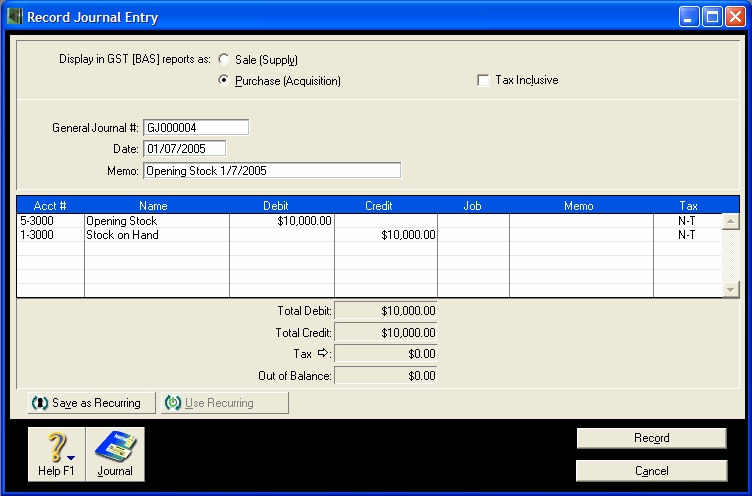
- During the month, record your purchases and sales as per usual. Make sure that the allocation account used for Service purchases is the Purchases (Cost of Sales) account.
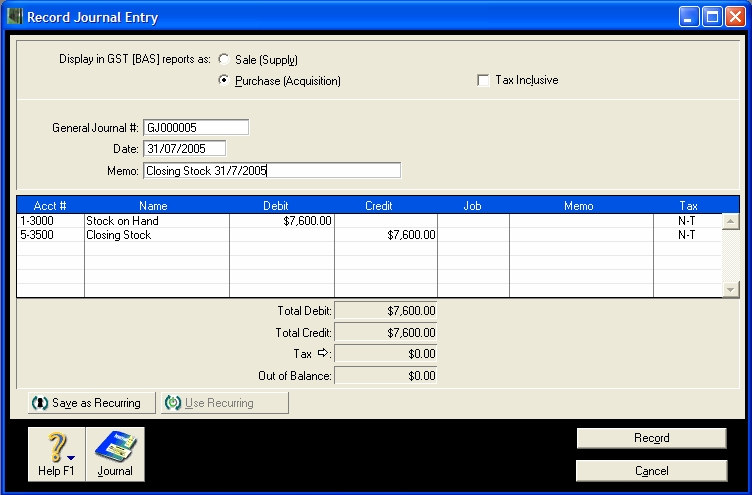
- On the last day of the month, perform a stock—take and value the level of stock on hand. Enter a General Journal entry to record the level of stock on hand at the end of the month. Debit the Stock on Hand (Asset) account for the amount determined in the st0ck—take and credit the Closing Stock (Cost of Sales) account.
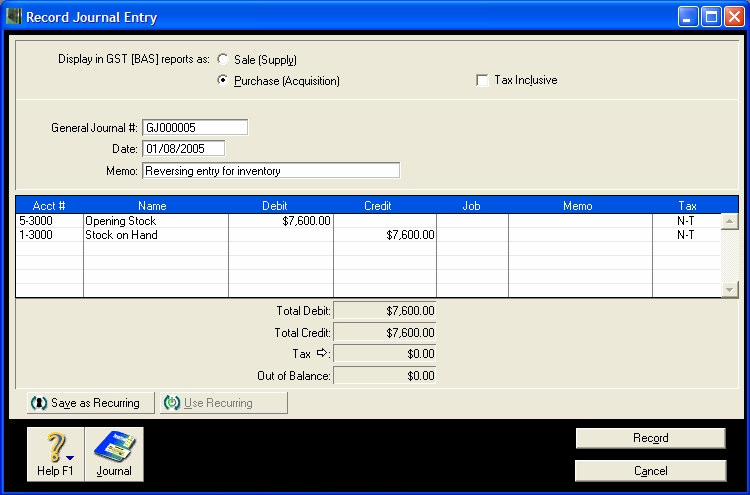
- On the first day of the next month, create a General Journal entry to reverse the closing stock entry. Debit the Opening Stock (Cost of Sales) account for the same amounts entered as the previous month's closing stock and credit the Stock on Hand (Asset) account.
- Prepare a ‘13th period adjustment‘ to reverse the impact on the opening stock and closing stock expense accounts. If the 13th period adjustment is not done, the opening and closing stock will increase every time an end of month journal entry is entered. To correct this, you need to debit the Closing Stock (Cost of Sales) account for the same amount as entered in steps 5 and 6 and credit the Opening Stock (Cost of Sales) account.
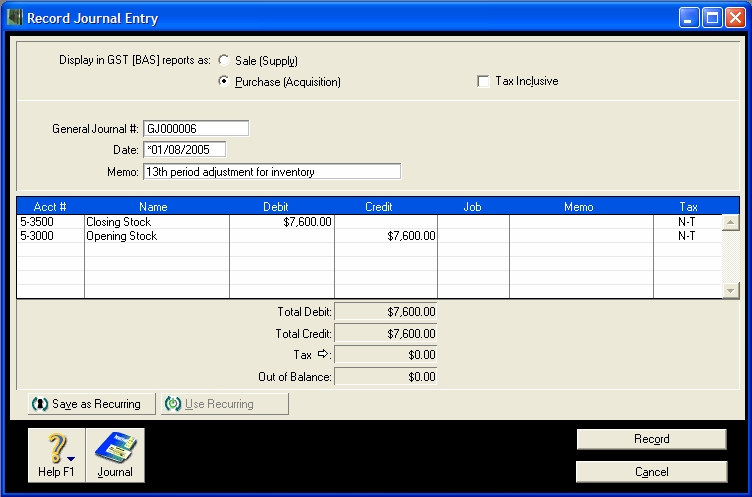
- Note: The journal entry must be a ‘13th period adjustment'- (i.e. an asterisk (*) must be entered before the date and the date should be the same as entered in step 5).
- By entering this adjustment as a 13th period transaction, the adjustment will be isolated from normal trading transactions and can be included or excluded from your Profit and Loss report.
The ‘Cost of Sales’ figures are now correct and you will now be able to produce accurate monthly Profit and Loss and balance sheet reports. In order to reflect the true ‘Year to Date’ figures for your Profit and Loss reports you must filter the report to include the 13th period adjustments.
How are 13th period transactions reported?
13th period transactions can be reported by themselves, or they can be included with the conventionally dated transactions on a YTD basis.
When filtering reports and transaction listing, you will need to be mindful that the 13th period transactions won’t be included if an asterisk isn't used in the report Date field.
13th period transactions can be reported by themselves, or they can be included with the conventionally dated transactions. However when viewing 13th period transactions along with conventional dated ones they will only be shown as part of a YTD value.
Reporting transactions in both the conventional twelve periods AND the 13th period will reflect 13th period entries in the YTD balance regardless of the ‘To’ date selected. It will not reflect partial months/partial years of 13th period entries.
The 13th period cannot be reported as part of normal daily, weekly or monthly P&L and can only be reported on its own or as part of a YTD value.
To report transactions in both the conventional twelve periods AND the 13th period
Enter an asterisk in the To Date field ONLY.
To report transactions within the conventional twelve periods
D0 NOT enter an asterisk in either of the Date fields
To report transactions within the 13th period ONLY
Enter an asterisk in BOTH the From and To Date fields
Comments
0 comments
Please sign in to leave a comment.