

This support notes are suitable for:
- ABSS Accounting
- ABSS Premier
|
Introduction The new versions of MYOB software released in 2003 now have an additional feature of an Items Register. This register allows the user to view and drill into all inventory transactions, including inventory adjustment journals. These journals can then be edited or reversed/deleted as required. This support note gives an outline of this new feature. |
What is the Items Register?
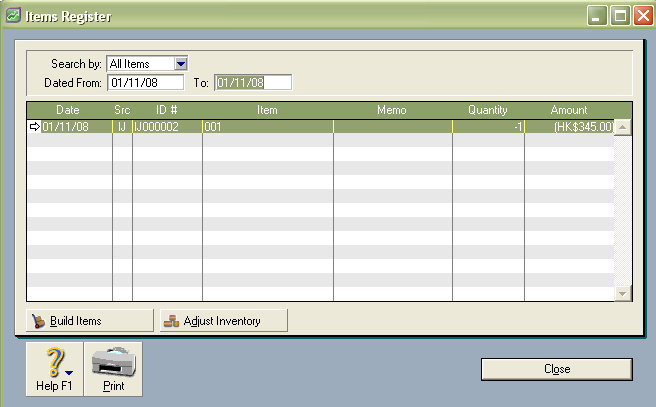
The Items Register displays all inventory transactions, being sales, purchases, transfers and adjusts inventory journals. There are filters available for item searches and date range. Once the filters have been set, all journals within the filtered range will be displayed with either a clear or grey arrow to the left of the date, depending on the security settings chosen. The Src (Source) column shows what function was used to create the journal (for example S] stands for Sales journal).
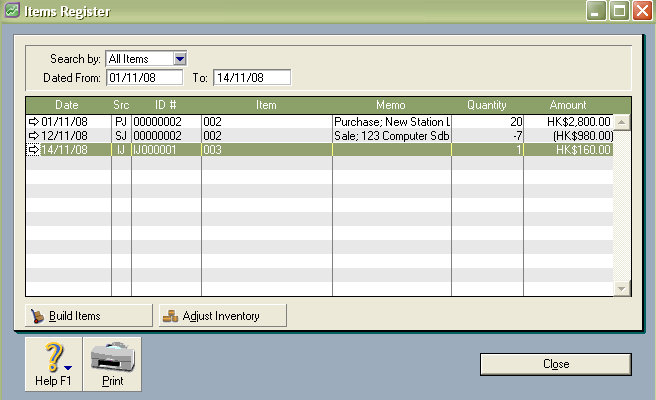
The arrow next to the journal date can be clicked in order to drill into the transaction, just as in other areas of the program. The journal can then be edited, reversed or deleted as required using the Edit menu, again depending on the security settings chosen in Preferences. The Transfer Inventory button at the bottom of the Items Register window is a shortcut to the Transfer Inventory function. Similarly, the Adjust Inventory button, also at the bottom of the Items Register window is a shortcut to the Adjust Inventory function.
What is an example of how to use the Items Register?
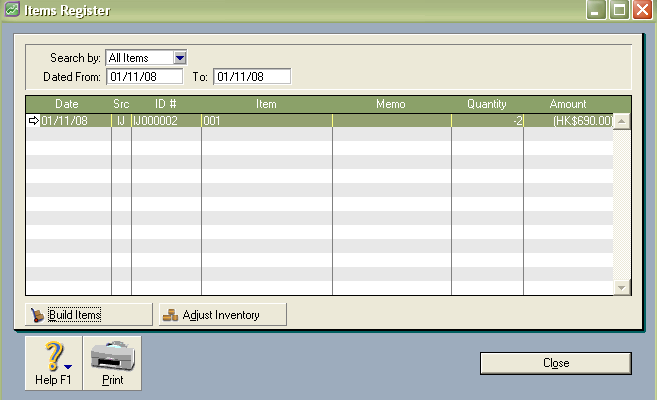
An inventory adjustment was performed on the 1/11/2008 on item number 100 (Large Cooler). The adjustment involved reducing the stock of this item by 2 units which were taken to be damaged beyond repair. Subsequently, on 10/11/2008 it was discovered that one of the units could be repaired. It was decided that the inventory adjustment created on the 1/11/2008 should be altered so that only 1 unit is written off from stock.
- Go to the Inventory command centre and click Items Register. Use the Search By: and/or the Dated From: search functions to find the inventory adjustment performed on I/I I/2008. The adjustment journal will then appear in the Items Register window.
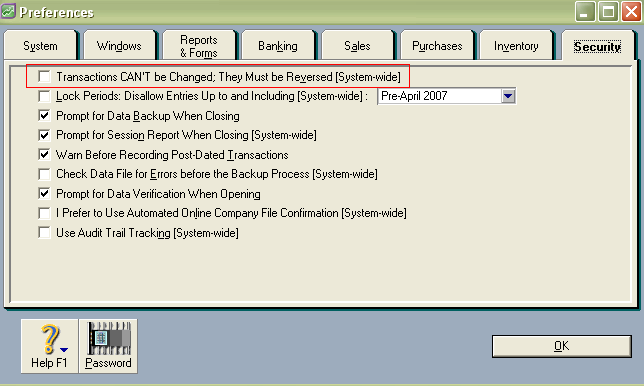
- Go to the Setup menu choose Preferences click the Security tab and make sure that the preference ‘Transactions CAN‘T be Changed; They Must be Reversed [System - wide]' is NOT ticked.
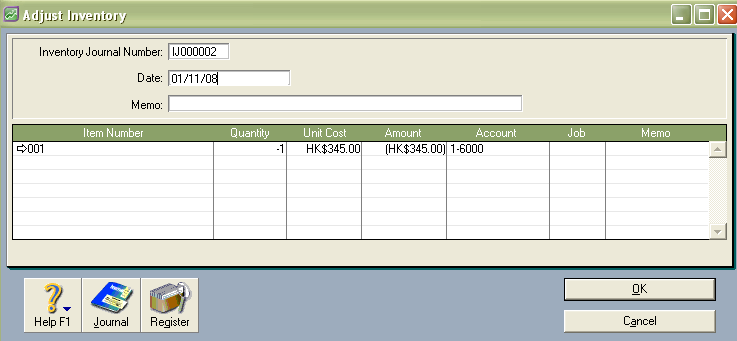
- Click the white arrow next to the date for the journal. The Adjust Inventory window appears. Click or tab through to the Quantity field that currently shows -2. Change this figure to -1, then click the OK button at the bottom right of the window. The Items Register will then be displayed, showing the adjusted transaction. Click the Close button if there are no more journals requiring attention.
Step 1 Find inventory adjustment journal
Step 2 Check Preferences
Step 3 Edit inventory journal
Comments
0 comments
Please sign in to leave a comment.