

This Support Notes is suitable for:
- ABSS Accounting
- ABSS Premier
|
Introduction ABSS Accounting Software will not allow transactions to be recorded that would result in negative on-hand quantities or dollar values. For this reason, attempts to record certain transactions will result in a negative inventory balance alert under certain circumstances. This support note outlines these scenarios and the procedure you need to follow to enable you to record the transaction you require. |
Can my inventory go into a negative balance?
A negative inventory balance alert is displayed when trying to record transactions that would result in a negative inventory balance.
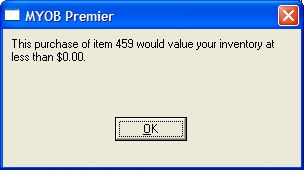
ABSS will prevent these transactions from being recorded so that your inventory quantity/dollar value can never be less than zero.
A negative inventory balance would occur if:
- The item's quantity and/or total dollar value were less than zero.
- The item's quantity was zero and its total dollar value was greater than zero.
Under what circumstances will the negative inventory alert be displayed?
Any of the following transactions will result in a negative inventory alert:
- An item type purchase debit note (negative purchase) which exceeds either or both the quantity/dollar value of an inventoried item.
- Editing, reversing or deleting a recorded item purchase order which exceeds either or both the quantity/dollar value of an inventoried item.
- Editing, reversing or deleting an item type sale credit note (negative sale). This will remove items from inventory, and as such, the credit note must not remove more quantity/dollar value than is on hand.
- An Inventory Adjustment that attempts to adjust an item's quantity/dollar value too less than zero.
- An Inventory Transfer which attempts to adjust an item’s quantity/dollar value to less than zero
What steps do I take to overcome this alert?
The general steps to overcome a negative inventory alert are:
- Print the Items List [Summary] report, filtered for the affected item(s).
- Calculate the difference between the report values and the transaction being entered.
- Record an Inventory Adjustment to increase the quantity/dollar value of the item(s).
Step 1 - Print the Items List [Summary] Report
This report will provide you with the current quantity and dollar value for the affected item. By comparing the report values with those of the transaction, the negative amounts can be calculated.
- Go to Reports, choose Index to Reports and click the Inventory tab.
- Click the Item List Summary report and click Customise.
- Select the item(s) you want included in the report.
- Click the Finishing tab of the Report Customisation window and mark the option to Include Zero Quantities. In earlier versions this option appears in the main customise report window.
- Click Display.
Step 2 - Calculate the difference between the report values and the transaction being entered
Compare the quantity and value of the item from the Items List report, with those of the transaction. You will see that the quantity and/or value of the item on the transaction will exceed that of the report. Or, the quantity will be the same, but the dollar value will be greater or less.
For instance, Clearwater Pty Ltd want to return some chipped glasses to their supplier. 50 glasses need to be returned at a cost of $0.25 (tax exclusive). When they try to record the purchase debit note (a negative purchase), a negative inventory alert is given.
Note: item cost is always tax exclusive.
This window shows the Items List [Summary] report, filtered for the glasses:
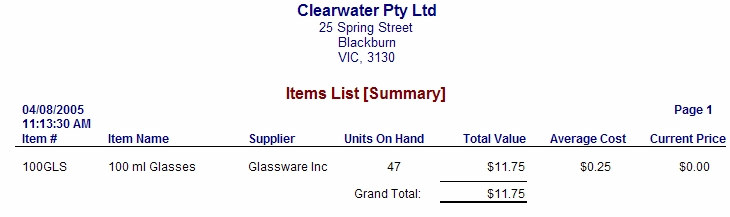
Comparing the purchase debit note, as shown below, with the Items List [Summary] report, you can see that if the debit note was recorded, the quantity of glasses would drop to negative 3, and the total value of the glasses would drop to negative $0.75. As both these values are less than zero, ABSS will prevent the purchase debit note from being recorded.

From the comparison, the necessary adjustments can be calculated.
- The quantity needs to be increased by 3 glasses; and
- The total value needs to be increased by $0.75
Step 3 - Use an Inventory Adjustment to increase the quantity/dollar value of the item(s)
An Inventory Adjustment is used to increase the quantity/dollar value of the item(s). The amounts will be that of the previous step.
If you are using Premier 5 and earlier versions or Accounting/Plus 12 and earlier versions, please note:
Because inventory adjustment transactions can't be edited, deleted or reversed in these earlier versions, you should take a back up of your company file before you continue.
The contents of an inventory adjustment can't be viewed once they have been recorded. The only visible information for these transactions is the Memo, which is included in the Inventory Journal report. Therefore, enter a detailed memo that reflects the content of the transaction.
- Go to Inventory and click Inventory Adjustments.
- Enter the Date and Memo. Enter the Item Number and the Quantity. This will be the difference amount. If the quantity doesn't need to be adjusted, enter zero.
- Enter the difference calculated in the Amount field. If the amount doesn’t need to be adjusted, enter zero.
- Enter the allocation account. The most appropriate account will be the item’s linked Cost of Sales account, or a shrinkage expense account.
Note: Do not use the linked inventory asset account for the item as it may cause your inventory to become out of balance. For more information, please refer to our Support Notes titled Inventory Adjustments Summary, or Inventory Adjustments Detail.
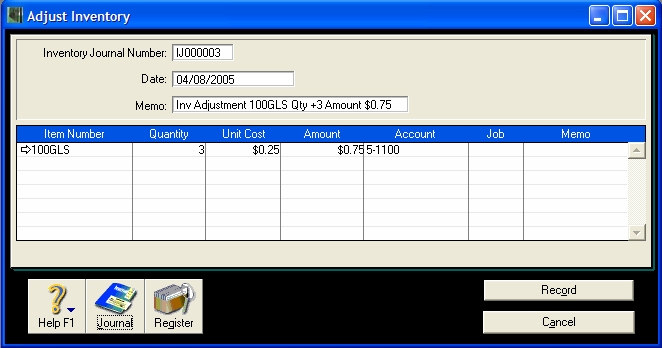
After entering the Inventory Adjustment, you will be able to record the purchase debit note or negative purchase.
Why would the quantity of my inventory in ABSS be lower than actual?
One cause may be if the number of items per selling unit is incorrectly set-up. Open the item information screen and check the Number of Items Per Selling Unit values. If for example 2 is entered as the Number of Items Per Selling Unit, then, entering 1 in the Ship field of an item invoice, will remove two items from inventory.
Why would the value of my inventory in ABSS be lower than actual?
When items are inventoried, ABSS values inventory using the average costing method. The formula for calculating an item’s average cost is:
- Average Cost = Total Value of the item, divided by the Total Quantity of the items.
For example, a purchase of 10 items for $10.00 (tax exclusive) will result in an average cost of $10.00 per item. If the following day another 10 items were purchased for $12.00 (tax exclusive), then:
- The total quantity of the items on hand = 20 items
- The total value of the items = $220.00.
- The average cost of the items = $11.00 ($220.00/20)
If after the second purchase, 10 items were sold, the 10 remaining items would retain their average cost of $11.00 ($110.00 Total Value). If the remaining 10 items were to be returned to the supplier at a price of $12.00 each ($120.00 Total Value), then the debit purchase note will result in a:
- Zero quantity and
- A less than zero dollar value.
Because of the less than zero value, the negative inventory alert will be displayed. To correct this, an Inventory Adjustment will first be needed to increase the Total Value of the items. The inventory adjustment will show zero quantity, a zero unit cost and a positive $1.00 in the amount column.
What else will cause a negative inventory alert?
As stated earlier, ABSS uses the average cost to value inventoried items. Therefore, if purchases and sales of inventoried items are not entered in the order they actually occur, the average cost of the items will be affected.
For example:
- 1/1/03 - 10 items purchased for $10.00 each. Therefore, the average cost of the items is $10.00.
- 2/1/03 - 3 items sold. The average cost of the items remains unchanged at $10.00. This can be calculated by dividing the total value of the items by the quantity of items on hand; $70.00 / 7 items = $10.00.
- 3/1/03 - 10 items purchased for $12.00 each. There are now 17 items on hand. The total value of the items is $70.00 + $120.00 = $190.00. The average cost of these items is now $190.00/ 17 items = $11.18
If the two purchases were entered before the sale, then the resultant average cost of the Widgets would be as follows:
- Enter both purchases - Average cost of items = total value ($220.00) divided by the quantity (20 items) = $11.00
- Enter the sale - The average cost of the items will be unchanged at $11.00. Total value = $187.00 divided by quantity 17 items = $11.00.
From this example, you can see that the average cost of an item is affected by the order in which sales and purchases are recorded. In some cases, this can result in a negative inventory alert when returning items.
Comments
0 comments
Please sign in to leave a comment.