

This Support Notes is suitable for:
- ABSS Accounting
- ABSS Premier
|
Introduction If you run the Inventory Value Reconciliation report for a given date and it reports an out of balance amount, you need to identify the day the out of balance occurred. This in turn will enable you to determine which transaction caused the out of balance. To determine the date the inventory went out of balance run the report several times narrowing the date range each time until you identify the day the out of balance occurred. This will enable you to identify the specific transaction that has caused the imbalance. You can then take steps to correct the transaction. |
The Inventory Value Reconciliation report shows the quantity of inventory items on hand and the value of the inventory on hand as at the filtered date of the report. This value is obtained from the Items List. The report also shows the inventory account balance as at that date.
At all times, the Inventory Value amount should equal the Account Balance. If they do not match, it indicates that the inventory values are out of balance, and the cause of this will need to be investigated.
A great feature of the Inventory Value Reconciliation report is that it allows you to obtain inventory balances at any point in time, including past dates.
Important:
- If you have upgraded from MYOB Accounting v12, MYOB Accounting Plus v12, MYOB Premier v6 or MYOB AccountEdge v2 or earlier, you should not use the Inventory Value Reconciliation report for periods prior to the date you upgraded.
- Item purchases, item invoices or inventory adjustments that were recorded with a forward date before upgrading may cause the Item Value Reconciliation report to be out of balance.
What does the new report look like?
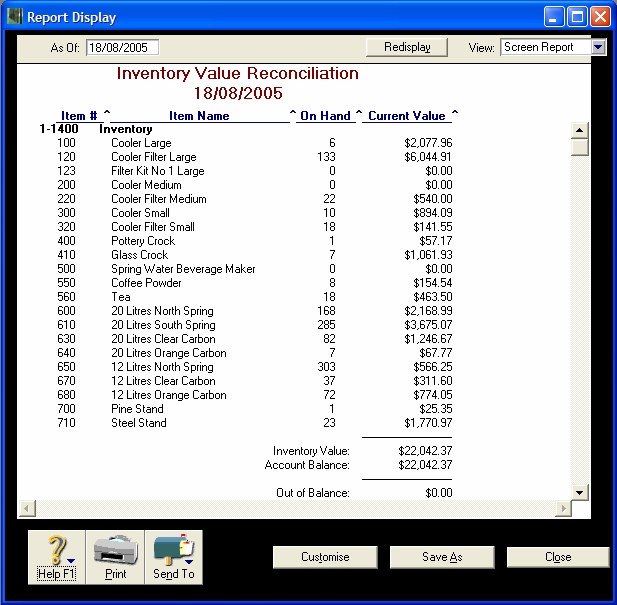
The screenshot below shows the information contained in the Item Value Reconciliation report. To display this report, go to the Reports menu, choose Index to Reports, click the Inventory tab and click the Inventory Value Reconciliation report. Click Customise and enter a date at which inventory balances are required in the As Of: field. For example, the following report has been filtered as of 18/8/2005.
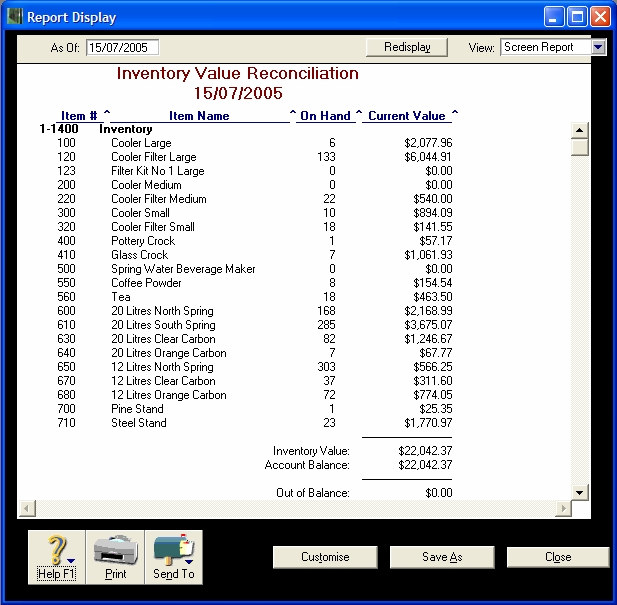
The Current Value column lists the value of all of the inventory items as of the 18/8/2005 according to the Items List. The total of this column is shown as the Inventory Value amount at the bottom of the report. Directly below this is the Account Balance field, which is the balance of the inventory asset account (in the Accounts List) as at the filtered date. As both values are the same ($22042.37) for 18/8/2005, the Out of Balance field shows as $0.00.
Tip: Click Customise and then click Report Fields to add additional columns to the report, such as the average cost and selling prices of the inventory items.
What should I do if the inventory is out of balance?
The Inventory Value Reconciliation report should be checked on a regular basis, for example, weekly or monthly, to see if the inventory is in balance. If the inventory is out of balance, then most likely an incorrect transaction has been entered into the company file.
Follow the procedure below to find and correct an inventory out of balance situation:
- Backdate the Inventory Value Reconciliation (for example, one week) until you find the date at which the inventory was in balance.
- When this point in time is found, start filtering the report forward in time at shorter intervals (for example, one day), to find the exact date that the out of balance occurred.
- Perform a Find Transaction account inquiry on the inventory asset account to find the offending transaction(s). The usual causes of an out of balance situation are:
- Allocating general journal entries to the inventory asset account. This should never be done - any inventory adjustments should be performed using the Item Sales, Item Purchases or Adjust Inventory functions.
- Using the inventory asset account as the allocation account in a Sale, Purchase, Spend Money, Receive Money or Adjust Inventory transaction. This should never be done. The only exception is when creating inventory adjustments to enter opening inventory balances or when recording auto-build transactions.
- Linked accounts being set up incorrectly. For example, the linked asset account for the Item Inventory in the item profile may be incorrectly linked to an account other than your inventory asset account 1—XXXX.
- Alternatively, incorrect linked accounts may have been selected elsewhere. For example, the inventory asset account may have been incorrectly set up as the linked Cheque Account for Electronic Payments. This would mean that incorrect journal entries would be going to the inventory asset account. To check linked accounts, go to Setup choose Linked Accounts and click the linked accounts option for the various modules of your command centre.
- The above transactions cause the inventory to go out of balance because either the asset account or the item record is updated with the value of the transaction - not both.
- Once an incorrectly entered transaction has been found, edit, delete or reverse it. Once the errors have been corrected, the inventory should be balanced.
Tip: Transactions entered in a previous financial year cannot be deleted or edited once the Start a New Financial Year procedure has been completed. You would need to record a reversing entry dated in the new financial year.
Example
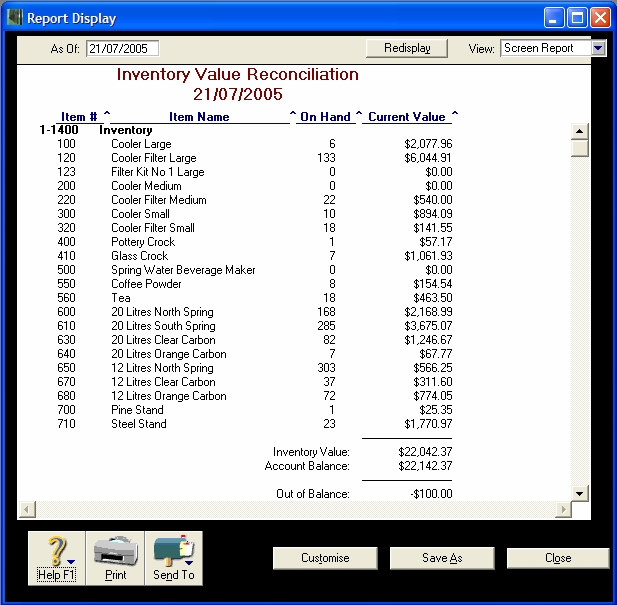
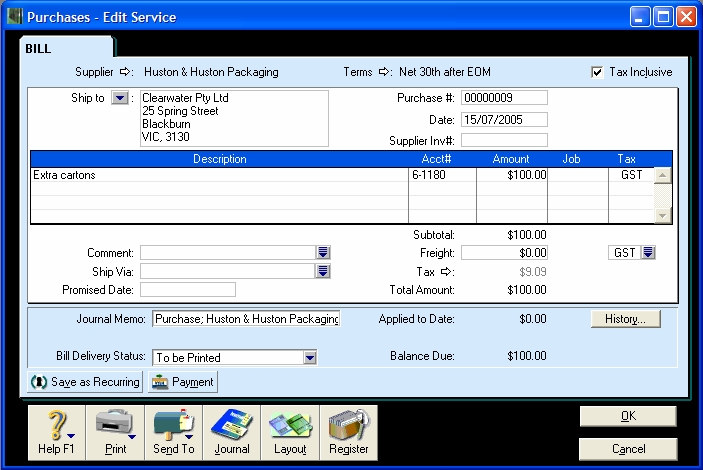
The accounts clerk at Clearwater Pty Ltd has accidentally allocated a $100 purchase (of Service type) to the inventory asset account 1-1400. This transaction causes the inventory to be out of balance since the Inventory Asset account 1-1400 has increased by $100 but the value of the individual items has not, as shown in the report below.
Step 1 — Backdate the Inventory Value Reconciliation report to find when the inventory was last in balance
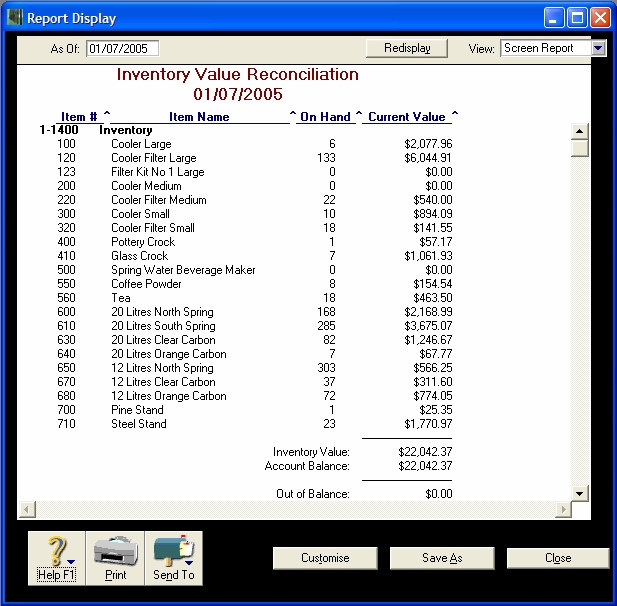
The accounts clerk finds that on the 1/7/2005, the inventory was balanced, as shown in the report below
Step 2 - Filter the Inventory Value Reconciliation report forward in time to find when the inventory first went out of balance
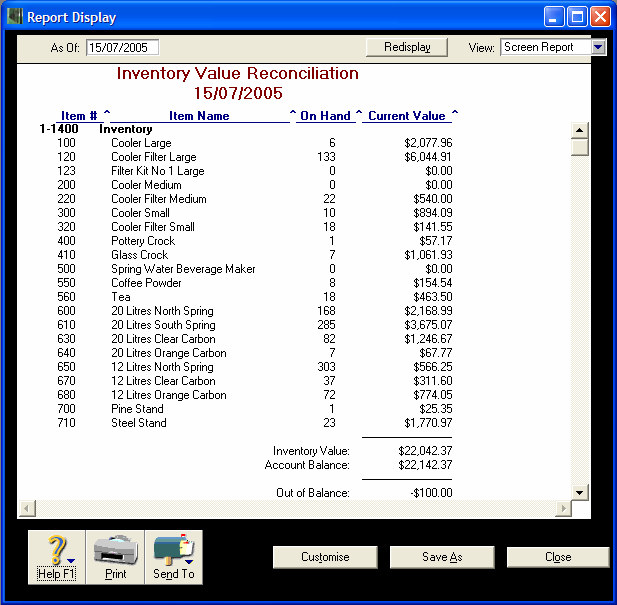
The accounts clerk finds that the inventory went out of balance on 15/7/2005 as shown In the report below.
Step 3 - Perform an account inquiry for the inventory asset account to find the erroneous transaction(s)
Using the Find Transactions window, the accounts clerk finds the purchase that caused the inventory to be unbalanced on the 15/7/2005. Note that the allocation account is currently 1-1400.

Step 4 - Edit the incorrect transaction
Using the Find Transactions window, the accounts clerk clicks the zoom arrow for the purchase and changes the allocation account to the correct account, in this case it is expense account 6-1180.
If the Inventory Value Reconciliation report is redisplayed for 15/7/2005, the inventory balances are now balanced, as shown in the report below.
Comments
0 comments
Please sign in to leave a comment.