

This Support Note is suitable for:
- ABSS Accounting
- ABSS Premier
|
Introduction The inventory auto-build function enables you to automatically build inventory items consisting of more than one sub-component. For example, a manufacturer of bicycles will have a number of components which go to make up each bike, such as tires, brakes and pedals. This enables the manufacturer to keep track of their inventory of finished goods and components. This support note guides you through the auto-build process. |
How do I auto-build finished goods in my MYOB software?
There are 2 stages:
-
Create auto-build items specifying the components required.
-
Use those auto-build items to quickly create finished items.
Step 1 - Create a new auto-build item
-
Go to the Inventory command centre and click Items List. The Items List window is displayed.
-
Click the zoom arrow of the item you want to auto-build or click New to create a new item. The Item Information window is displayed. If the item is new, enter the item name, number and other details.
-
Please note: In order for an item to be eligible for Auto-Build, it must be marked I Inventory This Item.
-
-
Click the Auto-Build tab.
-
Enter the minimum level of the item you want to have in stock before you re-order (or re-build) the item in the Minimum Level for Restocking Alert field.
-
Click on the item number blank column. The Auto-Build Information window is displayed.
-
Specify how many units of the item the listed components will make in the List what it takes to build field. If bulk quantities of materials are purchased to build an item, it may be easier to specify the materials required to build a larger quantity of the item, such as ten or a thousand.
-
For example, a batch of orange drink is produced by combining 700 litres of mineral water and 300 litres of orange pulp. There is a minimum production quantity of 1000 litres which are then sold as one litre bottles. Therefore, you would enter 1000 into the List what it takes to build field.
-
-
Enter the item details of each of the components. Click in the Item Number column and press TAB. Your Items List is displayed. Highlight the first item required to build the new item and then click Use Item. The item number and name are displayed in the Auto-Build Information window. In the Quantity field, enter how many of the components are required to build the specified quantity of the item.
-
Note: Only items that are marked I Inventory This Item in the Item Information window can be selected as auto-build components.
-
-
Repeat the previous step for each of the components required to build the new item. Click OK when you have entered them all.
-
Click OK to the Item Information window.
Step 2 - Auto-build a finished item
-
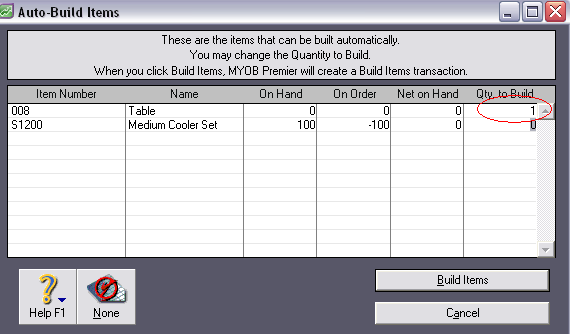
Go to the Inventory command centre and click Auto-build Item. The Auto-Build Item window is displayed.
-
Enter the number of finished goods you wish to produce in the Qty. to Build field.
-
Note: if you have entered a value greater than one in the List what it takes to build field of the item‘s auto-build tab, you can only build that quantity or multiples of that quantity. Referring back to the orange drink example, you can auto-build 1000 litres or 2000 litres but not 1500 litres.
-
-
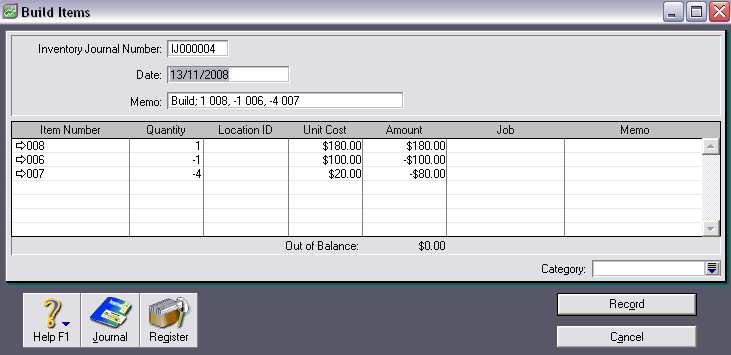
When you click Build Items, the Build Items window displays the details of the transfer that will occur when the finished item is built. Review the entries in this window to make sure the quantities, unit costs, and total inventory values are correct. Note that the quantities of the components in the list are displayed as negative numbers, while the quantities of the finished items in the list are shown as positive numbers.
-
Click Record to record the inventory transfer and update your inventory quantities and values.
Example
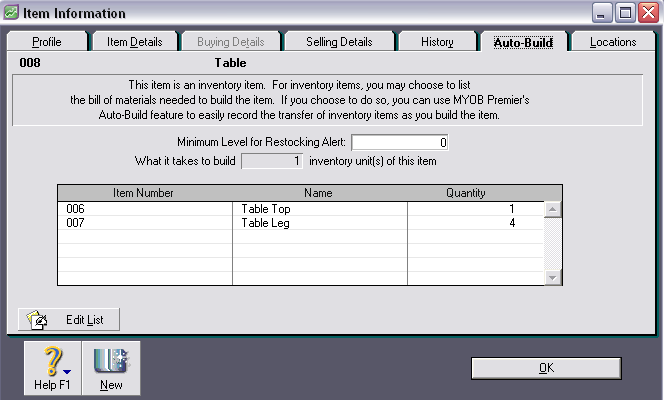
A furniture manufacturer sources components from a supplier and assembles tables. Each table consists of one table top and four legs. The business assembles one finished table and wishes to reflect this in their MYOB accounting software.
Step 1 - Create a new auto-build item - Finished Table
Step 2 - Auto-build one table
Notice how in the Build Item screen below one table top and four legs are being deducted from stock on hand of each item and one finished table is being added to stock. Note also that the Unit Cost for each of the components is the average cost of that stock item, and the unit cost for the auto-build finished bike item is the sum of the unit costs for all of the components. In this case it is $45.
Comments
0 comments
Please sign in to leave a comment.