

This support notes are suitable for:
- ABSS Accounting
- ABSS Premier
|
Introduction When computers are networked to share resources, a network protocol is used for communication between the machines. A network Protocol is a piece of software that defines a standard for messages to be transported across a network. Premier always looks for a specific protocol to transport messages to the other users logged into a data file. Premier now supports TCP/IP as a protocol for this messaging. This support note explains how to set up this protocol. |
How do I check if I have the TCP/IP option when logging into Premier?
If TCP/IP is setup on your Local Area Network (LAN) you should already be able to run Premier with TCP/IP as the selected protocol. If not, each machine needs to have TCP/IP setup with a unique IP address. The rest of this document contains information regarding installation and setup of TCP/IP, and answers to some common questions. Whenever possible, please consult your Network Administrator or IT Consultant for advice.
The below window shows the Premier Sign-on dialogue box as displayed on an PC (Windows).
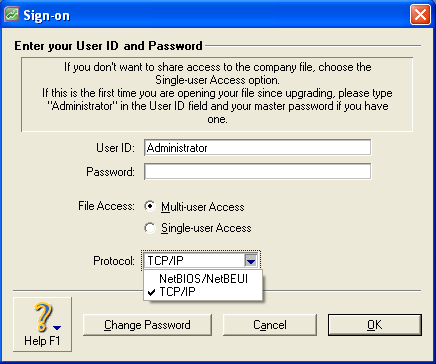
If TCP/IP is setup on your Local Area Network (LAN) you should already be able to run Premier with TCP/IP as the selected protocol. If not, each machine needs to have TCP/IP setup with a unique IP address. The rest of this document contains information regarding installation and setup of TCP/IP, and answers to some common questions. Whenever possible, please consult your Network Administrator or IT Consultant for advice.
We are providing you with this information to assist you setting up TCP/IP, however if you are having any problems with its configuration you will need to consult your IT Consultant or Network Administrator.
How do I set up TCP/IP if I am using Windows?
Click on Start > Settings > Control Panel.
Double-click on the Network icon to display the Network dialog box and click on the Configuration tab.
How do I check to see whether or not TCP/IP is installed on the Premier workstation?
- If TCP/IP is on this list, TCP/IP is installed and you more than likely have TCP/IP set up already.
- If TCP/IP is not on the list, TCP/IP is not installed. You will need to click Add, and install TCP/IP from your Windows CD.
Note: When you install a protocol, it will automatically assign itself to an adapter. In the example below, there is a Dial Up Adapter, which is used for a modem, and a network adapter, which is used for your local area network. Your network adapter may be different to the one shown in the above example. Also, If TCP/IP is only assigned to one adapter, you will only see 'TCP/IP' in the list.
Select TCP/IP > (Your network adapter), click the Properties button and select the IP Address tab.
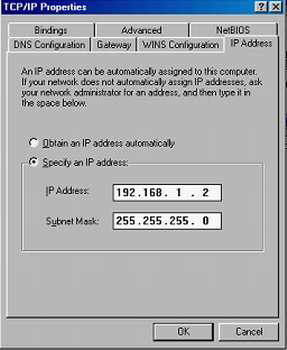
Specify your IP address. If the option to ‘Obtain an IP address automatically‘ is already selected, it means that you either:
- Have a DHCP server handling your IP; or
- You are setting up TCP/IP for the first time.
If you do have a DHCP sewer handling your IP address, click OK.
If you are setting up TCP/IP for the first time, choose the option 'Specify an IP Address' and enter a valid IP address and Subnet mask as shown in the example and then click OK.
How do I set up TCP/IP if I am using Windows NT/2000/XP
- Click Start > Settings > Control Panel.
- Double-click on the Network icon to display the Network dialog box and click on the Protocols tab.
- Check to see whether or not TCP/IP is installed on the Premier workstation.
- If TCP/IP ls on this list, TCP/IP is installed and you more than likely have TCP/IP set up already.
- If TCP/IP is not on the list, TCP/IP is not installed. You will need to click Add, and install TCP/IP from your Windows CD.
- Select TCP/IP Protocol, click the Properties button and select the IP Address tab on the Properties dialog box
- Select your network adapter (not your dial-up adapter) from the Adapter drop-down list.
- Specify your IP address. If the option to ‘Obtain an IP address from a DHCP sewer‘ is already selected, it means that you either:
- Have a DHCP server handling your IP address for you or
- You are setting up TCP/IP for the first time.
- Note: If you do have a DHCP server handling your IP address, click OK.
- If you are setting up TCP/IP for the first time, choose the option ‘Specify an IP Address‘ and enter a valid IP address and Subnet mask. Click OK
- When the Network window is displayed. Click OK.
- Repeat the above steps for each Premier workstation and sen/er (or where the file is stored).
ADDITIONAL INFORMATION
TCP/IP Addresses
Before you start using TCP/IP for the first time, you will need to spend some time planning its configuration. TCP/IP requires a unique IP address to be entered for each computers network adapter, if you are manually assigning each computer‘s address you may want to keep these in a log.
The first thing you need to do in setting up your TCP/IP is to ensure that it has been installed.
IP addresses are controlled by a US body called lnterNlC, they allocate unique ranges IP addresses for networks around the world, usually Internet Service Providers are assigned a range of IP Addresses which they then handle for their customers who use their services for the Internet.
For a private Local Area Network (the network does not span outside of your building), you will not need to apply for a range of IP address. There are a range of IP Addresses that have been reserved for Private Networks and this is what you should use. Below is a series of valid IP Addresses:
IP Address
- 192.168.1.1
- 192.168.1.2
- 192.168.1.3
- 192.168.1.254
This allows you to have up to 254 IP addresses defined on your network. Remember that an IP Address is specified for each of your Network Adapters, (you probably only have one, plus a Dial Up if a Modem is Connected to that machine) and must be unique for each of your machines.
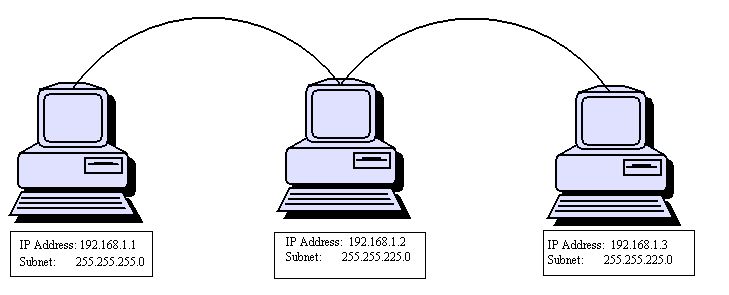
You also need to specify a Subnet Mask, this will be the same for each computer. A valid subnet mask for the IP Addresses suggested above is: 255.255.2550.
Below is a diagram where there are three computers networked. Each have a unique IP Address and they all have the same Subnet Mask.
See the Priority Kit shipped with your product, for the above information on how to enter the IP Address, on Windows (page 12), Windows NT (page 13) and on your Macintosh OS (page 18).
The IP Address that you specify for you computer's Local Network Adapter is different from your IP address that you use if you have a Dial Up adapter for the Internet, this is handled by you Internet Service Provider.
What is a DHCP Server?
A DHCP (Dynamic Host Configuration Protocol) server assigns an IP address for your machine every time it is started, so you do not have to worry about setting up your IP addresses.
Note: If you are unsure as to whether or not you use a DHCP server, consult your Network Administrator.
Useful Trouble Shooting Utilities with TCP/IP on Windows
If you are having problems with your machines communicating with each other across the network, there are a number of utilities that you can use to provide information about your TCP/IP set up. This can assist in resolving these problems.
IPCONFIG / WINIPCFG
If you are unsure what your computers IP address is (this is useful if you have a DHCP server) you can use IPCONFIG (for Win NT and Windows) or WINIPCFG (for Win 95). This will display information regarding your network adapter‘s serial number, IP address, Subnet Mask, and Default Gateway (if you have a router).
To use IPCONFIG go to your Command Prompt or MS Dos Prompt (Under Start> Programs) and type
IPCONFIG or WINIPCFG (for Win 95)
The information that will be most useful to you is the IP Address. Once you know the IP address of the machines on your network, you can then use the PING utility to ensure that there is a physical connection between the two machines.
How do I check my computer's TCP/IP is set up correctly?
To verify your computer‘s TCP/IP is set up correctly, go to your Command Prompt or MS Dos Prompt and first try to PING your own computer to ensure that you have entered a valid IP address.
Example: If your computer‘s IP Address is 192.168.1.1, then at MS DOS Command Prompt type: PING 192.168.1.1
Getting the message 'Reply from 192.168.1.1' will mean that your IP address is configured properly on your machine.
You also need to ensure that you can ‘P|NG' other computers on your network, follow that same procedure to PING other machine's IP Addresses on the network. If you get any messages similar to ‘Request Timed Out‘, this means that you were unable to successfully communicate with that machine. This may be possibly due to an invalid IP address, or another physical break down. Other things to check are:
- Make sure your computer was restarted after you have configured your TCP/IP protocol
- You have entered the TCP/IP address correctly
- Consult your Network Administrator or IT Consultant if you are having trouble with your TCP/IP set up.
Frequently Asked Questions about TCP/IP
What if I already have access the Internet and want to run Premier using TCP/IP?
Windows users
If you connect to the Internet via a modem you will have a separate copy of TCP/IP installed for your modem (Dial-Up Adapter). The Dial-Up Adapter will have its own IP address, and is not affected by your copy of TCP/IP that is bound to your local network adapter, to be used for Premier.
All users
If you connect to the Internet via your company‘s network your computer already has TCP/IP set up.
Will I still need to keep NetBEUl to run Premier?
No. Once you have set up TCP/IP and have successfully logged into Premier using TCP/IP, you can remove NetBEUl, providing that you do not need it for any other application. Consult your network administrator if you are unsure.
How do I select which protocol to use with Premier?
When you log into Premier you will notice a new option for 'selected protocol' on the log in window, when multi-user mode is selected. This allows you to select the protocol to use for your Premier session. The ‘selected protocol‘ will be either NetBlOS/NetBEUl or TCP/IP on Windows. On Macintosh you will have the choice between AppleTalk and TCP/IP.
What if I log into Premier using a different protocol to other users?
If someone else is already logged in to the data file with a different protocol, you will be prevented from logging in. All users accessing the same data file must select the same network protocol.
With TCP/IF can I use Premier on Macintosh and Windows machines at the same time?
Windows users
Yes. If you have Macintosh services enabled on your Windows NT Server you will be able to access the data file from both Windows and Macintosh machines.
All users
If TCP/IP is selected, both Windows and Mac users will have access to the same data file at the same time.
Comments
0 comments
Please sign in to leave a comment.