

This support notes are suitable for:
- ABSS Accounting
- ABSS Premier
|
Introduction Some users have received the error message 'Unable to open file; file may be locked or in use...' when attempting to open their MYOB Company file. A related message other users may receive is 'The file you have chosen is not an MYOB data file'. This support note outlines potential causes for these messages and how to rectify the situation. |
Unable to open file message: Causes and solutions
Lock Files
A common cause for this message is the presence of ‘lock files‘ in the location where the Company File is stored. These files are created by the system during an MYOB session to manage multi-user. Ordinarily these files are automatically deleted when the session ends. However, an abrupt termination of an MYOB session can result in one or more of these files remaining in the system.
To rectify this, it is a simple matter of deleting these Lock Files. Search for any files with an extension of *.FLK in the location of your Company file and delete them.
For more information on finding and deleting lock files please refer to support note Lock Files.
The company file is set to ‘Read-only‘ or ‘locked’ on a Macintosh system
Has your file been copied from a CD-Rom? Even if it hasn't, it is possible that your company file has been marked with the ‘Read-only‘ attribute.
To check this and remove the attribute if necessary on a PC:
- Go to the location on your computer or network where the company file is stored.
- Right-Click the file and choose Properties.
- Clear any marks from the Read-only check box, click Apply and 0K.
The folder in which stores the company file is not fully shared
If the company file is shared through network access to a shared folder, this folder must be fully shared and all users of the company file must have full access to the folder.
The windows user account identifies a person to a computer system or network. Each user account can be set to allow or restrict users from certain areas of the computer system.
MYOB strongly recommends that you log onto your system with Administrator or Power User type access. Both of these window user account types have high-level access privileges.
Window user accounts set with limited access may experience difficulties in using some of the advanced features within MYOB. For example, it may stop them from using the OfficeLink function to create bulk letters, sending reports from MYOB to Excel or using the MYOB ODBC Direct Driver.
To determine a Window User Account‘s Access Privileges
- Go to Start choose All Programs then Administrative tools and click Computer Management. Or go to Start choose Control Panel, click System and Maintenance then Computer Management.
- In the left pane click Local Users and Groups and then double-click click Users on the right pane.
- In the right frame, locate the current user's name that is logged into Windows.
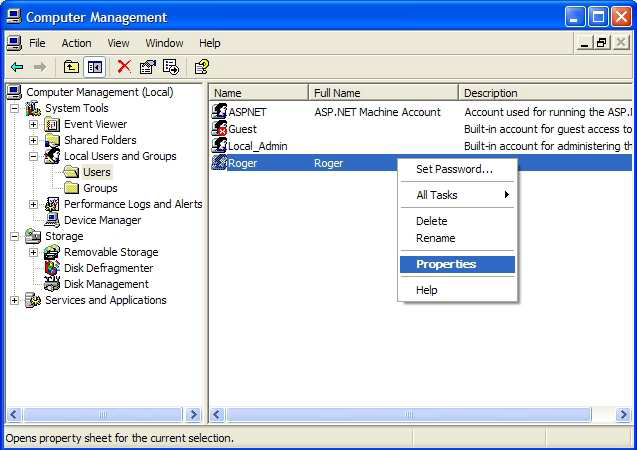
- Right click their name and select Properties. In our example the Windows User Account name is Roger.
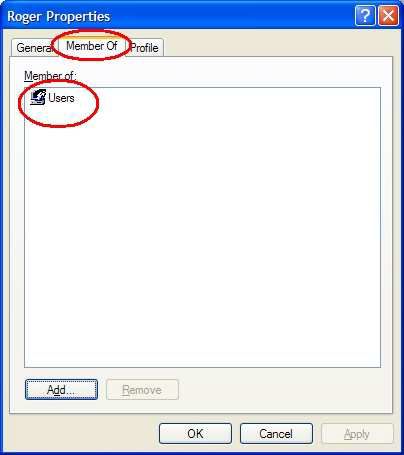
- Click the Member Of tab and note what Windows User Access group that this user belongs to. In our example, Roger is part of the 'Users‘ group which only allows access to basic function within the Windows operating system.
How do l allow members of this Windows User Access group to have full access to MYOB company files?
- Open Windows Explorer: Go to Start choose All Programs and then Accessories. Click Windows Explorer.
- Right-click your current version MYOB folder and select Properties (In our example we will select the Premier9 folder).
- Click the Security tab.
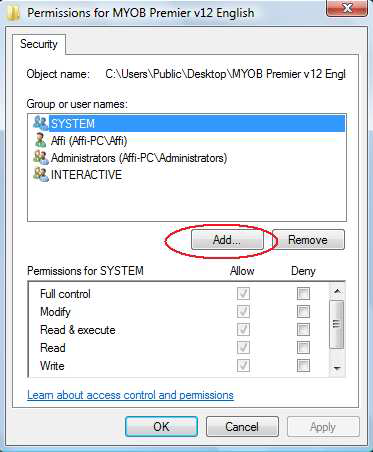
- Click the Add button to include the Windows User Access group to the list.
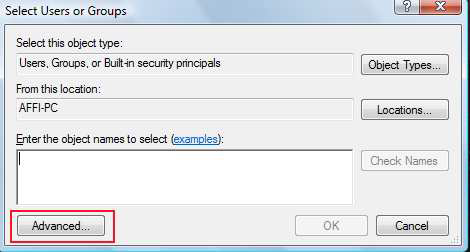
- Click the Advanced button.
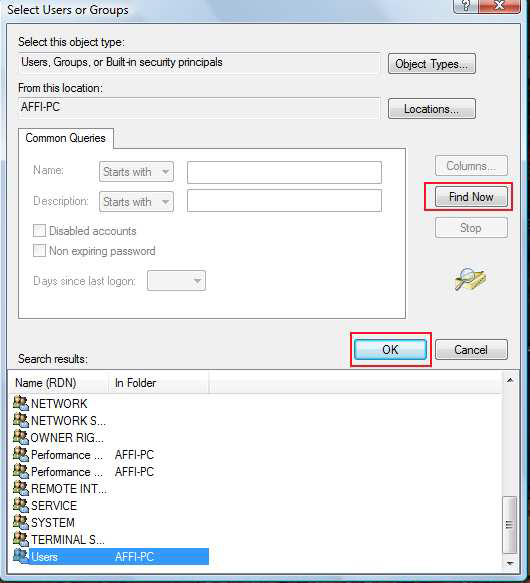
- Click the Find Now button.
- Select the Windows User Access group you wish to give full access to MYOB company files and click OK. In our example it was the ‘Users’ group.
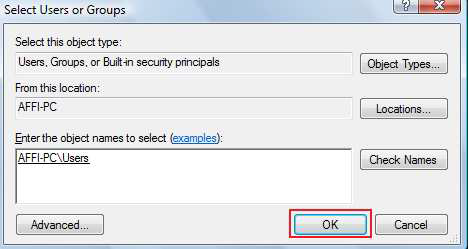
- Click OK to add this group.
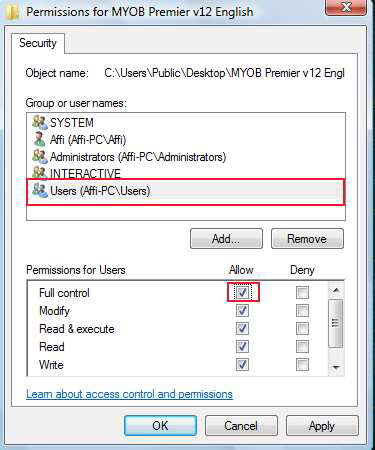
- Highlight this newly added Group and then place a tick in Allow under the Full Control section. Click Apply and then click OK.
- Repeat this process for any other Windows User Access group that requires full access to MYOB company files. This process can be undertaken for individual users as well as groups as per the steps above. Placing a tick in Allow under the Full Control section for the Everyone group is also another option available.
The work station may not be mapped correctly to the host
The remote network location should be accessed by each workstation through a ‘Mapped Network Drive‘ rather than by browsing though the ‘Network Places‘ to open it.
Instructions for mapping network drives are also included in the support notes mentioned earlier in this support note.
The first user to log on has selected single-user mode
If the first user to log on to your MYOB Company file selects single-user mode at the log-in screen, all other users will be locked out of the file.
To solve this, simply have the first user log out and then log back in making sure that the 'Multi- User' option has been selected.
The MYOB application program itself is being accessed over the network
MYOB is designed so that only the Company data file is shared over the network. Each workstation should have the MYOB Application installed and run locally. If you try to run the program over the network, in addition to poor performance, access errors may occur.
Make sure each user is running the program locally though they access data on the network.
Insufficient disk space on hard disk
The ‘Unable to open file . . . ‘ message may also result from either the machine hosting the company file or the workstation having insufficient disk space. Delete unwanted or unnecessary files from the machine in question to overcome the issue.
The MYOB shortcut or alias has become corrupt
Sometimes these message may result from a corrupt desktop shortcut to the program. You can delete and re-create the shortcut to rectify this. For more information on MYOB shortcuts, please refer to support note MYOB Shortcut Icons.
The file being selected to open in MYOB is not an MYOB data file.
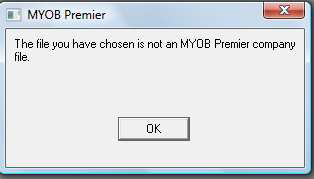
MYOB data files have the extension .myo. In earlier versions, MYOB Accounting and Accounting Plus files had a .dat extension while MYOB Premier had a .prm extension. You can check to see the file you are trying to open has any of these extensions through Windows Explorer. Note for further information regarding Windows Explorer please refer to your windows Help Menu.
The data file you are trying to open is corrupt
To check if the data file is corrupt, try and open another MYOB data file. If another file opens without the error occurring it would indicate the file that does receive this error message is corrupt.
If the file is corrupt we recommend you try to optimise the data file as some minor corruptions can be fixed by an optimisation process. To run the optimisation go to Start choose Programs select your MYOB product from the menu then choose MYOB Tools and click the MYOB Optimisation Assistant icon. Follow the instructions in the Optimisation.
If the same message occurs you will need to restore to the most recent backup you have available.
Other possible causes
The name of the folder that the company file is in is more than 27 characters long
If this is the case, rename the folder so that its name is no more than 27 characters long.
Comments
0 comments
Please sign in to leave a comment.