

This support notes are suitable for:
- ABSS Accounting
- ABSS Premier
- ABSS Payroll
- ABSS RetailManager
|
Introduction When operating a program such as MYOB in Windows, under certain circumstances, the program may be interrupted and close abruptly with a message reporting that the program must close. This Support Note provides information on these types of messages and some suggestions to help you stop this from happening. |
What is a General Protection Fault?
A General Protection fault (GPF), Illegal Operation or Application Error (Windows XP) are error messages issued by the Windows operating system.
The windows operating system is responsible for allocating working memory to the various applications (ie computer programs) and tasks running on your PC. If the windows operating system is unable to allocate working memory to an application or task because there is insufficient working memory (RAM) available or because that memory is already being used by another application, then windows reports a GPF.
Due to the nature of the problem it can be difficult to identify the exact cause of a GPF. Possible causes may be having too many applications open (or have been recently open) or a non-standard item, such as a display driver or memory manager installed in the system or a program loaded automatically at start up. The error itself will not usually cause any harm. The problem is that Windows forces you out of your program, so anything not saved at the time the GPF error took place will be lost. It is therefore recommended that you check your files for missing data once the problem has been rectified.
There are numerous possible remedies to overcome GPFS. The following suggestions may help you. If you are uncertain as to the possible effects of these suggestions you may wish to seek professional guidance from an IT specialist.
What should I do when a General Protection Fault occurs?
System Tips
Turn off the computer and Restart. Many GPFs are resolved by restarting the computer.
- Delete temporary files (~.tmp) in your TEMP folder. In Windows 98 this is normally the c:\windows\temp folder.
- Defragment your hard disk. In Windows 98 go to the Start button, choose Programs, then Accessories, then System Tools and click Disk Defragmenter.
- Ensure you have enough hard disk space and RAM. Running low on memory is one common cause of General Protection Faults.
- Try changing the colour settings. For example from 32 Bit to High Colour I6 Bit. Try changing the video driver to the standard VGA option.
- Start in Safe mode in Windows 98 to see if there is a program or driver that is conflicting with MYOB. To start in Safe mode, press F8 while your computer is booting. If you do not have a general protection fault in Safe mode, reboot the computer, disable the programs that start up automatically and try running your MYOB accounting product.
To temporarily shut down programs that start automatically:
In Win 95/8 press CTRL+ALT+DEL and then click End Task on one program in the list, (except Explorer and Systray). Try running your MYOB accounting product. If the problem still occurs, repeat this step for the other programs.
To permanently disable programs from starting automatically
In Win 95/8 right-click the Start button and select Explore. Go to the Start up folder and delete the shortcuts appearing. If this resolves the problem, do not use the program that has been disabled while your MYOB accounting product is running and search the Internet for updates to your hardware drivers and software.
- Check that a printer driver is set as default in the Printers Control Panel, as an absence of this might result in General Protection Faults (regardless of whether there is a printer attached).
- If you are running a screen saver, remove this (at least until you are sure it is not the cause of the problem).
- If the System tray shows icons (in the bottom right hand corner of the Windows 95/8 desktop), right-click them and close them.
- Reinstall Windows as this often resolves the problem.
MYOB Tips
- Reinstall your MYOB accounting product (make sure you have a backup of your data file first
- If the error is occurring when you print a customised invoice or statement, try using the 'pre-printed' option. If it no longer occurs, the problem is probably associated with your customising - particularly graphics pasted on the form. MYOB accounting software requires graphics to be in a bitmap (.bmp) format. The Paintbrush program can convert graphics to this format. If there are no graphics, re-customise the form.
- Check the fonts being used for reports and forms (default fonts, and in any customised report/form). Try changing them to Arial, at least until the cause is known. Fonts from other programs (particularly CorelDraw) may well conflict with MYOB accounting software.
- If the GPF occurs when trying to print or display a report, you should reinstall the printer software provided by the supplier, or alternatively on the Windows CD or Manufacturer‘s web site.
- Check to see if the problem occurs in Clearwater.dat (the sample data file). If the problem does not occur, you might have a corruption in the data file. Optimise and verify the data files, contact MYOB Technical Support for more information on file corruption‘s and repairs.
- Delete the myob.ini file from the c:\Windows folder. This file will be recreated when you restart your MYOB accounting program.
What is an Invalid Page Fault?
Invalid page faults (|PFs) are similar to GPFs - an invalid use of memory. Invalid Page Faults, however, most often deal with your computer‘s use of Virtual memory, which is hard drive space swapped out as memory.
An Invalid Page Fault often indicates that a program improperly attempted to use RAM. This can occur if a program or a Windows component reads or writes to a memory location not allocated to it. An IPF can occur when a program requests data that is not currently in virtual memory, and Windows attempts to retrieve the data from storage and load it into RAM.
An Invalid Page Fault occurs for any of the following reasons:
- When the area in RAM to be swapped is being used by an application or the block of memory does not exist.
- A program has requested data that is not currently in Virtual memory.
- The Virtual memory system is unstable due to shortage of physical memory or free disk space.
- The Virtual memory area is corrupted by a program.
- A program is attempting to access data that is being modified by another program that is running.
What should I do when an Invalid Page Fault occurs?
Identify when the error first started to occur. Have you made any changes to the computer, for example: has new software been installed or have changes been made to the hardware configuration.
- Re-start the computer, this will reset the computer memory. Then try to run the application again. If the error still occurs after rebooting then continue working through below steps.
- Stop ALL unnecessary applications. To do this:
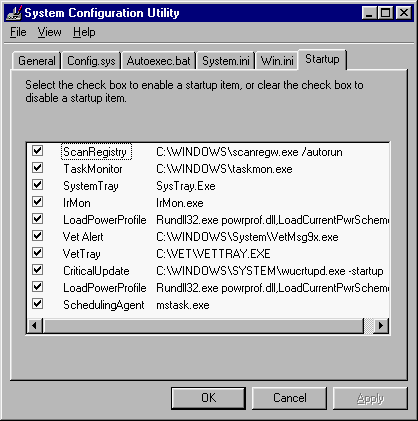
- Click Start > Run > type in MSCONFIG > click OK.
- Click the Startup tab.
- Remove the tick from any unnecessary applications, (especially virus scanners as they run at an extremely low level).
- Reboot the computer and try to run the program again.
- Once all unnecessary applications have been disabled, tly to run MYOB again. If MYOB runs without error, then it may indicate that another application is conflicting with MYOB. Start other applications one by one to find out which application it is. Then go to the Web site of the two developers, search for a patch, or support configuration tips regarding your error. Also, if the application uses a specific piece of your hardware, update your drivers.
- If updating your application doesn't work, check to see if there are any updates for your Operating System.
- If these updates don't work, uninstall the application and reinstall, ensure you reboot the computer after you uninstall.
- Another option is to run a registry cleaner on your machine for corrupted registries.
- When you install a program onto your computer it will automatically register the program in the Windows Registry.
- Windows stores its configuration information in a database called the registry. The registry contains profiles for each user of the computer and information about system hardware, installed programs, and property settings. Windows continually references this information during its operation.
- If the computer registry becomes corrupt you can run a registry cleaner, these are usually available from the internet, check the web site of your operating
Comments
0 comments
Please sign in to leave a comment.