

This support notes are suitable for:
- ABSS Accounting
- ABSS Premier
|
Introduction The installation process of any new software has some standard Windows Operating System requirements it must meet for the program to install correctly. This support note outlines some of those requirements and also provides some troubleshooting tips to overcome any install error. |
I have received an Install Shield error, why?
When installing ABSS software you may receive an error message such as 'Install Shield error 1607'. The number in the error message may vary on different computers.
To understand why the installation is giving you the error message it's helpful to know the process behind the installation of a program.
Windows Registry
Windows keeps a centralised listing about all the different programs installed on a particular computer. Windows automatically stores this program information in a database called a Registry at the time the program is installed. The Registry contains profiles for each user of the computer and information about system hardware, installed programs and property settings. Windows continually references this information during its operation.
InstallShield Software
The installer used by ABSS is a third party application called InstallShield. This install software is widely used within the software industry.
You may have noticed during an ABSS install process the title 'InstallShield Wizard' appearing on some of the windows displayed. An example is shown below.
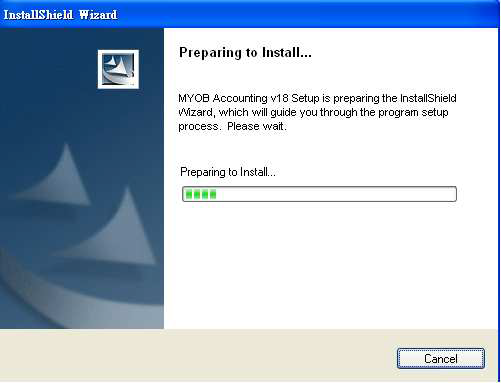
The InstallShield software will automatically search through the Windows Registry before installing to ensure everything is OK for installation. If it locates any inconsistencies or corruptions you will receive an error message.
How can the Windows Registry become corrupt or contain inconsistencies?
Window Registry corruptions can occur from power failures, viruses or hard disk corruptions.
A common cause of inconsistencies occurring in the Registry is the incorrect method used to uninstall software programs. When uninstalling a program, it is very important the ‘Add/Remove Program’ option is used via the Windows Control Panel. Alternatively many software installation CD‘s can be used to uninstall the software as well as install it.
Either of the above 2 methods will automatically remove the program reference from the Windows Registry. If the program is not uninstalled using one of these recommended methods but is instead simply placed in the recycle bin then Windows will still have it listed as a registered program.
For detailed instructions on uninstalling MYOB please refer to support note Uninstalling/Reinstalling MYOB on a windows environment.
How can I overcome an InstallShield Error?
If you receive an lnstallShield error we recommend you follow the steps below. We have listed the suggested option below as well as other options that will assist you in overcoming this error.
Suggested Option - Downloading and running the Microsoft Program Install and Uninstall Troubleshooter.
ABSS has found from customer experience that the best option is to use a utility developed by Microsoft called the Program Install and Uninstall Troubleshooter. This application can be downloaded from the Microsoft Website from the following web address.
Using this utility, you are able to see what programs that have been installed using the InstallShield or Windows Installer technology and remove these are required. Further information on this utility can be found from the above website.
|
Warning As the Registry Clean program is accessing the Windows Registry you usually receive warning messages before running it. If any further damage is done to the Windows Registry you may have difficulties in using the computer or other programs installed on the computer hard drive. Before running a Registry Clean program we recommend you consult your IT Specialist for further advice. |
Other Options:
Step 1 - Log on as Administrator to install program
If you are trying to install on a computer running Windows 2000, NT, XP or Vista it is important you log in as the Administrator to install MYOB, not just as a user with administrator privileges.
Step 2 - Run Disk Cleanup
Disk Cleanup can be run to help free up space on your hard drive. Disk Cleanup searches your drive and then lists temporary files, Internet cache files and unnecessary program files that you can delete.
To run the Disk Cleanup go to Start choose Programs, Accessories, System Tools then click Disk Cleanup.
Note: If you have further queries about the Disk Cleanup process or are unsure of the files listed for deletion please speak to your computer technician.
Step 3 - Install Microsoft installer updates
There are two (2) Microsoft Installer updates available.
Step 4 - Install the IsScript.msi file
InstallShield have made available the lsScript.msi file, which is an updated file for the lnsta||Shield process. This particular file is also available on the ABSS CD's. To access the file, place the CD in the CD drive. Open Windows Explorer, and click the CD icon. Double-click the Resources folder then Library. Next double-click Windows Installers then double-click Installer Engine. There you will find the IsScript.msi file.
To run this file, simply copy the file from the CD to the computer hard drive (C Drive), then double click the file from the hard drive for automatic installation.
Step 5 - Install in Safe Mode (VGA mode for NT, Windows 2000 - Not available in Windows XP or Vista)
Running in 'safe mode' is a way to stop conflicts occurring, and can help with many installation problems. However, CD‘s cannot be read in safe mode, so the contents of the program CD need to be copied to the hard drive.
To do this:
- Go to Start choose All Programs then Accessories and click Windows Explorer.
- Click the C: Drive listed on the left of the screen. If it is not shown click the + symbol next to My Computer.
- Create a new folder: Go to the File menu choose New then click Folder. Type a name for the new folder such as ABSS Setup and press <Enter>.
- Click the CD drive listed on the left of the screen.
- Go to the Edit menu and click Select All. This will highlight all the files on the CD.
- Go to the Edit menu again and click Copy.
- Click the New Folder, this should be listed under the C: Drive on the left side of the screen.
- Go to the Edit menu and choose Paste. This will copy the contents of the CD into the New Folder.
Restart your computer in safe mode.
To do this:
- Go to Start and click Shut Down
- Select Restart from the drop-down menu and click OK.
- Continually tap on the F8 function key, whilst the computer is restarting.
- You should see a Startup Menu. Read the menu. Usually you will need to press 3 on your keyboard for Safe Mode and press Enter.
- The computer will continue to start.
- When the computer has finished restarting the desktop will have Safe Mode listed in each corner of the screen.
- Go to Start choose All Programs then Accessories and click Windows Explorer.
- Click the C drive.
- Select New Folder from the left side of the screen.
- On the right hand side of the screen you should see the file Setup.exe. Double click this file. The installation process will commence.
- Once the installation is completed, restart your computer in the usual manner to get back to normal mode.
Step 6 - Check the InstallShield Support web site
InstallShield has a support web site that often lists various known errors and suggested solutions to them. The following web site address will take you to the support search screen.
http://consumer.installshield.com/common.asp
The web site allows you to search for different InstallShield programs, the InstallShield version that MYOB uses is InstallShield Developer v7.
Step 7 - Formatting the hard drive and reinstall the Windows Operating System
If you have tried the above steps and still receive an InstallShield error another option is to format your hard drive and reinstall your windows operating system.
|
Warning As mentioned earlier the InstallShield is programmed to check the Windows Registry. If there is an error or inconsistency and none of the above options fix the install error, by formatting your hard drive you will completely wipe everything from your computer, therefore you will be clearing the Windows Registry. Once you have formatted the hard drive you will then need to reinstall your Windows Operating System and any programs and files you had loaded on the system. This is of course a major task to complete, we therefore recommend you to consult your IT specialist before doing this process and seek their advice for additional help with this procedure. |
I received an Unhandled Exception error. is this the same as an InstallShield error?
Some customers have reported receiving the error:
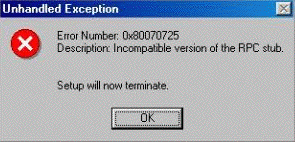
This error is mentioned on the InstallShield support web site however has a different method to resolve the error.
Comments
0 comments
Please sign in to leave a comment.