

This support notes are suitable for:
- ABSS Accounting
- ABSS Premier
|
Introduction Many of our customers transfer their MYOB company file between their office and home computers. Their MYOB company file is updated on the home computer, and then transferred back to the office computer for the following day's entries. This results in a continual cycle of backing up and restoring of that company file. This support note explains how this process works and should be read in conjunction with support note Backup Restore - Windows |
How do I transfer my MYOB data file from one computer to another?
Backing up and restoring your MYOB data file is a main component of moving it between computers. For information on backing up and restoring MYOB data files, please refer to our support notes Backup Restore - Windows .
Transferring your MYOB data file between computers involves 3 basic steps.
- Backing up your MYOB data file on computer #1, to removable media such as a CD-Rom.
- Archiving the Current Working Data File on computer #2. An archive folder will need to be setup for this step. The Current Working Data File is the MYOB data file being updated or replaced.
- Restore the backup from computer #1, on to computer #2.
As backing up and restoring data files is covered by another support note, this support note concentrates mainly with the second step, archiving the Current Working Data File. This will ‘clear the way‘ for the third step -restoring the backup on to computer #2.
How do I create a folder to store my archived data files?
The purpose of creating an archive folder, on both computers, is to safely store the Current Working Data file, on that computer. It may be necessary to refer back to that data file at a later date.
Windows
Open Windows Explorer and double click your MYOB folder. On the Menu bar, go to File choose New and click Folder. A new folder will appear on the right hand side. Type MYOB Archive and then click on a vacant part of the window.

How do I archive my Current Working Data File?
Archiving data files involves 2 steps: renaming the Current Working Data File, then Moving it to the MYOB Archive folder.
Before going any further, we need to look at some rules that govern the way files are stored, restored and moved between folders.
- When naming files, it is advisable to use alphanumeric characters only. Also, where possible, keep file names to 8 or less characters.
- MYOB data files restore to the same folder they were backed up from. Assuming your MYOB data file is stored in your MYOB folder on both computers, then by default, your data file will restore to the same MYOB folder on the other computer. The data file that is being restored cannot retain its original name if a file with the same name (the Current Working Data File) already exists in that folder.
- For the restored data file to retain the same name throughout the cycle of backing up and restoring, the Current Working Data File on computer #2 will need to be moved to the MYOB Archive folder.
- Windows requires a 3 letter extension to be included in file names. An example of an MYOB Premier data file name would be, Company.myo. The ‘myo‘ is referred to as the file extension. Depending on the view settings of Windows Explorer, file extensions may not be shown. Neither change nor add file extensions when renaming files.
With the above in mind, there are two methods that can be used to archive the Current Working Data File.
Method 1
If a copy of each archived Current Working Data File is to be stored, then prior to moving it to the MYOB Archive folder, rename it so that it won't override the one that was last archived. One way to do this is to use the date when renaming it, e.g. 0811 19.prm being November 19 2008. Using the date format YYMM DD, allows files in the MYOB folder to be listed chronologically.
Windows
- Open Windows Explorer and double click your MYOB folder. The contents of this folder will be displayed in the right hand panel. The below window shows a view of Windows Explorer.
- The contents of the Premier folder can be seen in the right hand panel.
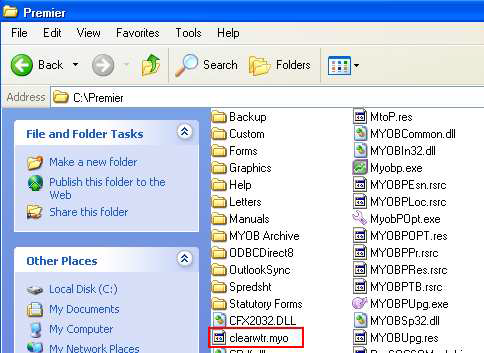
- Click the Current Working Data file once to highlight it.
- On the menu bar, go to File and choose Rename. Type in the new file name and then click on a vacant part of the window. The Current Working Data File will now be renamed.
- Again, click once on the Current Working Data file and then on the Menu bar, go to Edit and Cut.
- Click once on the MYOB Archive folder. On the Menu bar, go to Edit and choose Paste. Double click the MYOB Archive folder to check that the Current Working Data file has been successfully moved there.
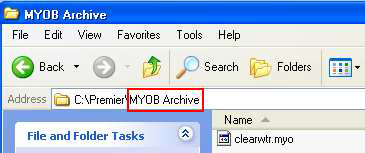
In this example, Clearwater.myo was renamed to 011107.prm and moved from the Premier5 folder to the MYOB Archive folder.
Method 2
Using this method, the Current Working Data File in the MYOB Archive folder will be overridden, rather than continually stored. For Windows users, follow steps 1, 4 & 5 from Method 1. For Apple Macintosh users, follow steps 1 & 3 only, from Method 1.
Because the Current Working Data File maintains the same name, when moved to the MYOB Archive folder, an alert will be displayed. This alert will inform you that a file with the same name already exists in that folder. When displayed, select the relevant option to override the file that is currently residing in the MYOB Archive folder.
After Archiving my Current Working Data File, what next?
The last step of the process is to restore the backup from computer #1 on to computer #2. As the Current Working Data File on computer #2 has been archived, the MYOB restore function will allow the restored data file to retain its original file name and location.
Data can now be entered into your MYOB data file on computer #2. The whole process is then reversed to move the updated data file from computer #2, back to computer #1.
Comments
0 comments
Please sign in to leave a comment.