

This support notes are suitable for:
- ABSS Accounting
- ABSS Premier
|
Introduction This support note covers the procedure necessary to restore or open an ABSS Accounting Software data file that has been repaired by ABSS |
What should I do once I receive my repaired data file?
Once you have received your data file from the ABSS data file Repair Team, you will need to restore the file onto your system.
Before you restore your repaired file we recommend that you either rename or move your old corrupted file, this will ensure it is not accidentally mistaken for the repaired file. It is best to keep your old file on the system until you have fully restored the repaired file in case you need to review any transactions.
To rename your old data file:
- Open Windows Explorer: Go to Start select Programs then Accessories and click Windows Explorer.
- Note: If you are unfamiliar with Windows Explorer please refer to Support Note Basic Windows Function XP
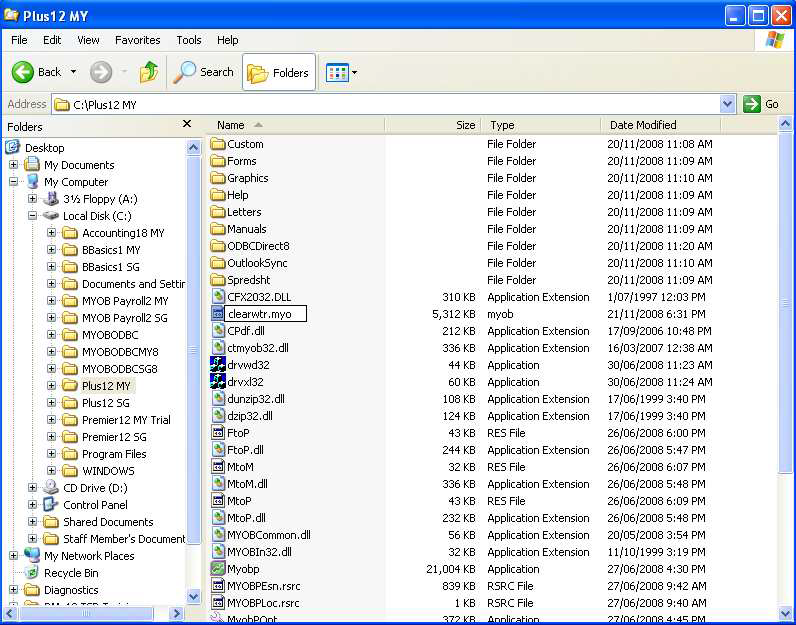
- Locate your old data file. This will normally be stored in your ABSS program folder unless you have specified a different location.
- Example: If you are running ABSS Accounting Plus v15, the folder name will be myob15. Select this folder. On the right hand side of the screen you should now see a list of all the files stored within your myob15 folder, scroll through these files until you locate your old data file.
- Click the file to be renamed, go to the File and click Rename.
- With the file name now highlighted, type in the new name, overwriting the previous one and then press <Enter>.
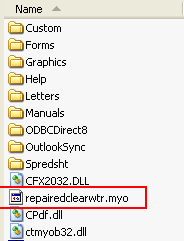
When an ABSS file has been repaired, the data file Repair Team will change the repaired file name to repairedXXXXXXXX.myo.
Example: If your ABSS file is named john.myo, once it has been repaired, its file name will be repaired]0hn.myo. The reason we change the file name is to avoid confusion with your old corrupted file.
Note: You can set your Windows Explorer to either show or hide the file extension. The file extension is the 3 letters that appear after the dot in the file name. In earlier versions of ABSS, if you do have your file extensions displayed and you are running ABSS Accounting, Premier or PremierPlus the file extension will show as .MYO, if however you are using ABSS BusinessBasics the file extension will show as .DAT.
The manner in which your file is returned will determine whether it has been backed up or not. If the file has been backed up it will have a .zip file extension.
- If the file has been returned on a CD, LS120 or Zip Disk the file will not be backed up, therefore you will be able to simply copy the repaired file from the disk and paste to your computer.
- If the file has been returned via email or FTP (File Transfer Protocol) it will likely be backed up. Therefore you would need to restore the data file from the zip file.
For instructions on how to restore a zip file please refer to Support Note Backup and Restore - Windows
How do I copy my repaired data file to my computer?
If your file was returned via email/FTP you will need to download the file and save it to the folder on your computer where you normally store your company file. For example, C:\Premier12.
If you submitted your file on a CD, Zip Disk or other removable media, you can copy and paste the file by using Windows Explorer.
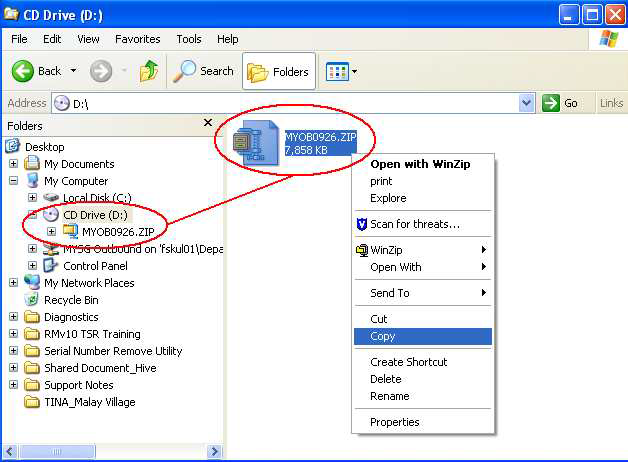
- Open Windows Explorer: Go to Start select Programs then Accessories and click Windows Explorer. Select the drive, which contains the returned disc. In the screenshot below, it is a CD and the CD drive is F: for this particular computer.
- Click the file to be copied.
- Go to the Edit menu and choose Copy.
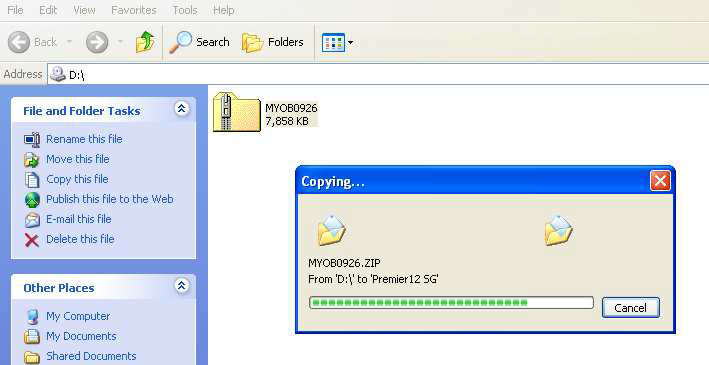
- Select the destination folder on the left side of the Windows Explorer screen.
- Go to the Edit menu and choose Paste.
It the file has been returned to you on a CD you will need to ensure that it is not ‘Read Only‘. Select the data file and choose File from the menu, then select Properties, or right-click the company file and select Properties.
In the Properties window, de-select the Read Only checkbox and click Apply. You will now be able to open the data file in ABSS accounting software.
If the file you have copied from the disc to your computer is a .dat, .prm or .myo file, you should then be able to open the file using ABSS as you usually do.
If the file you have copied from the disc to your computer is a .zip file, you will then need to restore the zip file.
For instructions on how to restore a zip file, please refer to Backup and Restore - Windows
Please note that if you use desktop shortcuts to open your file they will not work as we have changed the file name. To make your short cuts work you will need to rename your new repaired data file back to the original file name.
Once you have finished restoring the file to your computer, open the repaired data file. Once you have opened ABSS go to the File menu and choose Verify to check that the correct file has been restored.
Comments
0 comments
Please sign in to leave a comment.