

This support notes are suitable for:
- ABSS Accounting
- ABSS Premier
- ABSS Premier Plus
|
Introduction In previous versions of ABSS, a password system was available to restrict access to your company file. You could also enter any details in the User ID field to open a company file. User IDs were used to simply identify the actions of each user, who performed tasks that affected your company file. Changes have been made to the setup of User ID's and passwords in the latest releases of ABSS. |
What are the changes to User ID's?
These changes include:
- All User ID's must be setup in ABSS (new users cannot simply be added by typing in a new name when opening an ABSS Company File).
- Passwords are now specific to individual User ID's.
- Access privileges are specific to each User ID.
- User ID's can be made inactive.
Note: User IDs and passwords are not case-sensitive.
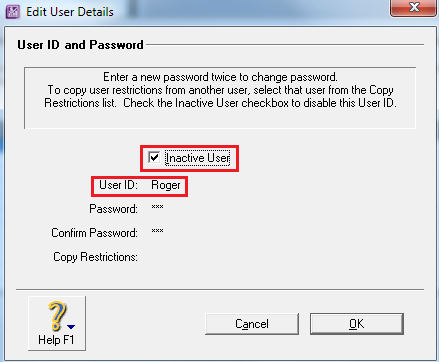
If I upgrade a Company File from an earlier version of ABSS do I have to setup all new User IDs'?
No. ABSS will automatically transfer the user ID's from the earlier version, however they will by default upgrade as inactive, therefore the first time you open your Company File in the new version of ABSS you will need to log on as the Administrator user ID and make them active.
Important Note: If a Master password is set on a lower version company file, on upgrade, this will default to be linked with the 'Administrator' user ID.
How do I make the User ID's setup in earlier versions Active?
- Start ABSS accounting software.
- Open an upgraded company file.
- The sign-on window will be displayed. The first time you open your Company file in the new release the User ID should default as Administrator.
- Type your previous master password in the Password field (or leave blank if there was none).
- Select OK.
- If the Company File Activation window appears, click I want to activate my company file later and click continue.
- If a message appears advising how many days are left to activate, click OK.
- If a message appears warning that the company file has never been verified, click No.
- In the message advising you that the upgraded company file contains previous User IDs that have been inactivated, click Yes to activate them now.
Note: Opening the User Access Window - If the ABSS Command Centre appears immediately, you can access the User Activation window by choosing Preferences from the Setup menu, click the Security tab, and click the User ID button.
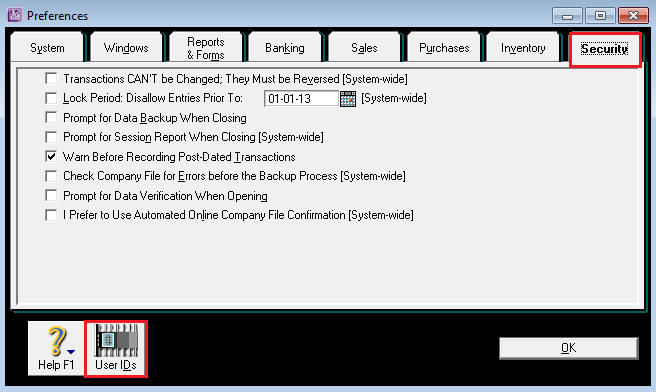
- The User Access window displays previous user IDs converted to user accounts and previous sub-passwords also converted to user accounts. The user accounts derived from former user IDs have no restrictions but user accounts derived from former sub-passwords preserve their restrictions.
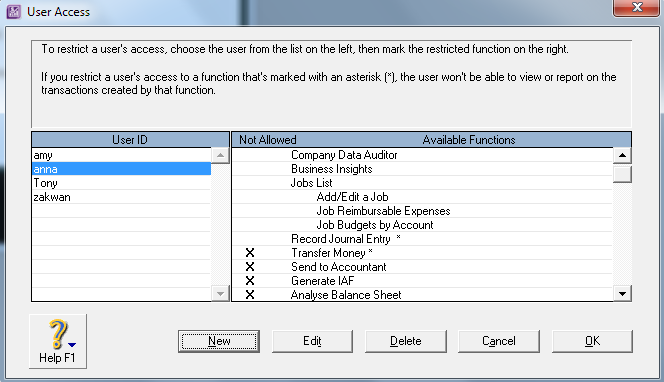
- Select the User ID you would like to make active then click on
- In the Edit User Details window, remove the tick next to Inactive User.
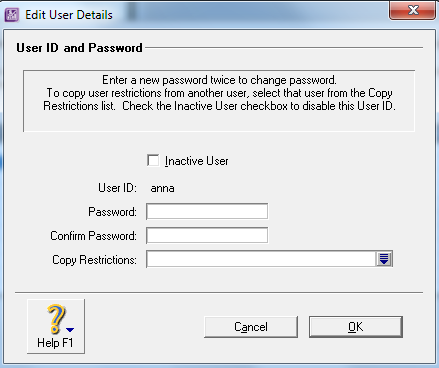
Type a password if required and retype it exactly the same in the Confirm Password Field.
You can copy the restrictions set for another User ID. To do this select the drop arrow next to Copy Restrictions and select the user account whose restrictions you wish to copy. Click OK.
- When all user accounts are updated in the User Access window. Click OK. To review a complete list of available functions that User Access can be restricted to please see attachment at the bottom of this support note.
Are there any other things I need to keep in mind when upgrading?
The latest releases of ABSS include new functionality and processes. When you upgrade to Accounting V25 or Premier/Plus V20 User IDs with restrictions will not automatically be restricted from accessing the new functions.
Therefore, immediately following the upgrade, the Administrator should open the file and add any required restrictions.
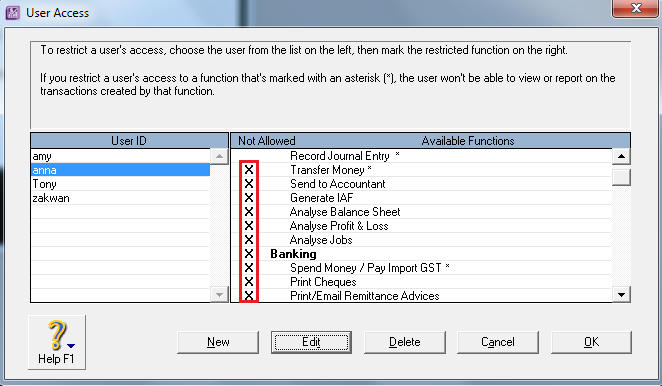
If any User IDs are to be restricted from any of these functions then in the User Access window shown above, mark the Not Allowed column with an X next to each function you wish to restrict. This needs to be done for each User ID to which the restriction should apply.
How do I create or change the Administrator password?
I cannot access the 'User Accounts' Window as the Password button is grayed out, why?
The Administrator User ID is the only user with access to change, edit, add or delete user accounts. We therefore recommend you setup a password for the Administrator account.
- Start ABSS and click the Open a Company file in the Welcome to window.
- Navigate to your Company File and click on Open
- In the Sign-on window, make sure the User ID says Administrator.
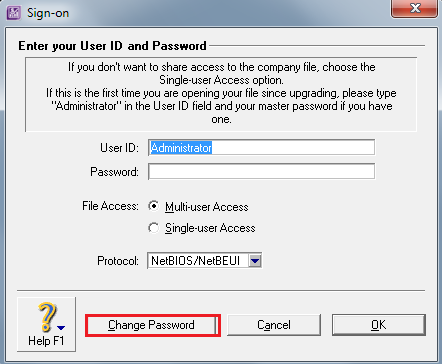
- Click the Change Password button.
- In the Change Password window, enter the Existing Password (if no password is set then leave blank). Enter the password in the New Password and Confirm Password fields. Click
How do I create a new User ID?
- Open your company file with the User ID Administrator.
- Go to the Setup menu and choose Preferences.
- Click the Security Tab and then click the Password button.
- The User Access window appears. Click New to create a new user and enter the User ID details as required.
- Click OK to close window.
Comments
0 comments
Please sign in to leave a comment.