

This Support Notes is suitable for:
- ABSS Accounting
- ABSS Premier
|
Introduction Sometimes when trying to open ABSS Premier or ABSS Accounting/Plus the message 'No more than 10 data files in the same folder can be used at one time' appears and prevents you from opening your program. This is caused by 'lock' files remaining in the system after an abrupt exit from ABSS. This support note explains how to deal with this message. |
Solution Summary
Locate and delete any files with the extension *.flk within the folder that holds your Company file. They will be named Lock0001, Lock0002, etc.
What is a Lock File?
When you open an ABSS Company File a lock file is created which serves as a data base as to who is using the Company File. When that user exits ABSS the lock file is deleted. If the system should crash or if the user does not close ABSS and the computer shuts down, the lock files remain on the system. Once there are 10 lock files on the system you will not be able to access your Company File.
If you are experiencing problems with your computer freezing or failing on a continual basis, you may want to investigate the cause of this. Not closing your Company File in the correct manner can cause your Company File to become corrupted. It is recommended that you verify and optimize your Company File should you experience an abrupt exit from the ABSS program.
New to ABSS Premier v7, ABSS Accounting Plus v13 and ABSS Account Edge v3 and later versions are additional lock files that are created when you log into a Company File.
These new files are called Access0l.flk and Access5l.flk. These files are not retained after an abrupt exit from ABSS. If you are able to see these files, it indicates that the ABSS Company File is still in use.
What Do I Do to Fix this if I am using Windows?
There are two possible methods to follow:
METHOD 1
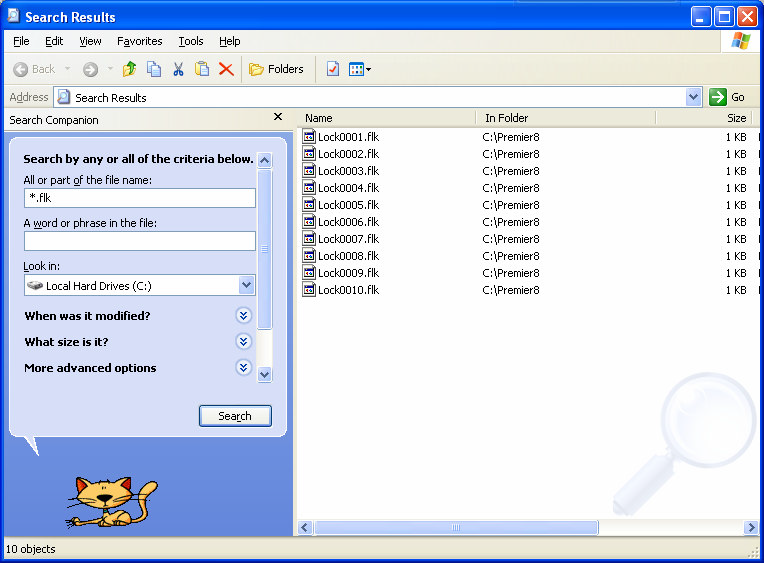
- From the Windows Start menu click "Find" or "Search" and click "Files or Folders" or "All Files or Folders". In the "Named:" field or the "All or part of the file name:" field type in *.flk.
- In the "Look in:" field select "My Computer"
- In some versions of Windows, there is an option to "Include Sub-folders". This option should be ticked.
- Look for files ‘Lock0001.flk" through to 'Lock0010.flk'
- Go to Edit and choose Select all to highlight all the files.
- Go to File and choose Delete or alternatively, press the delete key on your keyboard.
- Click Yes to the confirmation message.
- Close out of 'Find/Search'.
You should now be able to access your ABSS Company file in the normal way.
What is a Lock File?
When you open an ABSS Company File a lock file is created which serves as a data base as to who is using the Company File. When that user exits ABSS the lock file is deleted. If the system should crash or if the user does not close ABSS and the computer shuts down, the lock files remain on the system. Once there are 10 lock files on the system you will not be able to access your Company File.
If you are experiencing problems with your computer freezing or failing on a continual basis, you may want to investigate the cause of this. Not closing your Company File in the correct manner can cause your Company File to become corrupted. It is recommended that you verify and optimize your Company File should you experience an abrupt exit from the ABSS program.
New to ABSS Premier v7, ABSS Accounting Plus v13 and ABSS Account Edge v3 and later versions are additional lock files that are created when you log into a Company File.
These new files are called Access0l.flk and Access5l.flk. These files are not retained after an abrupt exit from ABSS. If you are able to see these files, it indicates that the ABSS Company File is still in use.
What Do I Do to Fix this if I am using Windows?
There are two possible methods to follow: METHOD 1
- From the Windows Start menu click "Find" or "Search" and click "Files or Folders" or "All Files or Folders". In the "Named:" field or the "All or part of the file name:" field type in *.flk.
- In the "Look in:" field select "My Computer"
- In some versions of Windows, there is an option to "Include Sub-folders". This option should be
- Look for files ‘Lock0001.flk" through to 'Lock0010.flk'
- Go to Edit and choose Select all to highlight all the files.
- Go to File and choose Delete or alternatively, press the delete key on your keyboard.
- Click Yes to the confirmation message.
- Close out of 'Find/Search'.
You should now be able to access your ABSS Company file in the normal way.
METHOD 2
Note: the following instructions will assume you have installed ABSS on the 'C' drive and in the ABSS (default) folder.
- From the Windows Start menu click Programs and then click Windows Explorer or My Computer.
- On the left-hand side, you should be able to see a list of all your folders (they will be yellow). If not, go to View choose Explorer Bar and click Folders or simply double click the icon for Local Disk C:\.
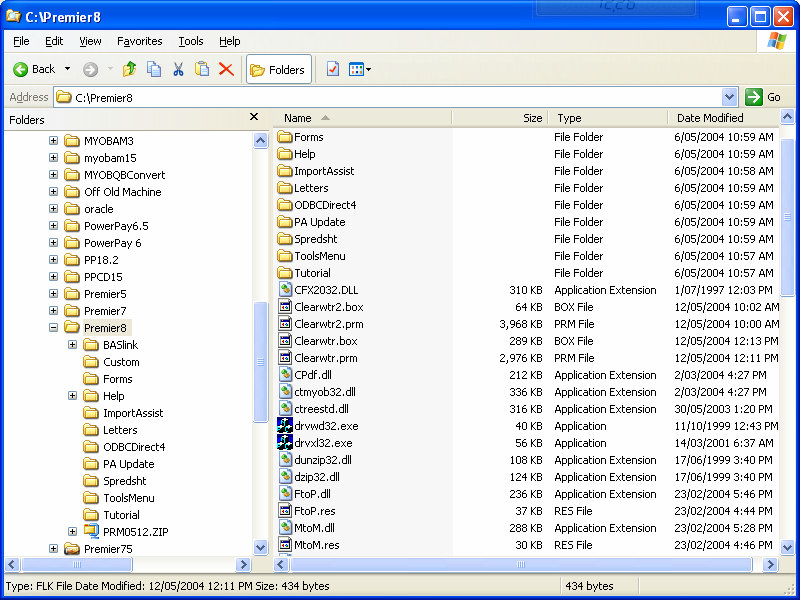
- Scrolling down, you should be able to see the yellow ABSS folder - double click it.
- You should now be able to see a number of yellow folders at the top followed by various files that are contained within the ABSS folder.
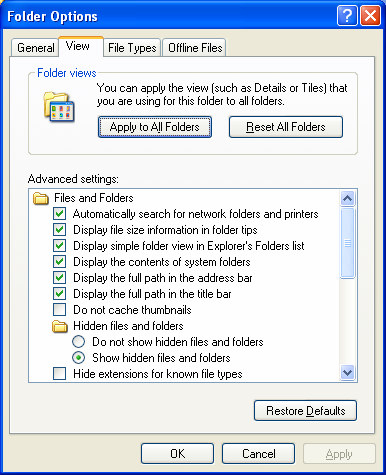
- Click View on the menu bar and then click Options (Win 95) or Folder Options (Win 98). Click the View tab in the window that follows and place a check mark against 'Show all files' and 'Display the full MS Dos path in the tile bar' and remove the check mark from ' Hide MS Dos file extensions for file types that are registered' (Win 95) or 'Hide file extensions for known file types' (Win 98) as shown below.
- Look for files ‘Lock0001.flki through to ‘Lock0010.flie. These files will be in the same folder as your ABSS Company File.
- Highlight (click) the first lock file, hold down the <shift> key, click the last lock file and release the <shift> key. This will highlight all the lock files. Alternatively, hold the <Ctrl> key and click each file once.
- Go to File and choose Delete or alternatively, press the delete key on the keyboard.
- Click Yes to the confirmation message.
- Close out of Windows Explorer or My Computer.
You should now be able to access your ABSS Company file in the normal way.
How do I fix this if I am using an Apple Computer?
There are two possible methods to follow:
METHOD 1
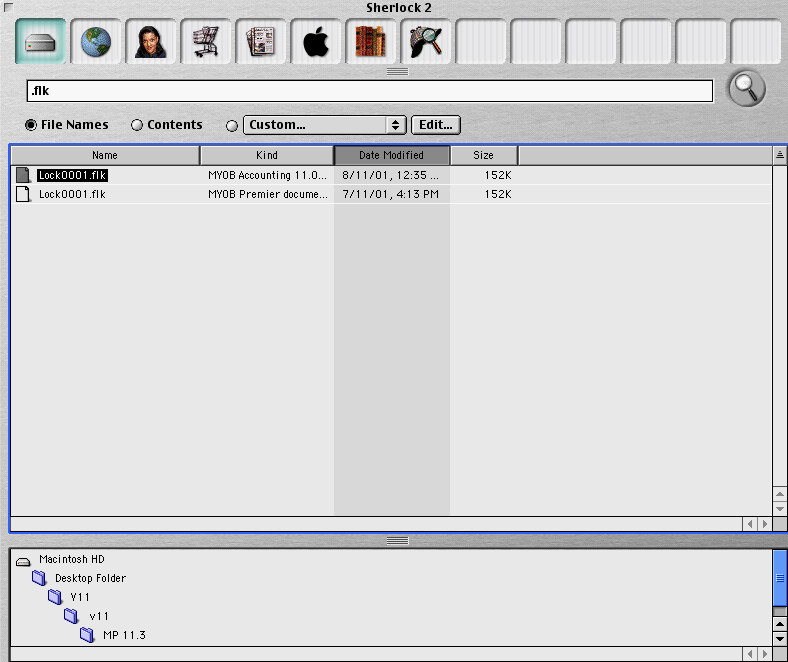
- In the Finder, click the File menu and click Find. Alternatively, click on the Apple symbol in the top left hand corner of your screen and click Sherlock.
- In the search field type in 'Mk'
- Look for files ‘Lock0001.flie through to ‘Lock0010.flie
- Drag these files to the trash
You should now be able to access your ABSS Company file in the normal way.
METHOD 2
- Open the folder that your ABSS Software is installed in (for example Macintosh HD -> Applications -> ABSS AccountEdge 3).
- Look for files ‘Lock0001.flki through to ‘Lock0010.flki. They will be located in the same folder as your Company File.
- Drag these files to the trash. You should now be able to access your ABSS Company file in the normal way
Comments
0 comments
Please sign in to leave a comment.