

This Support Note is suitable for:
- ABSS Premier
|
Introduction A location can represent a building or it can be an aisle or a particular bin where certain inventory items are stored. Because of its flexibility you can define the kinds of locations that suit your business. When you purchase an item, you can select the location where the item will be stored. When you sell the item, you can select which location you will sell the item from. |
How do I create or change information about locations?
You'll define locations using the Location Information window. In addition to descriptive information about the location, you can activate or inactivate the location and indicate whether items can be sold or shipped from the location - that is, whether the location appears on Select From Lists for Sales transactions.
1. Go to the Inventory command centre and click Location.
2. The following window appears:
Note: By default, there is one location ID which is ‘Location1’
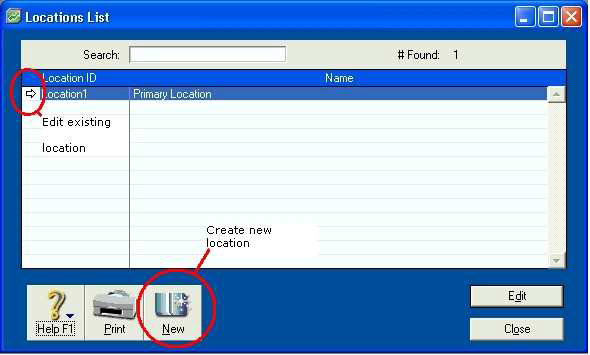
3. To create a new location, click New or click the zoom arrow to edit an existing location.
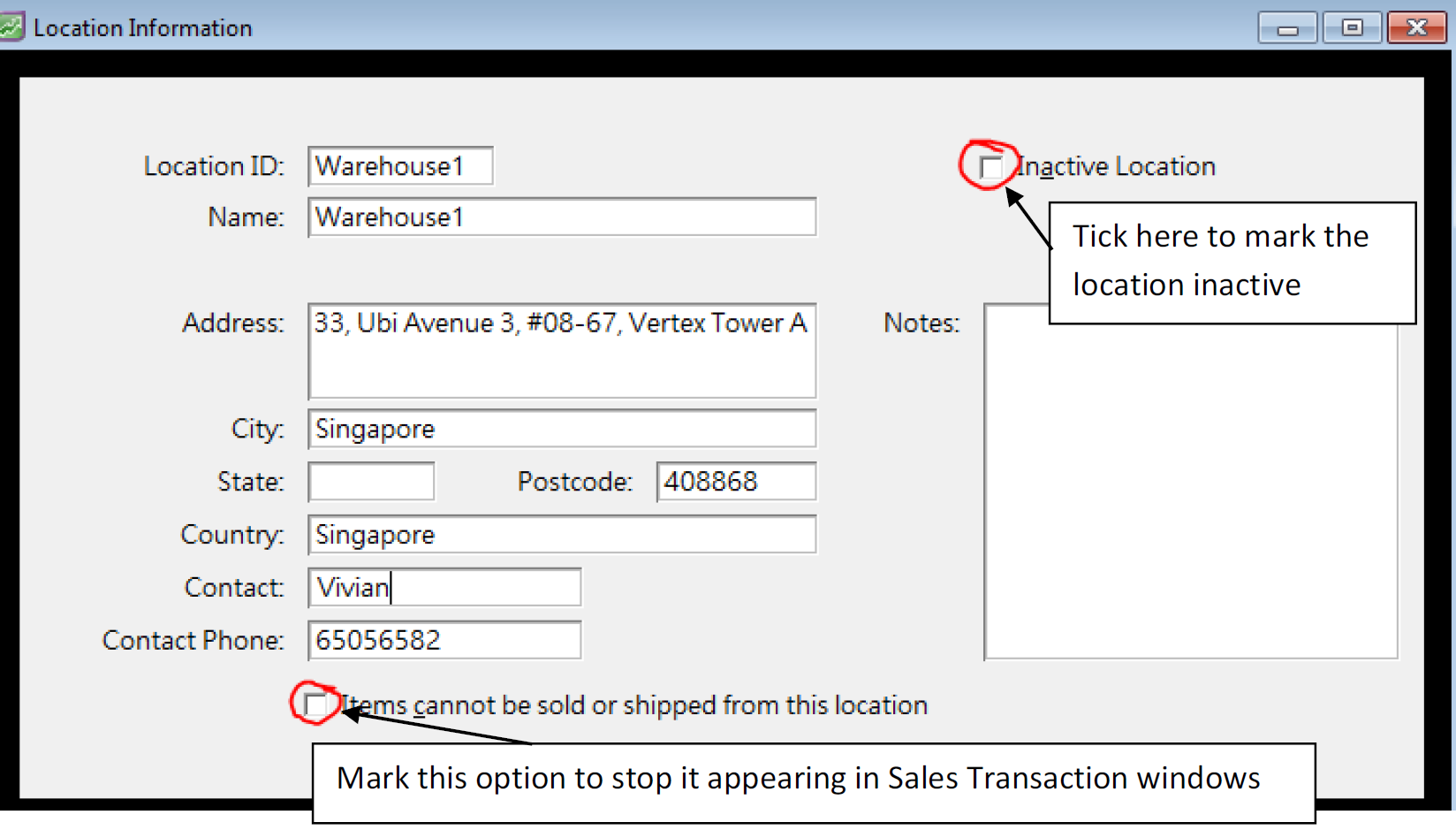
4. Click OK once you have finished entering or changing details about a location. Now you can select the Location items were sold from in the Sales Transaction window.
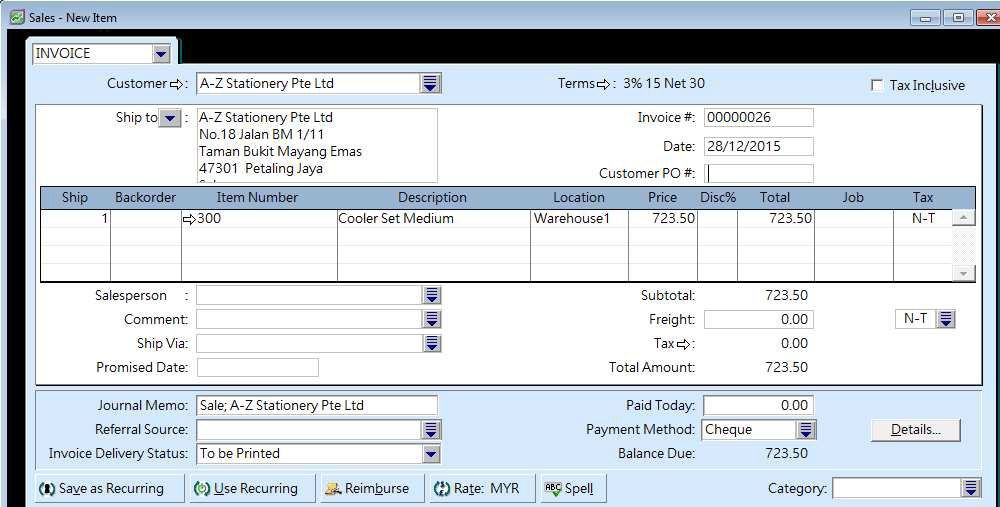
You can also pre-define this within the Location view tab of the Item Information window.
Can I delete Location1?
No, you can’t but you can rename it and change it any way that suits you.
How do I move stock from one location to another?
Once you define locations, you can move items among these locations using the Move Items window. Click Move Items from the Inventory command centre to do so.
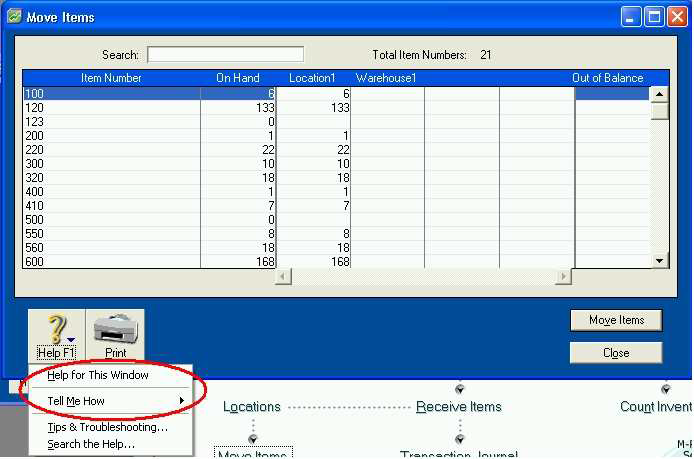
For more information on working with this window see the Help for This Window or Tell Me How option.
How can I track which stock is found in which location?
- Go to the Reports menu and choose Index to Reports.
- Click the Inventory tab.
- Use the following reports to track your item movements:
- Locations List report: This report displays the location information entered for each location in your company file.
- Items Location Summary report: This report displays the item quantity at each location.
- Item Movement report: This report displays the movements of items that were made using the Move Items window; the entries are sorted by date.
Comments
0 comments
Please sign in to leave a comment.