

This Support note is suitable for:
- ABSS Accounting
- ABSS Premier
|
Introduction This support note will guide you on how to perform reconciliation with your bank account statement. |
Before you begin
- Obtain a hard copy bank statement for the period you want to reconcile, in other words from the bank.
- It is recommended that you take a backup of your company file prior to reconciling your bank account. By doing so you can always restore the backup should anything unexpected occur during the reconciliation process.
Note: If you are using a multi-user software version and other users have entered data into the company file, it may not be viable to restore this back up in the event of an error.
How do I start?
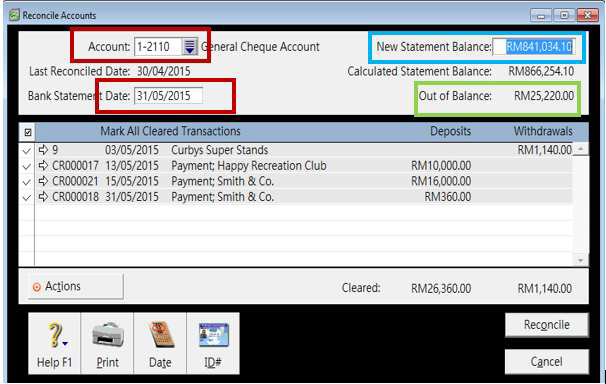
- Go to the Banking command centre and click Reconcile Accounts. The Reconcile Accounts window is displayed.
- Click the drop-down arrow next to the Account field and select the bank account you want to reconcile.
- Enter the bank statement date in the Bank Statement Date.
- Enter the closing bank statement balance in the New Statement Balance field. The Out of Balance field shows how much your software's account balance varies from the bank account statement balance. See our example below:
How do I proceed?
- Looking at your bank statement, identify presented cheques and cleared deposits that appear in the Reconcile Accounts window. Select these transactions in the Reconcile Accounts window by clicking them.
Note: As you select transactions, the Calculated Statement Balance and the Out of Balance values update to reflect the selected transactions.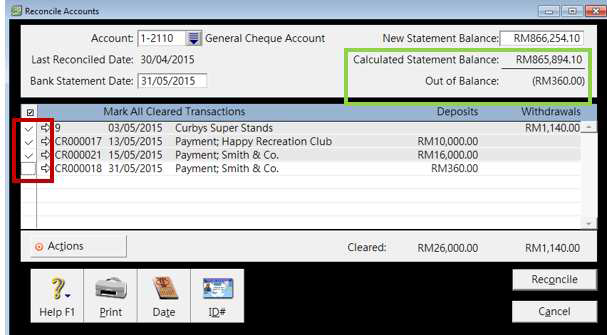
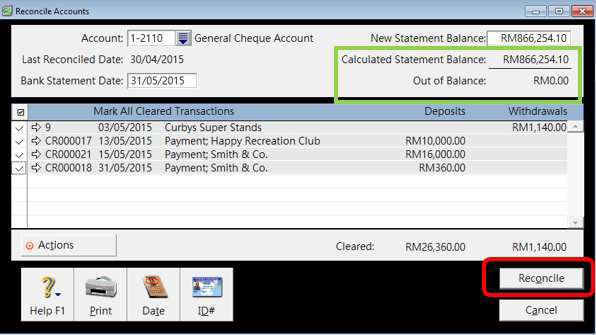
- Once you have selected all the transactions that appear on the bank statement for the period you are reconciling, the Calculated Statement Balance should match the Closing Statement Balance (or New Statement Balance) you have entered and the Out of Balance field should show $0.00. You are now ready to reconcile.
- Click Reconcile.
The following window is displayed:
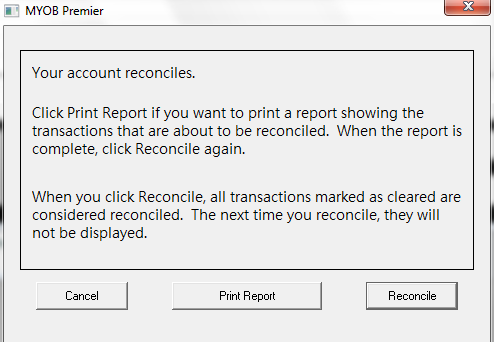
- [Optional] Click Print Report and file a hard copy of the printed reconciliation report. This will prove very useful if a reconciled transaction is accidentally deleted in the future.
- Once the report has printed, you are returned to the Reconcile Accounts window. Click Reconcile again. The confirmation window shown reappears. This time click Reconcile.
You have now successfully reconciled your bank account!
DOs and DON'Ts for recorded transactions
Cheques and Deposits written through the Banking command centre
- YOU CAN change the Account Allocation or the date - both of these will not affect your reconciliation.
- YOU CANNOT change the amount or delete the transaction without affecting your next reconciliation.
Customer Payments
You are not allowed to edit anything on a Customer payment. You may only reverse the transaction as deleting will create an out of balance.
The reversal will appear in your next reconciliation. A reversal is the only way you should be editing a transaction that has been presented on your bank statement. For example, if the bank rejected a payment, the payment rejection will then appear on your next bank statement. In this situation the money would be taken back out of your account.
In your software you can reverse the payment and tick it off when it shows up on your next statement.
Deleting the transaction will cause you to be out of balance with no transaction appearing. This will make it very difficult to analyse what has happened.
Supplier Payments
You are not allowed to edit anything on a vendor payment. You may only reverse the transaction as deleting will create an out of balance. This will cause the reversal to appear in your next reconciliation.
There should be no reason to change or delete a vendor payment as the fact that it was reconciled means that it was presented and correct previously. If you want to cancel the payment because you are getting a refund on the money, deleting or reversing the transaction is not the answer.
Use Debit Notes in purchases to record a refund from a vendor. Deleting the transaction will create an out of balance with no transaction appearing.
What if l have made a mistake?
If you realize that you have mistakenly edited/deleted a transaction so that it either appears again in your next reconciliation, for example wrongly editing a transaction will have this effect, or the mistake is stopping you from reconciling, for example you are out of balance by the total of the offending transactions, the correction will depend on what you have done.
If you changed the amount of a transaction:
The transaction will appear back in your Reconcile Accounts window, even though it had been previously reconciled and ticked off. You will find that when you have marked off all the cleared transactions that appear on your bank statement, this transaction still remains and puts you out of balance.
To fix: Re-edit the transaction BACK to the original amount. You will have to find another way to record the adjustment required. Call Technical support if you cannot work out a way.
If you deleted a transaction:
You will find that when you have marked off all the cleared transactions that appear on your bank statement, the deleted transaction will cause you to out of balance by that amount.
To fix:
- Re-enter the transaction.
- Go to Reconcile Accounts.
- Enter the date of your last reconciliation.
- In the Closing Statement Balance field (or New Statement Balance) field enter the figure you last reconciled at.
- Only select the re-entered transaction.
- Click Reconcile. You will now be able to reconcile normally.
Comments
0 comments
Please sign in to leave a comment.