

This support notes are suitable for:
- ABSS Premier
- ABSS Accounting
|
Introduction Although many businesses will use the ABSS Job System to maintain accounts for separate profit centres such as shop fronts or divisions of their business, other clients might have several businesses and choose to run more than one ABSS company file. ABSS accounting software makes it easy to consolidate several company files into the one company file. In this way, you can print the Balance Sheet, Profit and Loss statement and many other reports from multiple businesses held in multiple company file from the one company file. This support note guides you through this process. |
How can I consolidate the figures from two company files in to the one company file?
In the example below the consolidated ABSS company file is referred to as Master, and the businesses whose results are being combined are referred to as Business 1 and Business 2.
The procedure will import all accounts from each business - they can each have a different chart of accounts. However it‘s worth designing account numbers carefully, as this will affect the consolidated results.
For example, if you want Advertising Expense from each business to appear as a single line in the consolidated file, then make sure that Advertising Expense has the same account number in each separate company file used to create the consolidated company file.
Alternatively, if you want the cheque account for Business l to show separately from the cheque account in Business 2, make sure that these accounts have unique numbers.
Step 1 - Create the Master company file
Go to the File menu and choose New to create a new company file for the consolidated reports. Enter the company name as Master. Select the third option of build own accounts lists when setup Build Your Account List.
Step 2 - Export the accounts
Open up Business l, go to the File menu, choose Export Data and click Accounts and select Account Information. Click Match All in order to select every field except the Balance field. Go to Balance in the Export Order column and click on the field to unselect it. Click Export and name this file account1.txt. This exports the chart of accounts (not the transactions) for Business 1.
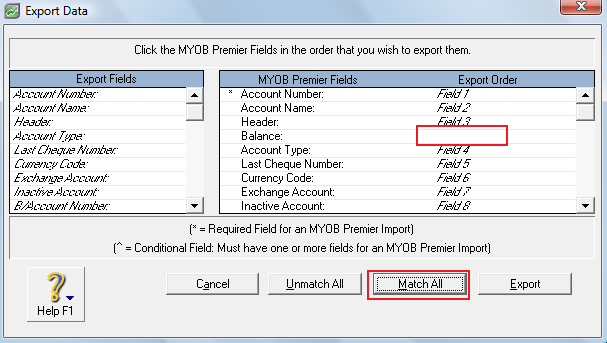
Complete the same procedure for Business 2, except name the export file account2.txt. Repeat this step for any other company files to be included in the consolidated (master) file.
Step 3 - Import the accounts
Open the Master company file. Go to the File menu and choose Import Data. Select Update Existing Record and open up account1.txt . Match the import fields and click Import.
Complete the same procedure (as above) for accounts2.txt . Repeat this step for any other account files to be included in the consolidated file.
Step 4 - Enter the opening balance sheet figures
Go to the Setup menu and choose Opening Balances to enter the Opening Balance Sheet figures for the consolidated file.
These steps outlined above establish a master template for consolidated reporting. If you wish to consolidate accounts regularly or more than once a year, go into Windows Explorer or your Macintosh Desktop and make a duplicate copy of this file for future use.
Step 5 - Export the journals
Open up Business 1. Go to the File menu, choose Export Data and click Transaction journal Entries. Change the Source Journal to All and select a suitable date range. Click Match All, then Export and name this file journal1.txt.
Complete the above procedure for Business 2, except name the export file journal2.txt. Repeat this step for any other company files to be included in the consolidated reports.
Step 6 - Import the journals
Open the Master company file, Go to the File menu, choose Import Data and click General Journal Entries. Select the journal1.txt file. Click Match All and then Import.
Complete the same procedure (as above) for journal2.txt. Repeat this step for any other journal files to be included in the consolidated reports.
The Import is now complete!
After completing the steps shown here, all transactions from the separate company files will be in the consolidated company file enabling consolidated Profit & Loss, and Balance Sheet reports to be produced.
Comments
0 comments
Please sign in to leave a comment.