

This support notes are suitable for:
- ABSS Premier
|
Introduction When you bill a client for only a portion of the sen/ices you have performed, the activity rate on your Time Billing invoice will be a rounded figure. As you might not want to show this rounded figure, this support note shows you how to print your time billing invoices with the correct activity rate being displayed. |
How can I display the correct activity rate on my invoice when I am billing for only a portion of the services provided?
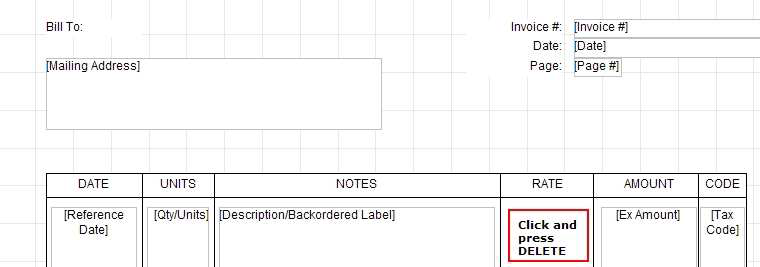
To stop the rounded rate figure from printing on the invoice, you need to go to the Sales command centre and click Print Invoices. Change the Invoice Type to Time Billing and click the Customise button. Click the Ex Rate field and press the DELETE key.
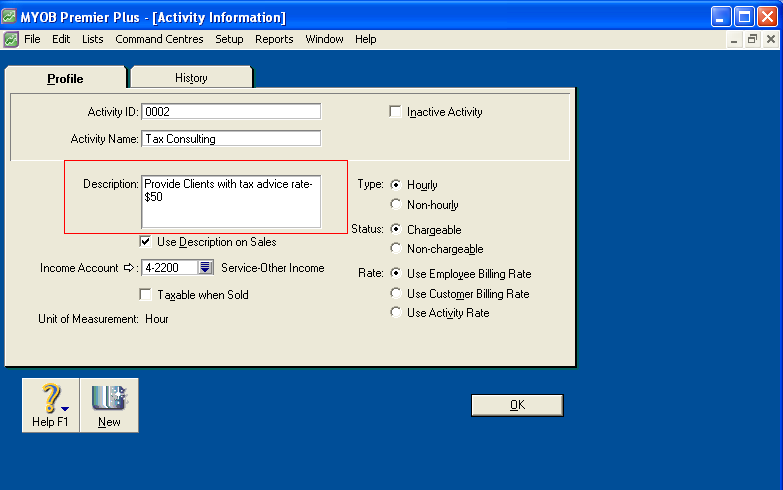
If you want the correct rate to appear on the invoice, go to the Time Billing command centre, click Activity List and then click the zoom arrow next to the relevant activity. Enter the rate in the Description field and select the Use Description on Invoice check box. The rate will then print in the Description field on the invoice.
Example
john Smith & Co is an accounting firm that performs tax consulting. They bill their clients at a rate of $50 per hour. One client has received 8 hours of tax consulting however, is going to be billed for only a portion of the tax consulting performed. The amount the client is going to be billed is $94.25.
Step 1- Bill the customer for a portion of the tax consulting performed
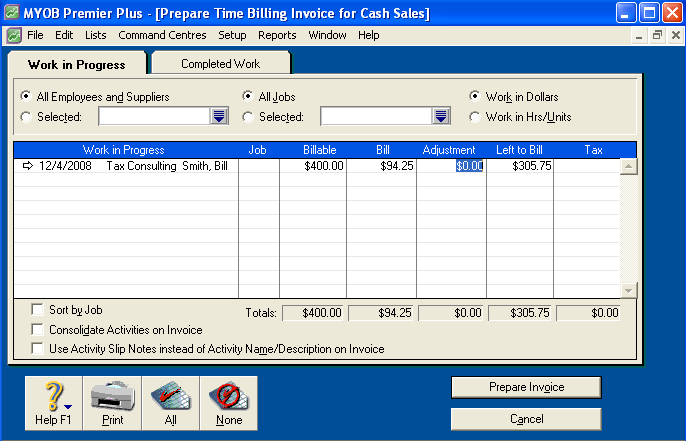
Step 2 - Prepare the Invoice
When you click the Prepare Invoice button, the amount in the Rate field is not $50 or the amount entered for this Activity Rate because the amount in the Hrs/Units field is a proportion of hours or units being billed.
In this example, the Hrs/Units field figure is 1.89 and the Rate field figure is $49.8677.
This Hrs/Units figure is calculated automatically by:
- dividing the amount being billed of $94.25 by the total billable amount or $400. This figure is then multiplied by the total number of hours/units allocated to the activity, in this case 8.
- The resultant value of 1.885 is then rounded to two decimal places which yields 1.89.
- As such, the proportional Rate amount is calculated automatically by:
- dividing the amount being billed of $94.25 by 1.89. The resulting figure is $49.8677.

Step 3 - Delete the 'Ex Rate' field
For more information on customising invoices, please refer to support note Customising Forms.
Step 4 - Enter the correct rate in the Description field
Comments
0 comments
Please sign in to leave a comment.