

This support notes are suitable for:
- ABSS Accounting
- ABSS Premier
|
Introduction Your ABSS Card File contains all your business contacts. As time progresses, you may find that your card list becomes out of date and contains cards that are no longer needed. Deleting cards is easy and speeds up your business processes by reducing the number of unwanted cards displayed in the list. This Support Note explains the conditions a card must meet in order to be deleted. If you are using a version 10 and above, you now have the option of merging cards. For more information on this option please see our Support Note Combining Records: Cards and Accounts. |
How do I delete unwanted cards from the Card File?
Deleting unwanted cards is a quick 3 step process:
- Go to the Card File Command Centre and click Card List.
- Click the tab for the relevant card category (Customer, Supplier).
- Click the white zoom arrow for the card you want to delete.
- Go to the Edit menu and choose Delete card.
When I try to delete a card, I get an alert which prevents the card from being deleted. What does this mean?
There are several reasons why ABSS will prevent the deletion of an unwanted card. Under these circumstances, an alert will be displayed, indicating why the card cannot be deleted.
The window below shows a typical alert.
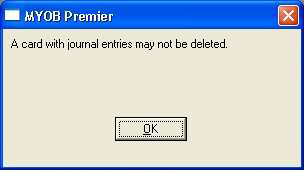
Deleting this card would affect the internal operation of the data file, and therefore, ABSS will prevent its deletion.
What will prevent me from deleting an unwanted card?
Used in a current transaction
A current transaction is one that can still be accessed through the Transaction Journal.
Alert message: 'A card with journal entries may not be deleted'.
Unwanted cards can't be deleted if they are linked to a current transaction. The Card Transactions report will enable you to quickly find all the transactions associated with a particular card.
To view this report, from the Card File Command Centre, click Reports and choose Card Transactions. Click Customise and select the relevant card, Source Journal (select All) and date range then click Display.
To delete the card, the transactions linked to it must:
- Be closed or have a $0.00 balance (Invoices and Bills).
- All Receive Payments, Pay Bills, Receive Money and Spend Money transactions reconciled.
- The Current Financial year needs to be later than the financial year in which the payment or receipt was reconciled.
To check your company file's Current Financial Year, go to the Setup menu and choose Company Information. To check the reconciliation date of a particular transaction, run the Bank Register report and customise it to include the Reconciled Date column.
Please Note: Closed and reconciled transactions are purged from the company file when rolling over the financial year. When a transaction is purged, its link to a card is removed, freeing the card for deletion.
Do I have any options that will enable me to delete a card linked to a transaction(s)?
You have the following options:
- Close open Invoices or Bills associated with the unwanted card, reconcile the payment, then rollover the financial year.
- Reconcile any banking transactions associated with the unwanted card, then roll over the financial year.
- If you are not ready to roll over the financial year, you can set the card to Inactive, and then delete it when the financial year has been rolled over.
- To mark a card as inactive, open the card, click the Profile tab and mark the Inactive Card option.
- Delete the transactions to which the unwanted card is linked.
Please note: The above also applies to Orders and Quotes.
Open Time Billing Activity Slips
Alert message: 'This customer has activity slips on file'; or, 'This employee has activity slips on file'.
Unwanted cards can't be deleted if they are linked to open Time Billing Activity Slips. Using the Time Billing Slip Activity Detail report is the easiest and quickest way to check which Activities a customer or employee card is linked to.
To view this report, from the Time Billing Command Centre click reports Reports and choose Activity Slip Detail. Click Customise; select Work In Progress Only from the Status drop down list, then select All from the Activity Type drop down list. Click Display.
Please note: Activities that have been invoiced will appear in the Card Transactions report as a sale - see Linked Transactions.
Deleting the open Activity will free the card for deletion.
Linked to a Recurring transaction template.
Alert message: 'A card with recurring sales or purchases cannot be deleted'.
An unwanted card can't be deleted if it is linked to a Recurring transaction template.
Finding the linked Recurring template is usually quite easy. For instance, an unwanted customer card will most likely be linked to a Recurring sales template. Therefore, to identify the template, go to the Sales Command Centre, click Sales Register and click the Recurring Templates tab.
By default, recurring transaction templates inherit their names from the card they are attached to. Therefore, the card‘s name will most likely be displayed in the list of Recurring transaction templates. Once identified, highlight the template and then click Delete.
These principals apply to all type cards. Suppliers cards will most likely be linked to a Recurring purchase type template, and employees‘ cards will most likely be linked to a Recurring paycheque template.
Another method to determine the linked Recurring transaction template, is to use one, or a combination of, the following reports.
- General Journal Entries - To view this report go to the Accounts Command Centre and click Reports and select the report. You can Customise this report for all transaction types (except sales and purchases) by clicking the Recurring Type drop down list.
- Recurring Sales Templates - This report is the same as the above report except that it can be customised for Recurring sales and purchases templates. To access this report, go to the Sales Command Centre and click Reports.
- Recurring Purchase Templates - To access this report, go to the Purchases Command Centre and click Reports. You can also Customise this report for recurring sales templates.
The Recurring templates can be opened from within these reports by clicking them. A transaction will then be displayed and you will be able to see if the template uses the unwanted card. If it doesn't, click Don't Record and then open the next template.
Linked to a lob
Alert message: 'This customer has a linked job'.
Only customer cards can be linked to a job. To determine which job an unwanted card is linked to, go to the Lists menu and choose Jobs. Open each lob until you identify which ]ob(s) the unwanted card is linked to.
Once identified, you can delete the job: Go to the Edit menu and choose Delete Job. Alternatively, change the job's linked customer card.
Please note: Detail jobs that are indented under a Header job inherit their linked customer card from the Header lob. Deleting a Header job will also delete the indented Detail lobs. Changing the linked customer card on the Header lob will also change the linked customer card on the indented Detail jobs.
Linked to an item
Alert message: ‘This is a primary supplier for an inventory item.‘
Using the Items List Summary report is the quickest way of identifying which item(s) the unwanted card Supplier's is linked to.
To view this report, click go to the Inventory Command Centre click Reports choose the Items List Summary and click Display. Scroll down the list of items and note those that have the unwanted card selected as the Primary Supplier.
To change an item‘s Primary Supplier, click Item List and click the zoom arrow next to the item the unwanted card is linked to. Then click the Buying Details tab and click on the Primary Supplier for Reorders drop down arrow and select another supplier card. You will need to repeat this for each of the items the unwanted card is linked to.
Linked to a tax code
Alert message: ' A card linked to a tax code may not be deleted.‘
This link is quite rare. Using the Tax Code List report will enable you to quickly identify which Tax Code the unwanted card is linked to.
Go to the Reports menu, choose Index to Reports and click the GST/Sales Tax. Choose the Tax Code List, click Customise and click the Report Fields tab and mark Linked Card field. Now click Display and note the tax codes the unwanted card is linked to.
To unlink the card, go to the Lists menu and choose Tax Codes. Click the white zoom arrow for the tax code the unwanted card is linked to and place your cursor in the Linked Card field. With the card highlighted, press the <DELETE> key on your keyboard; or, select another card by clicking on the Linked Card drop down arrow.
Comments
0 comments
Please sign in to leave a comment.