

This support notes are suitable for:
- ABSS Accounting
- ABSS Premier
|
Introduction ABSS provides certain safe guards, which will prevent the deletion of certain transactions. These transactions however, can usually be reversed. |
How do I delete a transaction?
To delete a transaction, please follow the below steps:
Set ABSS's Security Preference
ABSS provides a security preference which when active, prevents the deletion of transactions. To access this preference, click on Setup > Preferences > Security. Remove the check mark from the Transactions Can't be Changed; They Must be Reversed [System-wide] option.

Find the transaction
- From the Command Centre, click Accounts > Transaction journal.
- Click on the relevant tab, which represents the transaction type.
- Enter a date range in the From and To date fields. If the date of the transaction is known, then enter this date in both fields. Otherwise, enter a date range, which is wide enough to capture the transaction.
- Press the <tab> key and ABSS will display the transaction.
Delete the transaction
- Click on the zoom arrow next to the transaction to be deleted.
- Click Edit > Delete Transaction.
How do I reverse a transaction?
The same process for deleting transactions is used for reversing them. However, the Transactions Can't be Changed; They Must be Reversed [System-wide] security preference needs to be activated by placing a check mark against it.
After changing the security preference, open the transaction from within the Transaction Journal, then click on Edit from the menu bar > Reverse Transaction; ABSS will then prepare a reversal transaction. Check that the date and other details of the reversal transaction are correct, and then press Record.
l can identify the transaction, but its zoom arrow is missing
This will indicate that:
- The transaction is an Inventory journal. These can be identified by their Transaction ID #, which will have an IJ prefix. These transactions can‘t be opened, deleted or reversed.
- The transaction has been purged.
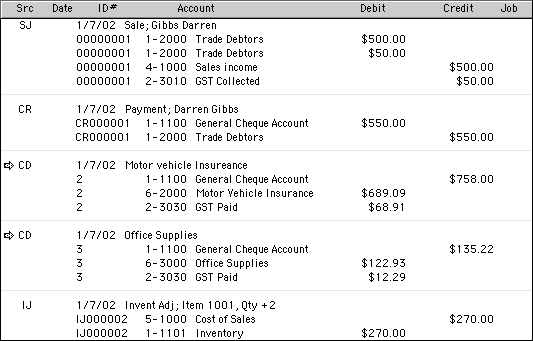
In the below Transaction Journal window, please note the following:
- Transactions S] 0000001 and CR 000001 have missing zoom arrows; indicates these transactions have been purged.
- IJ 000002 is missing a zoom arrow; the IJ Src prefix denotes it's an inventory type transaction.
- The grey zoom arrows usually indicate the Security Preference is set so transactions can only be reversed. The transaction could also be part of a processed Prepare Electronic Payment or Prepare Bank Deposit transaction.
The transaction I want to delete/reverse isn't listed in the Transaction Journal
Reasons for transactions not appearing in the Transaction Journal are:
- The transaction's date is different to the dates entered in the From and To date fields. Try entering a wider date range.
- The incorrect transaction type tab is selected. Try selecting the All tab.
- The transaction belongs to a previous financial year, which has been rolled over. The Start a New Financial Year function deletes transactions that were closed and reconciled in the finalised year. Although these transactions are deleted, their balances are bought forward.
Because these transactions can't be accessed, a reversing transaction will need to be manually entered, and dated in the current financial period.
An alert is displayed when I open or try to delete a transaction.
Attempting to open or delete a transaction will occasionally result in an alert. The alert will inform you of why the transaction can't or shouldn't be deleted.
- Reconciled Transactions: Although reconciled transactions can be deleted, they must be reentered for the same amount to rebalance your Bank Reconciliation. For information on deleting reconciled transactions, please refer to our support note titled Reconciled Transactions.
- Processed Prepared Electronic Payments and Prepare Bank Deposits: Individual banking transactions (cheques/deposits) that are part of a processed Prepare Electronic Payments, or Prepare Bank Deposit transaction, will have grey zoom arrows. These individual banking transactions can only be reversed. Alternatively, deleting the transfer transaction will release the individual banking transactions so they can be deleted.
- Quotes, Orders, Invoices or Bills that have payments applied to them cannot be deleted until those payment(s) have been deleted. Alternatively, reversing the transactions will result in a credit equal to the applied payments.
- Deposits: Deposits applied to Quotes and Orders, will prevent the final Bill or Invoice from being deleted. For information on deleting these Invoices and Bills, please refer to our support note titled Reversing Deposits.
- Locked Periods: Transactions dated within a Locked Period can't be deleted. They can be reversed though, providing the reversal is dated after the Locked Period. The Locked Period option can be accessed by selecting Setup > Preferences > Security. Deactivating this preference will provide the access privileges needed to delete the transaction.
- It is strongly recommended that transactions dated within a locked period be reversed. This will maintain the integrity of the locked period’s data.
Comments
0 comments
Please sign in to leave a comment.