

This support notes are suitable for:
- ABSS Accounting
- ABSS Premier
|
Introduction Your ABSS Software enable you to e-mail invoices as a batch. You can set your own default subject and body message for these emails. This support note explains how this is done. |
Is this consider as an e-Invoice?
No. This is a single-sided operation requiring your recipient to re-enter the details of the invoice into their own accounting system (e.g. accounts payable). A more complete solution should include the transmission of data from supplier system to buyer system without human intervention. Read more about E-Invoicing via PEPPOL network here.
How do I flag a sale to be emailed?
When you open the sales entry window and select a customer, you will notice a new drop down field called Invoice Delivery Status:
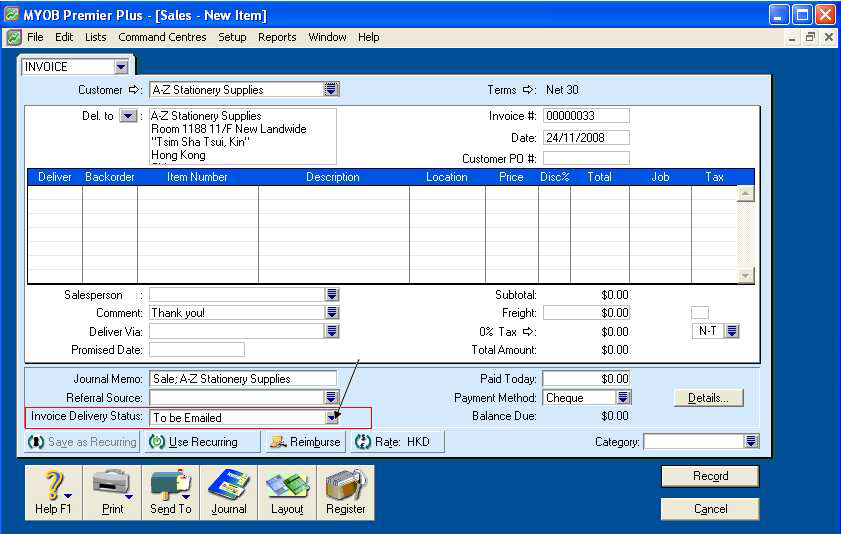
Click the arrow on the end of the field to display the following options:

As shown, there are options to print, email or print and email. A sale can also be marked as already printed or sent.
Let's choose 'To be Emailed'.
Once you have entered all the details of the sale, click Record. Any other sales you wish to email can be also be entered now and then sent as a batch in the next step.
I have now recorded the sales that I wish to email, how do I go ahead and send them?
1. From the sales entry screen click Cancel to return to the Sales Command Centre.
2. Click Print/Email Invoices.
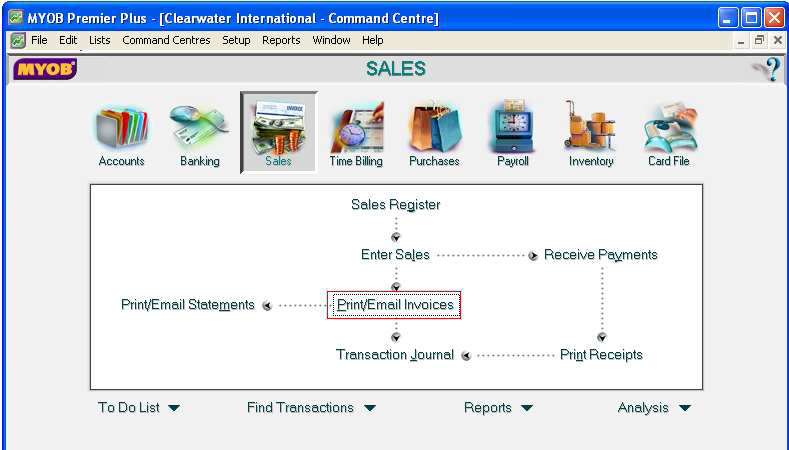
The following window appears:
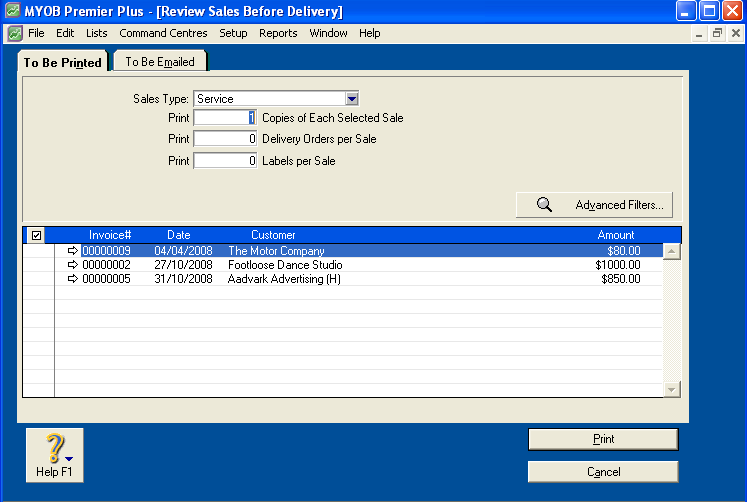
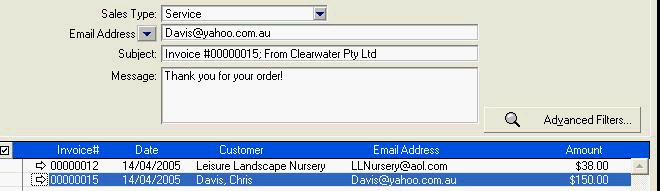
3. Click the To Be Emailed tab. The Review Sales Before Delivery appears as follows:
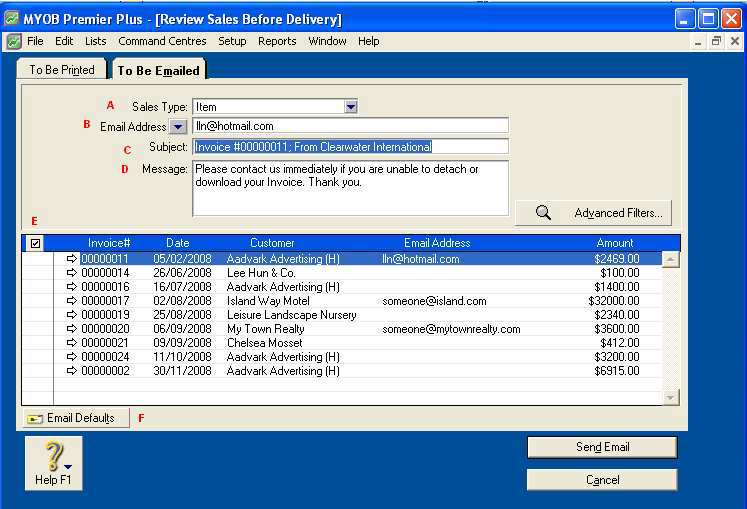
If the sale you want to email doesn't appear in the list, check the Sales Type field (a) lists the type of sale you have entered. For example, you may have entered an Item sale but the Sales Type field is set to display Service sales.
The Email Address field (b) contains the default address that has been entered in the Profile tab of the customer‘s card. You may overwrite it with a different address or select an alternative address that has also been entered in the card.
The Subject line (c) is filled in with the invoice number and your company name by default. You may overwrite it at this point. The same is true of the contents of the Message field (d).
Note that each sale in the list can have its own Subject and Message. As you highlight them in the table in the bottom section, the top section shows the subject and message for the highlighted sale.
How do I control which form will be used for the sale, I want to use my customised form?
Click the Advanced Filters button. The form selection screen familiar to you from earlier versions appears.

Can I set my own default Message and Subject text?
Yes! Click the Email Defaults button located along the bottom left of this screen:

The following window appears:
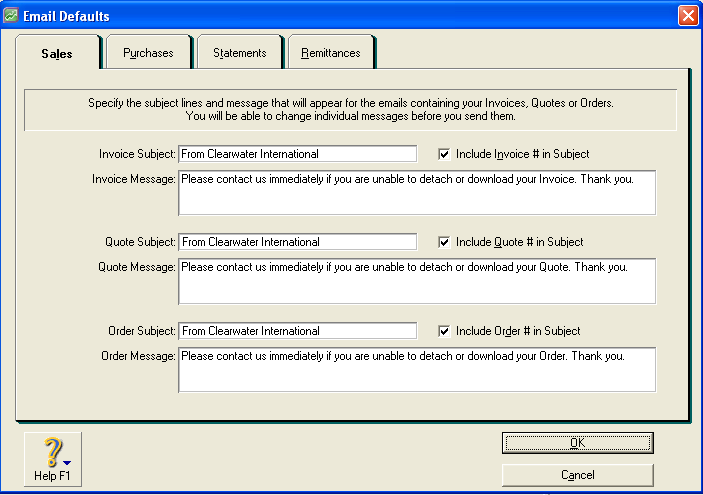
This window allows you to edit the default subject line for Sales, quotes and orders. You can also include or exclude the invoice number from the subject line.
Comments
0 comments
Please sign in to leave a comment.