

This support notes are suitable for:
- ABSS Accounting
- ABSS Premier
|
Introduction A recurring transaction is a time-saving feature of your MYOB software. It stores a transaction as a template eliminating the need to re-key the details each time. A recurring transaction may have a schedule associated with it so that MYOB can prompt you to record transactions that are due at regular intervals. |
What types of transactions can be saved as recurring ones?
- Spend Money
- Receive Money
- Sales, orders and quotes
- Bills, orders and quotes
- General journals
How do I setup a recurring transaction?
When first setting up a recurring transaction, you begin by creating the transaction in the normal way. For example, let's create a recurring Spend Money transaction for the monthly rental of the business premises.
- Go to your Banking Command Centre and click Spend Money.
- Complete the spend money screen details as required including an amount, a date, an allocation account and a Card if required.
- Click Save as Recurring.

The Edit Recurring Schedule window appears:
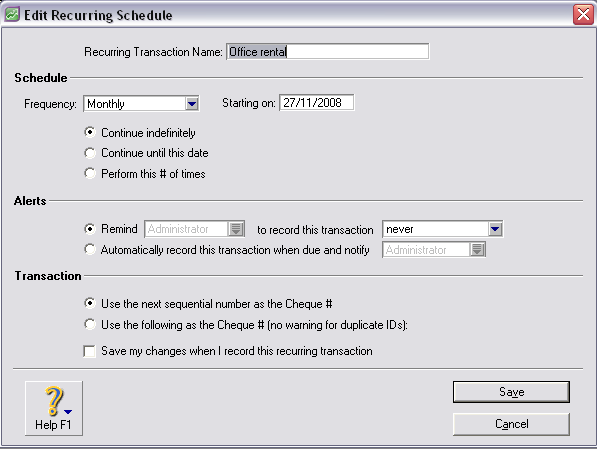
Your cursor initially appears in the Recurring Transaction Name field which by default shows the name of any card you may have selected for the transaction. Let's name the recurring transaction ‘Monthly Office Rental’.
This Edit Recurring Schedule screen is broken down into settings for scheduling, alerts and transaction ID.
Schedule Options
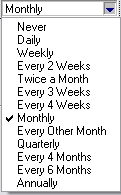
By default the Frequency that is selected for the recurring transactions is 'Monthly‘. However there are many other options available. These appear when you click the drop-down arrow on the right of the Frequency field.
The Next Due field is by default the date of the transaction you are entering. You may change it to any date in the future or a past date in the current financial year (except for transactions set to automatically record; the Next Due date must be the current system date or a date in the future).
Past dates can only be used in 2007 Business Management software feature releases. Previously, there was only a "Start Date" option. Dates could not be entered before the current system date time.
Alert Options

By default, alerts are inactive. To activate them you must first set when the alert should take place. The options are to have the alert take place on the due date or in a number of days before the due date.

In this case we have chosen to be alerted two days before the transaction is due. Once you have set this field, you may then choose which user is to receive the alert by clicking the drop-down arrow following Remind.

A user ID list appears:
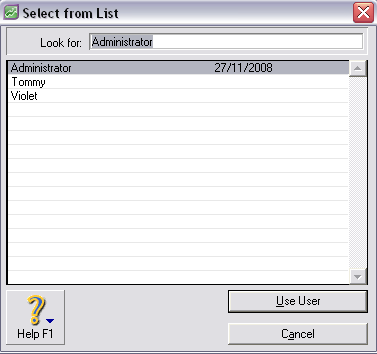
Click the desired user ID and click Use User.
Rather than being alerted, you also have the option of having MYOB Automatically record this transaction when due and notify a given user.

Once again different users can be assigned to receive this alert.
Transaction Options
You can choose to have MYOB use the next Cheque number in the sequence within your Company file or you may choose to assign a specific Cheque number. In cases where you do not want a Cheque number to be used, you can use an alphabetic ID for the transaction such ‘as RENT’.
If you want the recurring template to retain changes made when you use the transaction, mark the Always save my changes when I use and Record this recurring transaction.
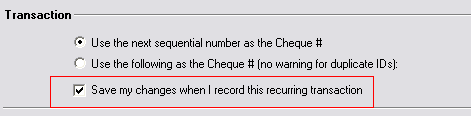
If you want the recurring transaction to revert to the selections and values used on the original recurring transaction then leave the checkbox unmarked.
How does the alert work?
On the day the alert is set for, when the user assigned to receive the alert accesses your Company file, the Reminders window will appear:
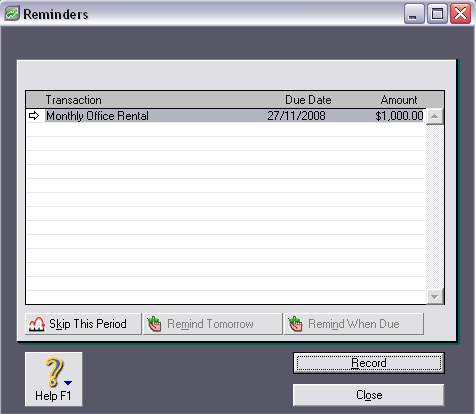
At this point you have the following options:
- Skip recording the transaction for the period (this month)
- Remind to record the transaction tomorrow
- Remind when due
You may also change details of the transaction by clicking the white arrow next to it. This will display the Spend Money screen.
How does the notification work when the transaction has been set to record automatically?
Where the option to automatically record and notify has been selected, on the day the transaction is due when the person assigned to receive the notification accesses the company file, the following window will appear:
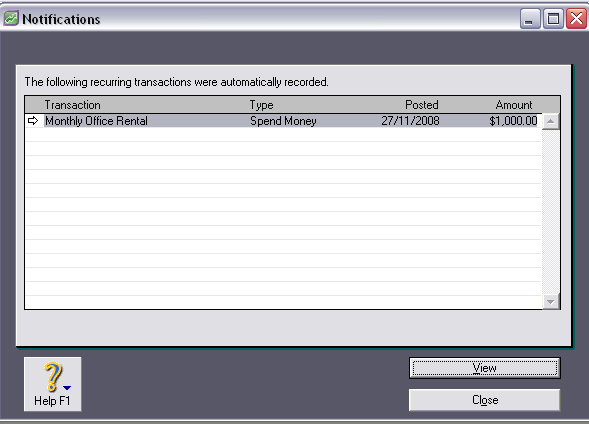
The transaction that has been recorded is listed and can be viewed by clicking View or clicking the white arrow next to it.
If an error has been made and the transaction should not have been recorded, once it is displayed on screen you may delete it from the Edit menu.
How do I delete a recurring transaction?
- Go to the Lists menu at the top of the screen and select Recurring Transactions.
- Select the recurring transaction that you wish to delete and click the Delete button.
Comments
0 comments
Please sign in to leave a comment.