

This support notes are suitable for:
- ABSS Accounting
- ABSS Premier
|
Introduction The following support note provides information on working with graphic images within your customised forms. It discusses appropriate file formats and other factors involved in correctly printing the graphic content of your customised form. |
What image file formats are compatible with MYOB?
MYOB accepts pictures in .BMP, .EMF, .GIF, .JPG (JPEG), .PNG, .TIF, .WMF and .ICO.
Please note: BusinessBasics & earlier versions of MYOB only accepts the BMP format when using the Load Picture button. However other file formats can be pasted in as described below.
How do I insert the logo on the customised form?
You can either Paste or Load the graphic.
How do I paste a graphic?
Before you can paste a graphic into MYOB, it must first be copied to the System clipboard before it can be copied into your customised form. Please refer to your operating system's manual or Help files on how to do this. Programs such as Microsoft Word also have a clipboard function.
- To paste the graphic into a form (e.g. MYOB‘s Item Invoice):
- Go to the Customise Item Invoice screen
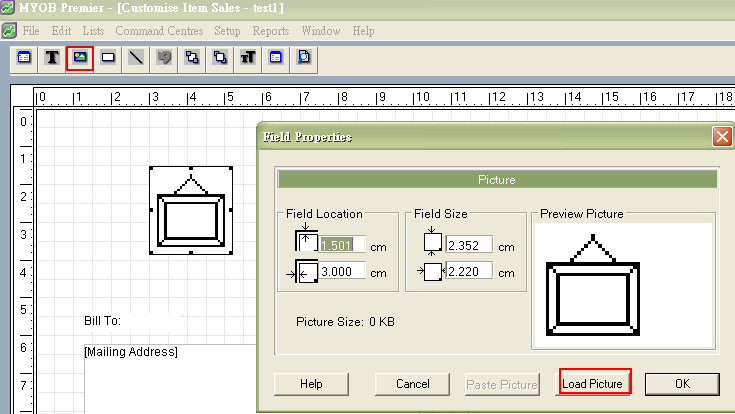
- Click the picture tool which is the third button from the left in the toolbar.
- Click the form layout where you want to place the graphic. A picture frame will appear to show the location of the picture field on the form.
- The graphic is then pasted from the clipboard by double-clicking the picture field, then for Windows selecting the Paste Picture button, or for Macintosh select the Paste button.
How do I load a graphic?
To load the graphic into a form such as ABSS‘s Item Invoice:
- Go to the Customise Item Invoice screen.
- Click the picture tool which is the third button from the left in the toolbar.
- Click the form layout where you want to place the graphic. A picture frame will appear to show the location of the picture field on the form.
- The graphic is then pasted from the clipboard by double-clicking the picture field, then for Windows selecting the Load Picture button, or for Macintosh select the Load button.
Below print screen shows how to paste or load a graphic into a form.
Can I print my logos in colour?
Colour graphics can be pasted or loaded and printed, assuming you have a colour printer.
Please refer to 'How do I paste a graphic' or 'How do I load a graphic' above.
Why don't my logos appear when I email or fax my invoice direct from ABSS?
You will need to install QuickTime Version 5 or later. Please refer to support note Installing QuickTime for more information.
For best results, if you have an earlier version of QuickTime, it is suggested that you uninstall that version before installing QuickTime Version 5 or latest.
After installing QuickTime Version 5 or latest, you will need to delete the logo from your customised form and then reload the picture.
Other Trouble Shooting Tips:
If the logo does not print at all and cannot be seen on screen:
ls the field size large enough in the Form? You may need to increase the size of the picture field on the screen. ls the logo in the correct file format?
If the logo prints with jagged edges:
You can try smoothing the edges of your picture in a graphics package before pasting it into the form.
If the logo prints entirely black
This may occur if the resolution of the graphics is too high. You should try lowering the resolution in a graphics package before pasting it into MYOB. ls there anything pasted on top of the logo in the Forms Customisation screen - if so, move the field and see if it improves the printing of the logo.
If the logo does not print correctly on one of the computers, while printing satisfactorily on the computer where the image was pasted (Premier only)
Make sure that the Colour Depth is the same as the computer where the logo was pasted into MYOB. If the computer was set to 256 colours in the Control Panel, the same setting should be set on the other computer(s).
If the logo does not print in colour
Previous versions of MYOB do not allow colour graphics above 16 colours to be printed in forms. It will convert them to grey scale images.
Comments
0 comments
Please sign in to leave a comment.