

This support notes are suitable for:
- ABSS Accounting
- ABSS Premier
|
Introduction You maybe faced with a situation where a customer requests you transfer a credit to another customer who you and they both trade with. This support note provides information on setting up your company file and transferring credits. |
Summary
Transferring credits is done by using a chequebook clearing account. The clearing account is used to record a refund for the first customer. Then, using the clearing account, a Receive Payments transaction is recorded for the second customer. The first transaction will post a withdrawal to the clearing account and the second will offset it with a deposit.
How do I setup my company data file to transfer credits between customers?
All that's needed is a new chequebook clearing account.
- Go to the Accounts command centre and click Account List.
- Select the Asset tab and click New.
- Make sure you select Bank in the Account Type drop-down menu.
- Give the account a unique number that suits your account list.
- Name the account Credit Note Clearing and click OK.
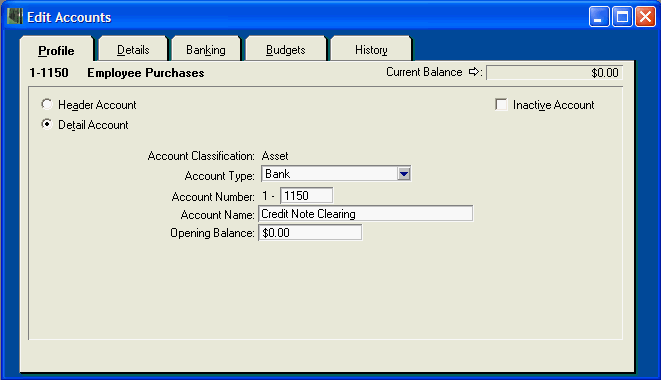
The window below shows the setup of the Credit Note Clearing account.
How is a credit transferred from on customer to another?
There are only two steps to transfer a credit between two customers.
Step 1 - Record a refund for customer #1
After creating the credit note for the first customer:
- Go to the Sales command centre, click Sales Register, click the Returns and Credits tab and highlight the credit note.
- Click Pay Refund.
- Click the Pay From Account option and enter the Credit Note Clearing account in the adjacent Account field.
- Check the refund payment details then click Record.
The following window shows a refund for $90 being paid from the Credit Note Clearing account.
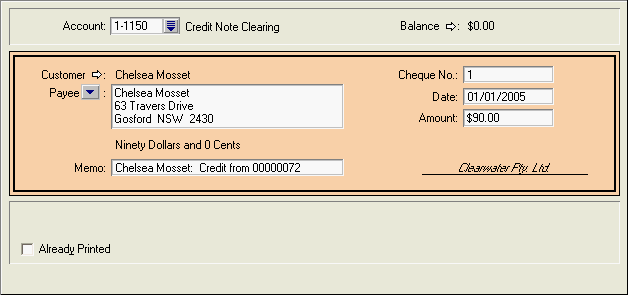
This will post a withdrawal to the Credit Note Clearing account.
Step 2 - Transfer the credit to Customer #2
- Go to the Sales command centre and click Enter Sales.
- Select the second Customer‘s Card.
- Click the Layout button, choose Service and click OK.
- Enter the Date and Memo.
- Enter the Credit Note Clearing account in the Acc # field.
- Enter the Amount as a negative (-$90).
- Select the relevant Tax Code.
- Check the transaction then click Record.
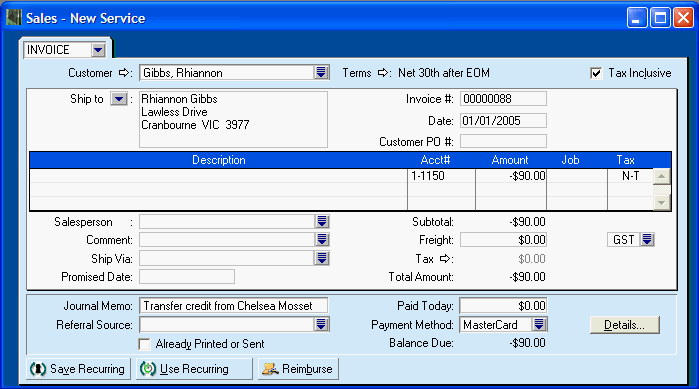
The window below shows a credit note for the second customer.
Please note: In this example, the N-T Tax Code has been used. Please check with your accountant or the ATO as to how this is to affect your GST reporting, or that of your customer's. If necessary, you can print the credit note and issue it to your customer as a Adjustment Note.
This transaction will:
- Post a deposit to the Credit Note Clearing account, offsetting the refund withdrawal. The Credit Note Clearing account should now have a zero balance and
- Create a credit note for the second customer that can be settled through the Sales Register
Comments
0 comments
Please sign in to leave a comment.