

This support notes are suitable for:
- ABSS Accounting
- ABSS Premier
|
Introduction There are many businesses that deal in trade-ins, such as motor car traders. These trade-in type transactions can be quickly and easily accounted for in your ABSS software. This support note explains how. |
How do I setup ABSS to record a trade-in?
Before recording any trade-in transactions, you will first need to setup a new asset banking account and a new Item.
Setting up a banking account
This account will be used as a clearing account to ‘hold’ the value of the trade-in.
- Go to the Accounts command centre and click Account List.
- Select the Asset tab and click New.
- Make sure you select Bank in the Account Type drop-down menu.
- Give the account a unique number that suits your account list.
- Name the account Trade-in Clearing Account.
- Click OK.
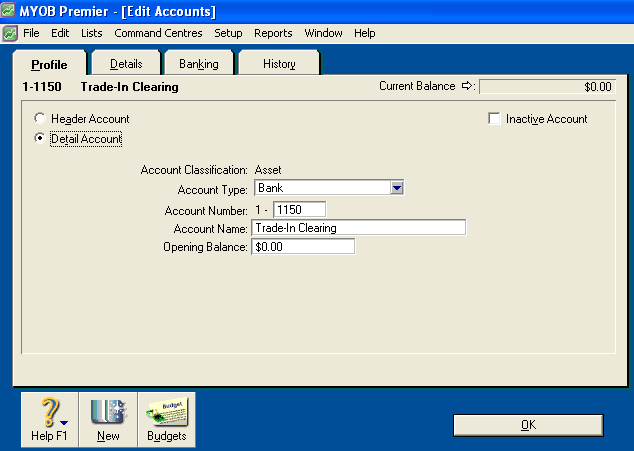
The following window shows the setup of the Trade-in Clearing account.
Setup a new trade-in item
This Item is used to deduct the trade-in amount from the sale, and, deposit the deduction to the Trade-in Clearing account.
- Go to the Lists menu, choose Items and click New.
- Enter the Item Number and Item Name.
- Select the I Sell This Item option then enter the Trade-in Clearing account in the Income Account for Tracking Sales field. You will receive a warning message regarding the type of account selected. Click OK and disregard the message.
- Click Selling Details and enter the relevant Tax Code.
- Click OK and return to the Command Centre.
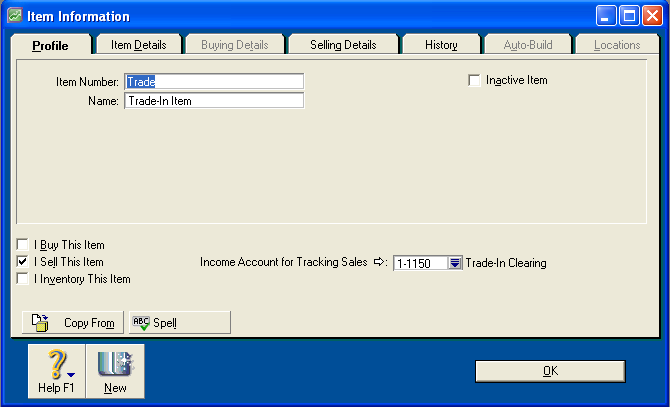
The window below shows the trade-in item setup.
What steps are needed to record a sale that includes a trade-in entered in MYOB?
There are only three steps to record a trade-in.
Step 1 - Record the sale Invoice that includes the trade-in deduction
After creating a Card for the customer:
- Go to the Sales command centre and click Enter Sales.
- Select the Customer's Card.
- Enter the Invoice # and Date.
- Enter the Ship quantity of the item being sold. Enter the Item Number, Description and Price.
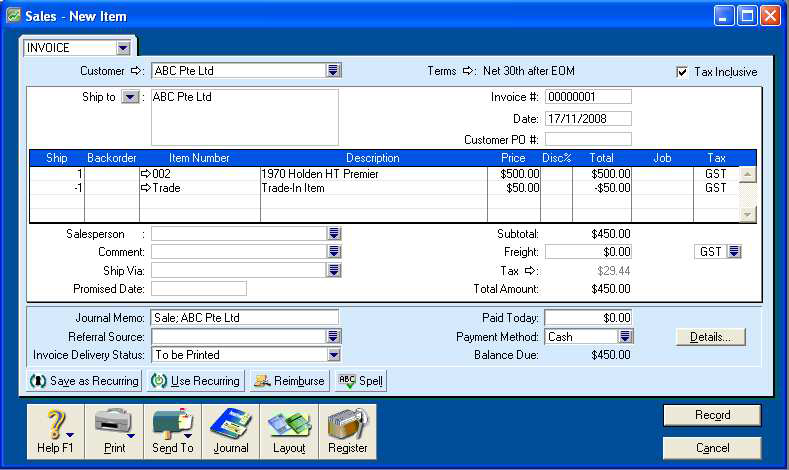
- On the second line, enter a negative one (-1) in the Ship field. Enter the Item Number of the new Item that was setup and then enter the Price, being the value of the trade-in.
- Enter the other transaction details as required and then click Record.
The above steps will deduct the value of the trade-in from the sale and deposit it into the Trade-in Clearing account which is the linked account for the Trade-in Item.
The window below shows a sample Invoice with the trade-in deduction.
Step 2 - Create a Bill for the purchase of the trade-in item.
Before recording the Bill, you will first need to setup a Supplier type Card for the customer, and an Item for the ‘thing’ being traded in. When setting up this Item, ensure that the I Purchase This Item option is activated and that the relevant cost of sales account (5-xxxx) is selected (You may also want to select the I Inventory This Item and also the I Sell This Item options).
- Go to the Purchases command centre and click Enter Purchases.
- Select the Supplier Card that was specifically setup for the customer.
- Click the Layout button, choose Item and click OK.
- Enter the Purchase #, Date, Memo and the other purchase details.
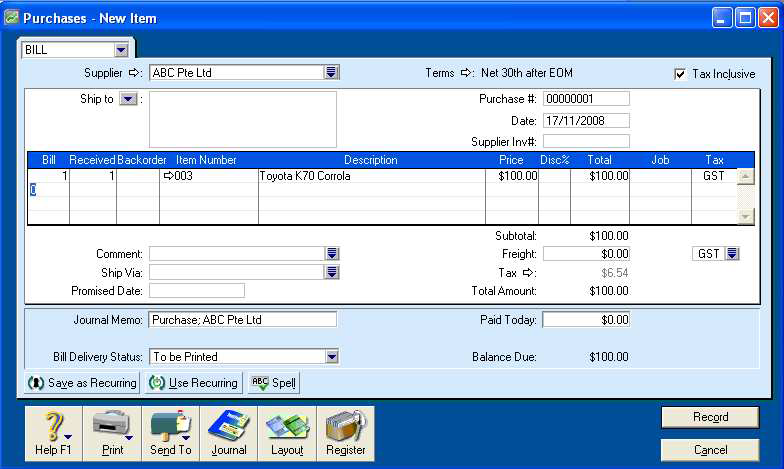
- Enter the quantity Received, Item Number, and then enter the Price - using the same price as entered for the trade Item on the sales Invoice. Enter this amount as a positive - $100.00.
- Check the transaction then click Record.
The window below shows a sample Bill for a traded-in item.
Step 3 - Close the Bill for the trade-in item
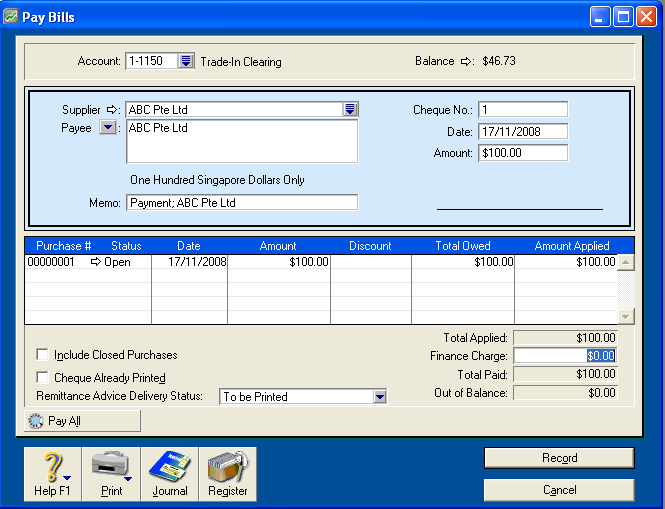
The Trade-in Clearing account, which was used to enter the trade-in deduction, is used to pay the Bill for the purchase of the trade-in item. This will post a withdrawal to the Trade-in Clearing account, leaving it with a zero balance.
- Go to the Purchases command centre and click Pay Bills.
- Select the Supplier Card that was specifically created for the customer.
- Click the Pay From Account option then enter the Trade-in Clearing account in the adjacent Account field.
- Enter the Memo, Date and Amount.
- Enter the Amount Applied against the Bill for the trade-in item.
- Check the transaction details then click Record.
The window on the next page shows a sample of the Pay Bills transaction. This will close the Bill and clear the Trade-in Clearing account balance.
Comments
0 comments
Please sign in to leave a comment.