

This support notes are suitable for :
- ABSS Premier
- ABSS Accounting
|
Introduction At various times you may want to issue a credit note against a customer’s account. This may be to make an adjustment to their balance or simply to record a credit that you have offered. How you handle credit notes depends on a variety of factors, such as:
|
In what type of situations would I need to issue a credit note?
Items returned because they were faulty
- If all items were returned and they had not been paid for, just reverse the sale and use the Returns & Credits tab of the Sales Register to apply it to the original invoice.
- If only some of the items were returned create an Item Invoice credit just for the returned goods and use the Returns & Credits tab of the Sales Register to apply the credit to the original invoice.
Writing off a bad debt
At times people will be unable to pay their account, or simply refuse to pay it. For Information about handling Bad Debts refer to Dealing with bad debts.
Applying a discount if you forgot to apply it when applying payment
This scenario is best dealt with by means of the method outlined under Raising credits when you do not track inventory further below in this support note. The negative amount would be allocated to the Discount Expense account. It would also be appropriate to use if you had not setup a linked account for Discounts given.
How would I create a credit note in ABSS?
Reversing an existing sale:
- Locate the original transaction in the Sales tab of the Transaction Journal or the Sales Register.
- Click the white zoom arrow next to the original sale to display its details.
- Go to the Edit menu and choose Reverse Sale. This automatically creates a credit note for the entire sale.
- Click Record Reversal to record the credit note details.
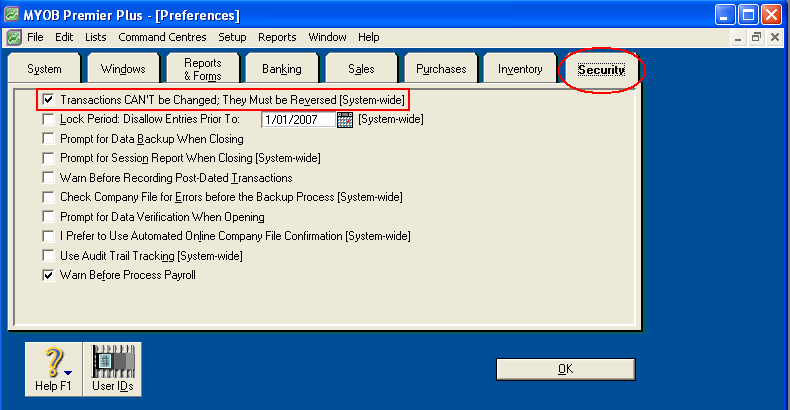
Note: If you have Delete Sale instead of Reverse Sale when you go to the Edit menu, you will need to make a change in your preferences:
- Go to the Setup menu, choose Preferences and click the Security tab.
- Make sure that you have a tick in the box next to the line that says Transactions CAN'T be Changed, They Must be Reversed [System-wide].
- Click OK. You will now see a Reverse Sale option when you look in the Edit menu.
Returned Stock
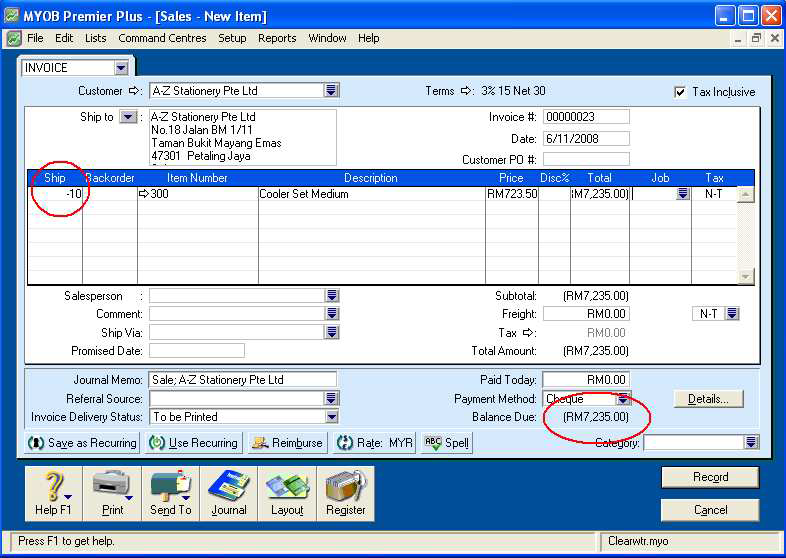
- In the Sales Command Centre click Enter Sales.
- Select the required customer.
- Click the Layout button at the bottom of the window, select the Item invoice layout and click OK.
- Enter the quantities of the items being returned as a negative amount.
- Enter the item number. The item's costs are displayed as negatives.
- Record the credit invoice.
Raising credits when you do not track Inventory:
- In the Sales Command Centre click Enter Sales. In FirstEdge click the New Sale button within the Sales Register.
- Select the required customer.
- Click the Layout button at the bottom of the window and select Service, Professional or Miscellaneous layout and click OK.
- Enter a description for the credit.
- Enter the account number to be credited into the Acc# field or select it from the list. This account should be the original income account that the original sale was allocated to. Alternatively you could have an Income account called ‘Sales returns/Credits‘.
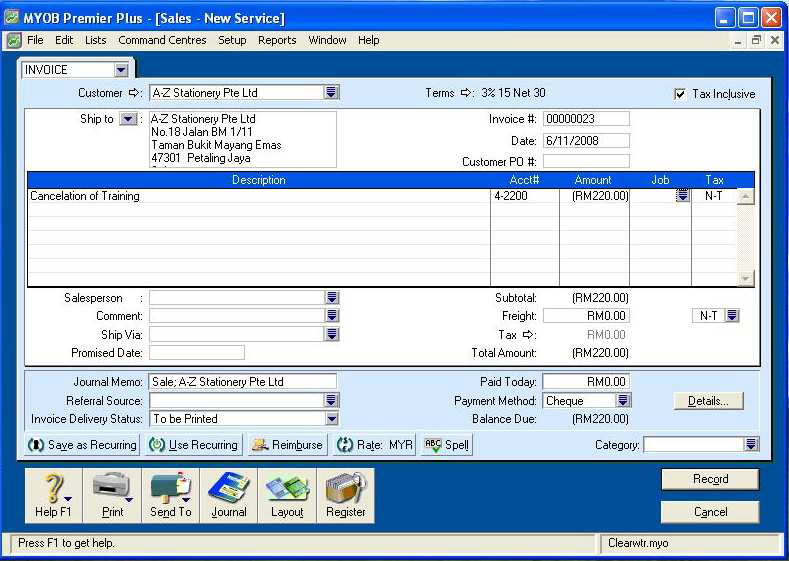
Note: Service, Item and Professional credit notes created through the Sales function can be printed at the time of recording or through ‘Print Sale Forms‘ in the Sales module Command Centre window. Select the correct invoice type and change sale status to ‘credit'. Miscellaneous credit notes cannot be printed.
Applying the Credit to reduce the Balance owing.
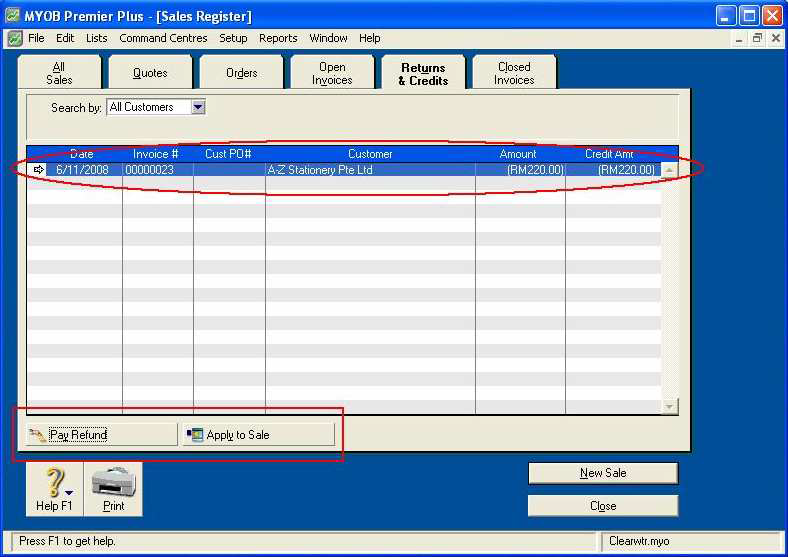
Once you record a credit you must settle it using the Returns & Credits tab of the Sales Register in the Sales Command Centre. You have three options in settling credits:
- Pay Refund - Use the refund option if you are going to issue a cheque to the customer for the amount of the credit.
- Apply to Sale - Use this option to apply the value of the credit note against the original outstanding invoice or against other outstanding invoices to reduce the balance owing.
- Settle at a later date - If there are no outstanding invoices on the customer's account, and you do not wish to write a refund cheque, leave the credit in Settle Returns St Credits so it can be applied to a future invoice.
To pay a refund, with the credit note highlighted click the Pay Refund button along the bottom left of the Sales Register window. Click Record to complete the Settle Returns & Credits transaction.
To apply the credit to an existing invoice, with the credit note highlighted, click the Apply to Sale button. Click into the Amount Applied column next to the invoice to which the credit is to be applied. Make sure the Out of Balance and Finance Charge fields say $0.00 and click Record.
Note: Debit notes are created in a similar manner in the Purchases module when you are returning stock or receiving a discount from your suppliers
Comments
0 comments
Please sign in to leave a comment.