

This support notes are suitable for:
- ABSS Accounting
- ABSS Premier oo MYOB Premier Plus
|
Introduction Accurate customer statements help your customers pay their bills on time. This support provides help in correcting situations where an invoice(s) is ageing incorrectly. Finance Charges not calculating on overdue invoices is also discussed. |
Before you begin
You can familiarise yourself with accessing and setting up your customer terms in MYOB by reading our support note titled Setting Up Customer Terms & Statements.
The Receivables - Reconciliation Detail report makes it possible for you to check your invoice ageing without having to print a statement. To use this report:
- Click Reports, and then click the Sales tab.
- Highlight the Receivables - Reconciliation Detail report then click Customise.
- After setting the Customers and Receivables As Of date fields, set the Ageing Method field to Days Overdue Using Invoice Terms then click Display.
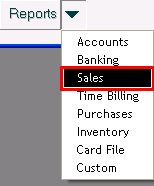
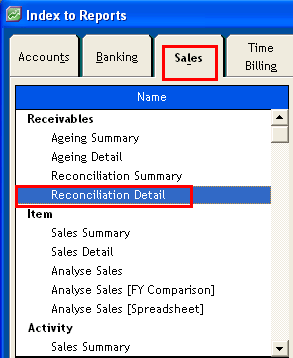
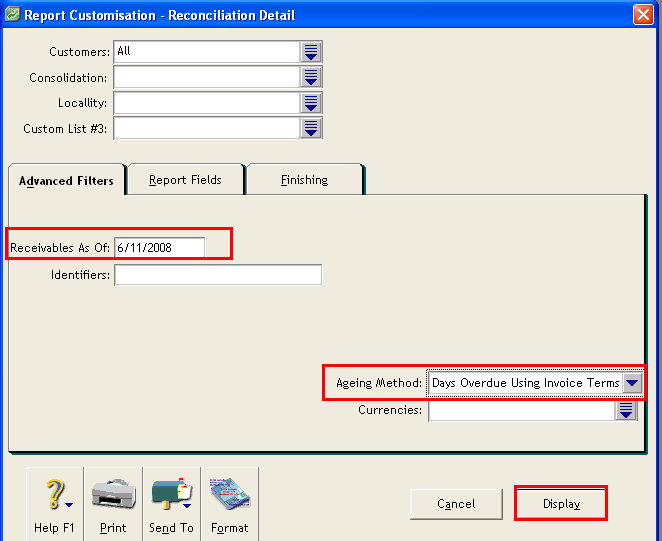
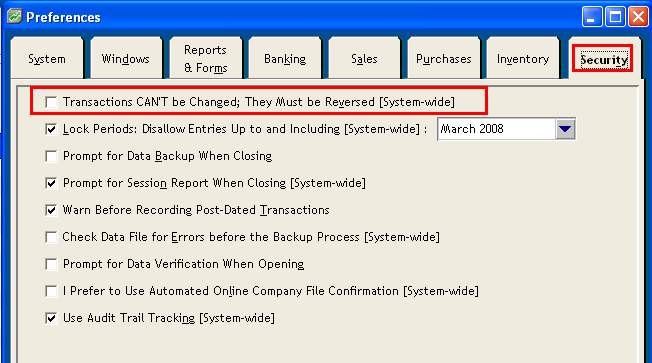
The information and steps throughout this support require you to have access to the Invoice Credit Terms window. To gain this level of access, go to Setup on the menu bar, click Preferences then click Security. Clear the mark from the option - Transactions CAN'T be changed; they must be reversed. Don't forget to reset this preference once you have finished.
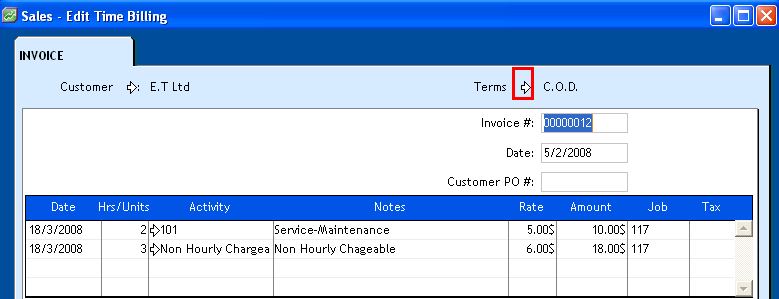
The terms of the invoice above can now be edited and accessed.
How do I resolve a situation where an invoice isn't ageing correctly?
Firstly, if you have a group of invoices that aren‘t ageing correctly, then work to correct just one of those invoices. Correcting the others will probably be easy as they will most likely all be sharing the same invoice Credit Terms terms.
The 5 steps for correcting an invoice ageing issue are as follows.
Step 1. Ascertain the invoice's Due Date is.
An invoice's Due Date is the key for finding out why an invoice isn't ageing correctly.
- With the Receivables - Reconciliation Detail report displayed, open the invoice which isn‘t aging correctly by clicking on it once.
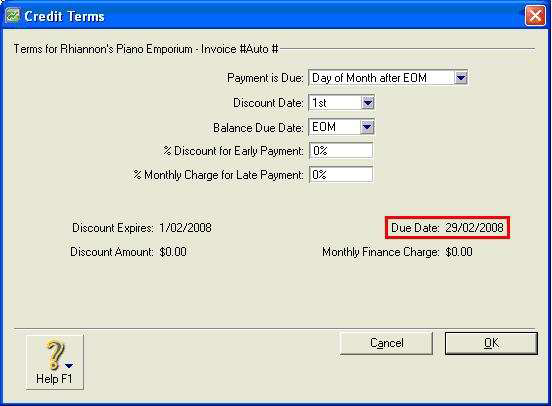
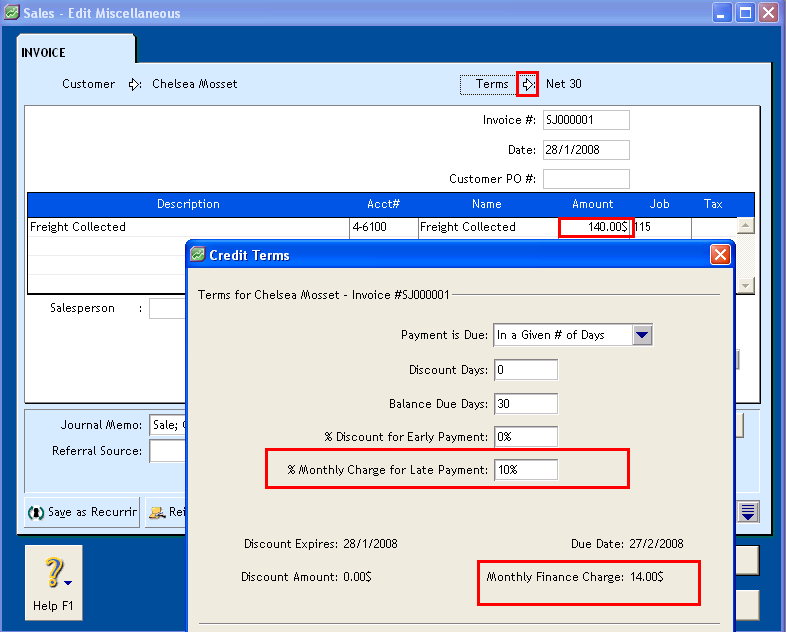
- Open the Invoice Credit Terms window by clicking the Terms zoom arrow which is located just to the right of the customer card. A sample of the Invoice Credit Terms window can be seen just below. Note the Due Date.
Important Information:
The Due Date is calculated from the invoice's Credit Terms and signifies the last day an invoice will report as Current. An invoice will only move to the next ageing period when the report (or statement) is dated after the invoices Due Date.
This is illustrated in the two sample reports shown just below. The top report is dated for the invoice‘s Due Date (29/02/08) and the lower report is for the day after (1/3/O8).
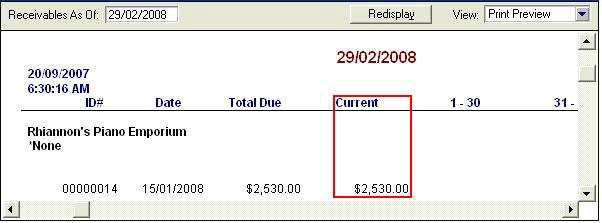
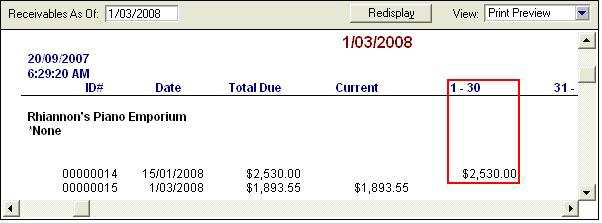
Note: Invoice 00000015 is considered a March invoice yet it is being reported in February‘s statement.
Step 2. Determine the invoice's correct Due Date
By considering your customer trading terms in relation to the invoice‘s date, determine the last day (date) that the invoice is considered to be Current. For the invoice to age correctly, the date you arrive at must be the same as the invoice's Due Date.
Step 3. Correct the Due Date by altering the invoice's terms
The Due Date in the Invoice Credit Terms window will instantly respond to any changes you make to the terms. This provides an essential tool for correcting invoice ageing problems.
Alter the terms so that the Due Date represents the last day the invoice is considered Current.
Important Information:
A detailed explanation of each setting and option within the Invoice Credit Terms window can be found by clicking the Help F1 button then click Help for this window. When the help window is displayed, click the button labelled Fields.
Once you have altered the invoice's terms and exited the Credit Terms window, close the invoice window by clicking the OK button. This will enable MYOB to update the invoice record with the ‘new' terms
Step 4. Confirm that the invoice ages correctly
Use the Receivables - Reconciliation Detail report to check that the invoice ages as per your customer trading terms. Remember that invoices will only move to the next ageing period when the report (or statement) is customised for the day after the invoice's Due Date.
If you have a number of invoices that aren‘t ageing correctly, apply the ‘new’ invoice Credit Terms to them as well and then check to make sure they are also now ageing correctly.
Step 5. Review your data file customer credit terms
Once you have established correct invoice ageing, you may want to review your data file Default Customer Terms and the Customer Card Terms for each of your customers.
Why are invoices from the next ageing period appearing on our statements?
A report or statement date that falls within the next aging period will report invoices dated within that period. This is demonstrated in Receivables Reconciliation Detail report shown just below which represents a 'typical‘ February statement.
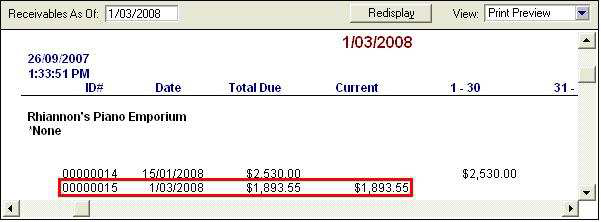
Referring to Invoice # 00000015 - it is dated 1/3/08, which is the same as the report date. In other words, a March invoice is appearing on February‘s statement. These same principals apply to any aging method you may choose to use.
Unlike a bank statement, a customer statement needs to calculate and display transaction ageing. For this reason MYOB's customer statements cannot rely upon separate dates for beginning and ending report periods, as do bank statements. But rather, a single date needs to be used for both the ending of one statement period and the beginning of the next.
Referring to the example above, you can see that the date 1/3/08 acts as:
- the closing date for February's statement; and
- the beginning date for March‘s statement.
For reporting consistency, MYOB includes invoices dated for a date that bridges ageing periods.
Can invoices from the next aging period be removed from our statements?
This can be achieved by not dating invoices for the first day of the next ageing period; in our example, we would avoid dating invoices for the first of a month.
A customer's terms have been altered to include Finance Charges, but they aren't being reported on our statements.
This normally occurs where:
- the Default Card Terms and/or the Default Customer Terms have been altered so as to include a Finance Charge on an overdue invoice; and
- the overdue invoice was recorded prior to altering the above terms.
Just like invoice ageing, Finance Charges are calculated based upon an invoice‘s Credit Terms. When recorded, an invoice is assigned the terms of the customer card. Any changes made there after to the customer card terms, such as assigning Finance Charges, will not flow down to the terms of that invoice.
To correct this situation, simply open the overdue invoice and alter its Credit Terms so as to include a Finance Charge.
Important information:
Once you have altered the invoice‘s terms and exited the Credit Terms window, close the invoice window by clicking the OK button. This will enable ABSS to update the invoice record with the ‘new’ terms.
Comments
1 comment
Hi,
Appreciate if anyone could assist on how to trace the out of balance amount for receivables reconciliation.
Thank you.
Please sign in to leave a comment.