

This support notes are suitable for:
- ABSS Premier
- ABSS Accounting
|
Introduction When setting up your ABSS Company file, you need to give special attention to your cheque account. A procedure known as initial bank reconciliation is needed so that ABSS can correctly account for un-presented cheques and deposits at the time you begin using your MYOB/ABSS program. |
What steps are needed to setup my cheque account?
There are three steps to setting up a cheque account so that it reconciles with your bank statement
- Determine and enter the cheque account Opening Balance.
- Enter the unpresented transactions.
- Perform the initial bank reconciliation.
Step 1 - Determine and enter the cheque account Opening Balance
Your cheque account opening balance will usually be different to the bank statement closing balance. The cheque account opening balance figure entered into ABSS must take un-presented cheques and uncleared deposits into consideration. This balance figure is commonly known as the cashbook balance. It would equal the balance sheet balance as at the day before the conversion month.
Example cashbook balance calculation:

The above example shows a variance of $4000 between the cheque account balance ($8,000), and the bank statement closing balance ($12,000). This variance is normal and is a result of the unpresented transactions. Therefore you would enter the $8,000 cashbook balance figure as the opening balance of the cheque account.
Therefore, to enter your cheque account Opening Balance:
- Manually reconcile your cheque account to determine the current cash book balance.
- In our example, the Conversion Month is January, and therefore, the cash book balance as at closing of the 315‘ December is used as the cheque account's Opening Balance. You should make sure the balance was reconciled outside of MYOB before using it.
- Go to Setup choose Balances then Account Opening Balances.
- Identify your cheque account in the list of accounts and then enter its Opening Balance. In the example shown, this would be $8,000.
Step 2 - Enter the unpresented transactions
Un-presented transactions need to be entered into ABSS so that they don't affect the cash book bank account balance. This is done by allocating them back to the cheque account from which they are written.
To enter an unpresented cheque:
- Open Spend Money. Click the Pay From Account option and enter your cheque account in the adjacent Account field.
- Enter the Cheque No.
- Enter the Date - enter the Conversion Month date and not the date of the actual cheque.
- Enter the Amount and Memo.
- Place your cursor in the Acc # field and select the same cheque account used in the first step.
- Move your cursor to the Amount field and if necessary, enter the amount.
- Enter the N-T Tax Code.
The window below shows a sample of an unpresented cheque being entered.
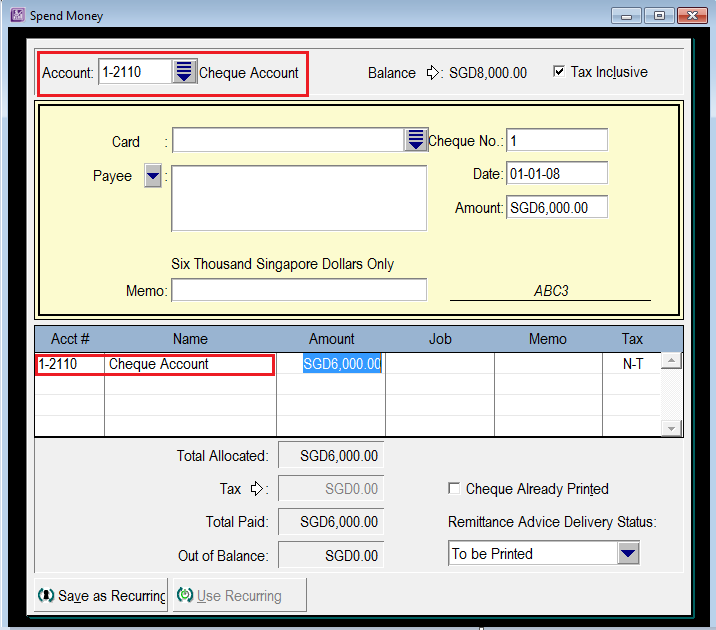
This transaction will result in a withdrawal and deposit to the cheque account, leaving the account's balance unaffected. When performing the initial bank reconciliation , unpresented cheques will be displayed as both a withdrawal and a deposit.
Unpresented deposits are entered through Receive Money and are also allocated back to the same cheque account.
Please Note: This could also be achieved through the use of General Journals as discussed in the online help. Unlike General Journals however, the method listed in th is support note doesn't require an understanding of debits and credits.
The window below shows an un-presented deposit being entered.
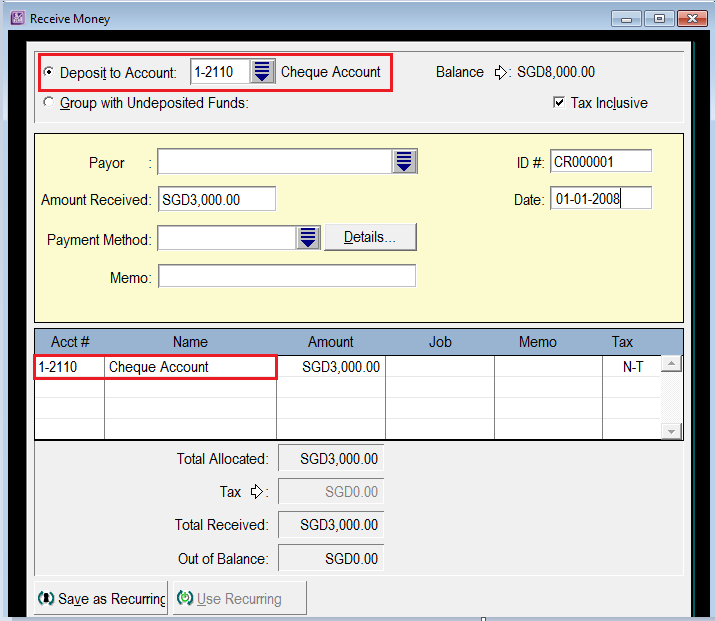
Like un-presented cheques, un-presented deposits will also be displayed as both a deposit and a withdrawal when performing the initial bank reconciliation.
Step 3 - Perform an initial bank reconciliation
The initial bank reconciliation needs to be performed so that MYOB can calculate the bank statement balance, which will become the basis for future reconciliations.
- Go to the Banking Command Centre and click Reconcile Accounts.
- Enter your cheque account in the Account field.
- Enter the Conversion Month date in the Date field.
- Select the deposit side of the unpresented cheques as Cleared; then select the withdrawal side of the deposits as Cleared.
- Enter the ‘ruled off‘ bank statement balance in the New Statement Balance field.
- Check that the Out Of Balance is zero then press Reconcile.
The window below shows the unpresented transactions being reconciled.
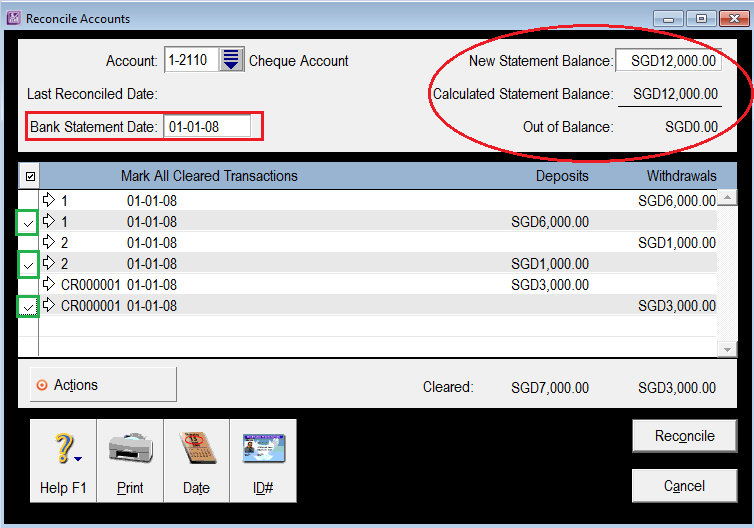
In the above Reconcile Accounts window, please note the following:
- 1/1/2008 is used as the Bank Statement Reconciliation Date. This is the Conversion Month date of the sample data file. Use the Conversion Month date as per your data file
- The deposit side of the cheques is marked as Cleared.
- The withdrawal side of the deposit transaction is marked as Cleared.
After performing the initial bank reconciliation, check that the cheque account balance is the same as your cash book balance. The account balance can be viewed in the Accounts List window Go to the Accounts Command Centre click Accounts List and click the Assets tab.
l have already entered cheques and deposits. Will this affect the initial bank reconciliation?
Other payments and receipts can be entered before performing the initial bank reconciliation You may find though, that these payments and receipts may appear in the Reconcile Accounts window when performing the initial bank reconciliation. If so, ignore them and follow the instructions as per Step 3 - Performing initial bank reconciliation.
Please Note: The initial bank reconciliation must be done prior to performing your first actual bank reconciliation.
Comments
0 comments
Please sign in to leave a comment.