

This Support Note is suitable for:
- ABSS Premier
- ABSS Accounting
|
Introduction Reconciled transactions are treated as finalized and therefore changing or deleting them will affect your bank reconciliation. However, understanding how reconciled transactions are treated in ABSS will help you make any changes that may be needed. |
An Alert ls Displayed When Opening A Reconciled Transaction
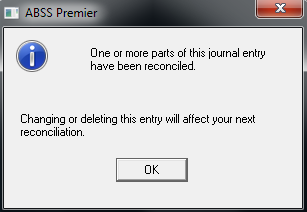
Each ABSS transaction record includes a Reconciled Date field. This field is only visible on certain reports. When a transaction is reconciled, ABSS inserts the Bank Statement Date as entered in the Reconcile Accounts window in this field. ABSS then uses this field to determine the reconciliation status of a transaction.
The alert below is displayed when opening a reconciled transaction.
How Does Changing Or Deleting A Reconciled Transaction Affect The Bank Reconciliation?
Referring to the Reconcile Accounts window, the Calculated Statement Balance represents the total value of ALL deposit and withdrawal transactions which have a date in their Reconciled Date field. Changing a reconciled transaction’s Amount, or deleting a reconciled transaction, will affect this total and the account will no longer reconcile.
What Changes Can Be Made To Reconciled Transactions That Won't Affect The Reconciliation?
Information such as Memo or allocation account can be changed. However, changing the Amount of the transaction or the bank account nominated in the top-left of the transaction window will affect the reconciliation. For example: A reconciled Spend Money payment is opened and the Acc# (allocation account) is changed. Because the Amount wasn't altered, your reconciliation won't be affected. However, changing the Acc# AND the Amount would affect your reconciliation.
Please note : The fields of recorded Pay Bills and Receive Payments are locked and cannot be changed. Deleting or reversing these transactions is the only option if they have been entered incorrectly.
Reconciled Transaction Still Need to Be Deleted Because of Error.
Reconciled transactions can be deleted using the normal transaction deletion process. However, we need to undo bank reconciliation, delete error transaction, re-key in new transaction and re-do bank reconciliation.
The steps to delete and re-enter a reconciled transaction are as follows:
Step 1 - Determine the reconciliation date of the transaction to be deleted
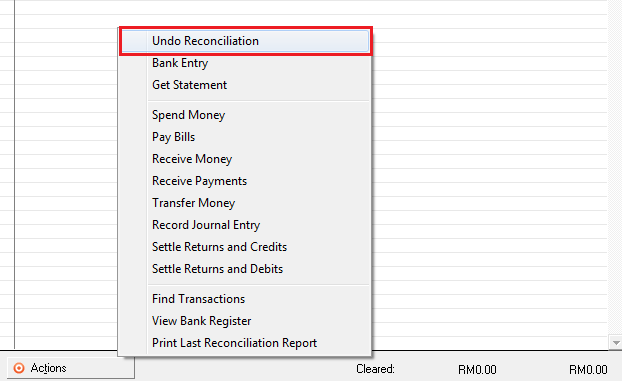
Step 2 - Undo Bank Reconciliation
- How to undo Bank Reconciliation ?
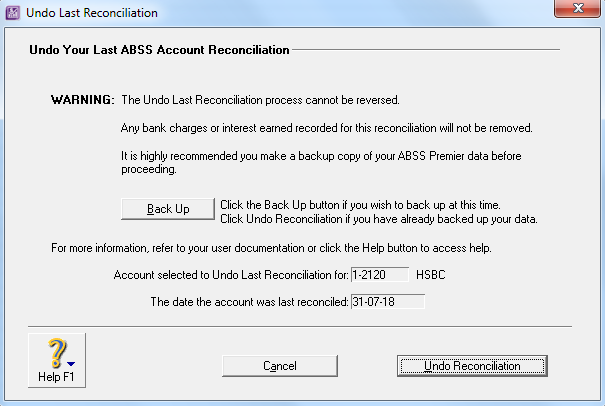
Go to Banking > Reconciled Account > choose the bank > check the last reconciled date
- If the deleted transaction is on April and your last reconciled date is in July. Then you have to undo until the last reconciled date is showing March. Why? because you need to do again your April reconciliation.
Click on Action > Undo Reconciliation > After that click undo reconciliation
Step 3 - After Undo Reconciliation, Delete Error transaction
Step 4 - Re-Key in the correct transaction
Step 5 - Re-do Bank Reconciliation
- Click Banking then Reconcile Accounts
- Key in the last transaction date
- Select the replacement transaction as Cleared
- In the New Statement Balance field, enter the closing balance of your bank account from your bank statement as the Last Reconciled Date. Press the <tab> key and check that the Out Of Balance is zero
- Click Reconciled
ls There An Alternative To Deleting Transactions?
Included in your ABSS program is a function to reverse transactions. To reverse transactions, you must first set ABSS preference which activates this feature.
Go to Setup > Preferences > click the Security tab > Mark Transactions Can't Be Changed; They Must Be Reversed Option.
After setting this Preference > open the transaction > go to Edit and choose Reverse Transaction.
ABSS will then prepare a reversing entry.
Reversals also need to be considered when reconciling the account. For example: A reversed Spend Money payment will result in a deposit to the bank account, and the replacement payment will result in a withdrawal. When next reconciling the account, select both deposit and withdrawal as Cleared. As they are for the same amount, they will negate each other and leave your account balance unaffected.
Comments
0 comments
Please sign in to leave a comment.