

This support notes are suitable for:
- ABSS Premier
- ABSS Accounting
|
Introduction You will find your MYOB software helpful in being able to track the performance of each of your profit centres. This is easily done by using Jobs to group transactions belonging to the various profit centres and then reporting upon them. This support note explains how. |
How are profit centres reported in MYOB?
The purpose of Job functions within MYOB is to group specific transactions into a reportable item. This is accomplished by first setting up a job for each of the profit centres. Every transaction is then allocated a job that is specific to its profit centre. Job reports are then used for reporting the activity of each of the jobs, which are a representative of your profit centres.
How do I setup my company data file so I can report my profit centre?
Step 1 - Selecting the most appropriate Job Names and Job Numbers
Select Job Numbers and Job Names that clearly distinguish your profit centres. For instance, if you have profit centres in Melbourne, Sydney and Perth your Job Numbers could be setup as: Melb, Syd and Perth.
When considering Job Names and Job Numbers, keep in mind that:
- Job Numbers can have a maximum of 15 alphanumeric characters (including the space)
- Job Names can have a maximum of 27 alphanumeric characters (including the space)
Step 2 - Setting up Jobs in MYOB
Once you have determined your Job Numbers and Job Names:
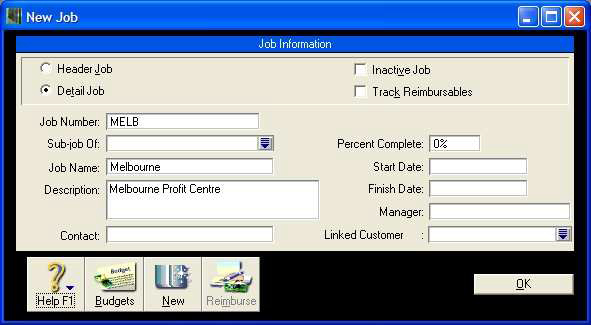
- Go to the Lists menu and click Jobs.
- Click New then click the Detail Job Postable option.
- Enter the Job Number and Job Name. If necessary, enter a Job Description.
- Optional - enter a Start Date indicating when you began using jobs.
- Click OK.
Repeat steps 2 to 5 for each new job.
The window below shows a sample of a Job setup.
Job Opening Balances can be entered if it is mid-financial year when setting up your jobs. To enter Job Opening Balances, go to the Setup menu, choose Opening Balances and click Job Opening Balances. Select a Job Number then enter the Opening Balance for each ledger account.
How do I apply a job to a transaction?
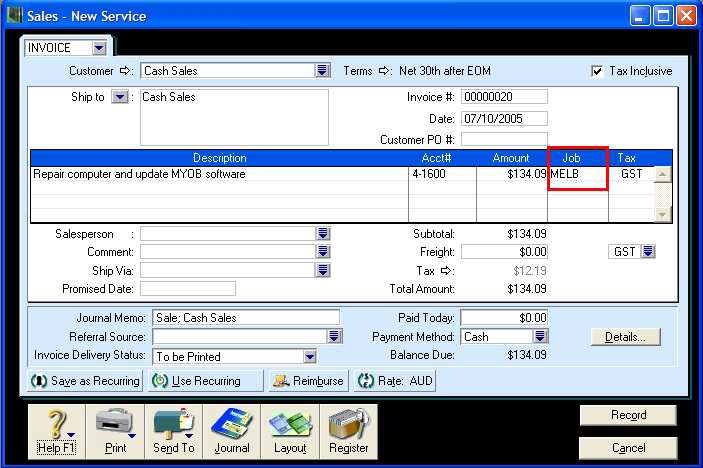
Each of MYOB‘s transaction windows, with the exception of Receive Payments and Pay Bills, has a Job field into which a Job Number can be entered. To allocate a Job to a transaction, simply create the transaction as normal then click or tab into the Job field and select the Job representing the particular profit centre. The window below shows a job being allocated to a sale.
Please Note: The expense of inventoried items is realised when the items are sold, and not when purchased. Therefore, applying a Job to an item sale where inventoried items are sold, will allocate both the expense and income of the item(s) to the Job.
How is the Profit And Loss reported for the profit centres?
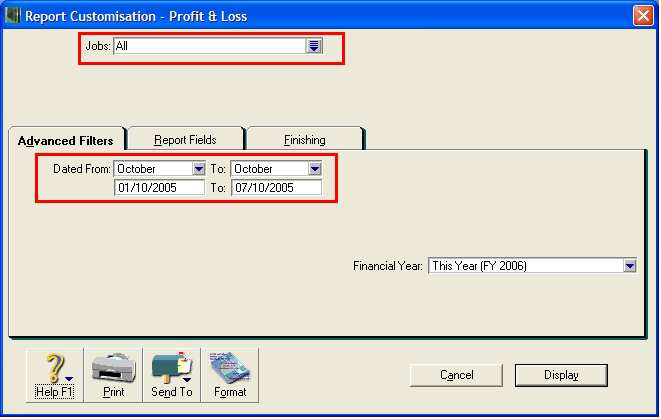
At the end of the reporting period, go to the Reports menu, choose Index to Reports and click the Accounts tab. Scroll down to the Jobs reports and highlight the Profit and Loss report. Click Customise and select the report parameters.
The window below shows the Jobs - Profit and Loss report customisation window.
Reporting a single profit centre
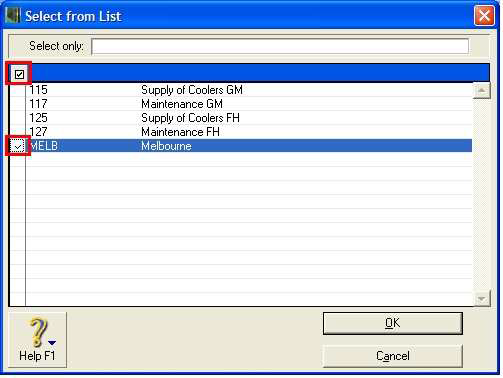
By default, the report includes all the jobs in your company file. To select a specific job, click the drop arrow next to the Jobs field highlighted above. Clear the selected jobs by clicking the check mark symbol at the top of the column then mark the job you want the report to display. You can also choose a selection of non consecutive job numbers using this method.
How can I check that each transaction has been allocated a job?
There are two reports designed to readily identify transactions that have not been allocated a job. These are the Job Exception [Invoice Transactions] and Job Exception [Cash Transactions] reports.
These are also found in the Accounts tab of the Index to Reports under the heading Jobs. Click the Customise button to specify the date range of the transactions you want to check for missing job numbers.
Comments
0 comments
Please sign in to leave a comment.