

This support notes are suitable for:
- ABSS Accounting
- ABSS Premier
|
Introduction A credit card account can be setup and used in the same way as a cheque account. As such, its Introduction balance can be easily tracked and reconciled with the credit card statement. |
How do I setup a credit card account?
- In the Accounts command centre, click Accounts List.
- Click the Liabilities tab and click New.
- Select the Detail Account option.
- Set the Account Type to Credit Card.
- Enter the Account Number and the Account Name.
- Select the Details tab and if necessary, enter an account Description.
- Select the N-T Tax Code in the Tax Code field.
- Click OK to return to the Accounts List.
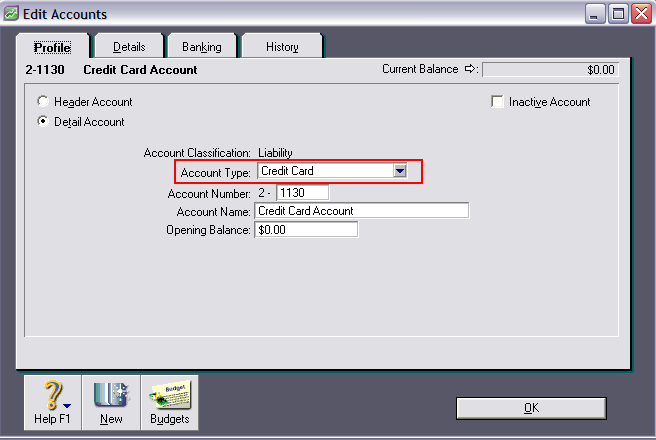
Please Note: If you are using MYOB Accounting 14, Premier 8 or earlier versions, select the Detail Credit Card Postable radio button instead of Account Type: Credit Card. Refer to support note Detail Cheque and Credit Card Accounts
How do I record a credit card purchase?
Credit card purchases are recorded by using the same steps as those for your general cheque account.
- Open Spend Money or Pay Bills.
- Click the Pay From Account option and then select your credit card account in the adjacent Account field.
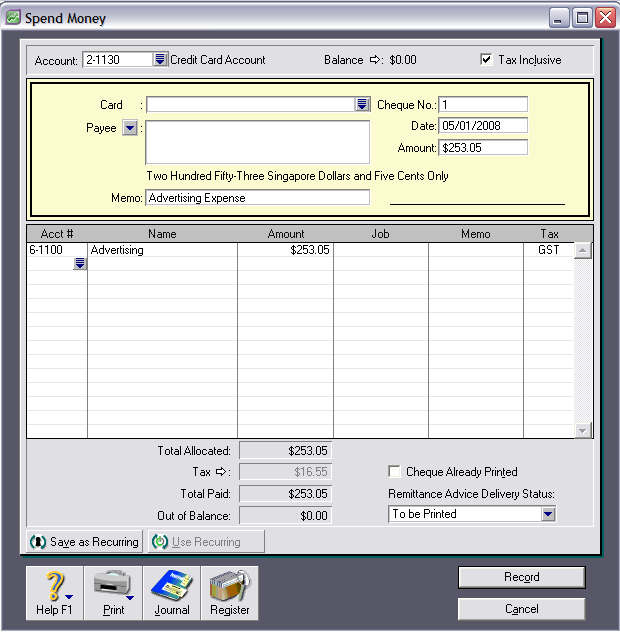
- Spend Money - Enter the transaction Date, Amount and Memo. Place your cursor in the Acc# field and select the relevant expense account.
- Place your cursor in the Amount field (in the lower window portion) and if necessary, enter the amount. Move your cursor into the Tax field and enter the GST tax code.
- Pay Bills - Select the Supplier and enter the Date and Amount. Apply the payment to the relevant bilI(s).
- Click Record.
The below window shows a credit card payment using Spend Money.
How do I record payments to my credit card?
Paying your credit card account is basically a transfer of money from your cheque account to your credit card account.
- Go to the Banking command centre and click Spend Money.
- Click the Pay From Account option and then select your cheque account in the adjacent Account field.
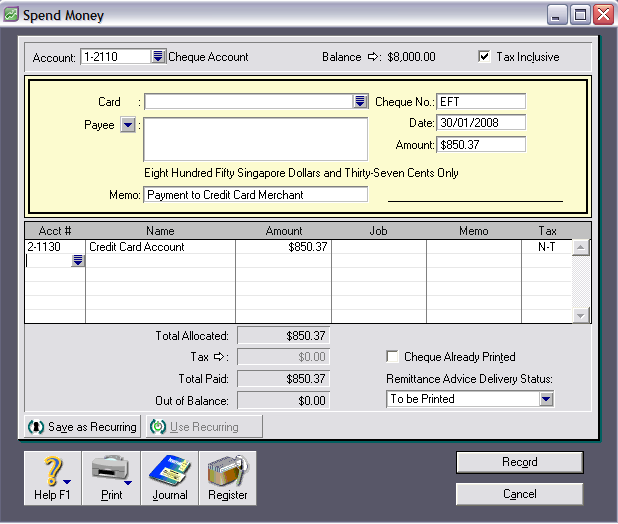
- Enter the Date and Amount. If a physical cheque was used to pay the credit card, then enter that cheque number in the Cheque No field. Otherwise, enter a cheque number such as Tl’ (Telegraphic Transfer).
- Place your cursor in the Acc# field and enter your credit card account.
- Place your cursor in the Amount field (in the lower window portion) and if necessary, enter the amount. Move your cursor to the Tax field and enter the N-T tax code (the GST should have been recorded with the credit card purchase transaction - see step 3 of How D0 I Record a Credit Card Purchase).
- Click Record.
The following window shows a payment being made to the credit card account.
How do I reconcile my credit card with my credit card statement?
Reconciling your credit card account is the same as reconciling your cheque account using the Reconcile Accounts function.
- Go to the Banking command centre and click Reconcile Accounts.
- Select your credit card account in the Account field and then the Bank Statement Date.
- Mark the Cleared field against the transactions that are listed on the statement.
- Enter the New Statement Balance and compare this with the Calculated Statement Balance. If it balances, click Reconcile.
If your reconciliation displays an Out of Balance amount, then please refer to our support note titled Finding Transactions causing Out of Balance. This support note provides information on overcoming these out of balances, and can be accessed at our website.
How Do I Record the Credit Card Merchant fees?
These fees can be entered as a credit card purchase using Spend Money - follow the steps outlined in How Do I Record a Credit Card Purchase earlier in this Support Note.
Alternatively, when reconciling your credit card account, enter the fees/interest using the Bank Entry function in the Reconcile Accounts window.
Comments
0 comments
Please sign in to leave a comment.