

This support notes are suitable for:
- MYOB Accounting
- MYOB Premier
|
Introduction Your MYOB program provides special functionality for accounts that represent a cheque book or credit card. This enables you to use these accounts when recording customer or supplier payments. This support note explains how to activate this functionality on an account. |
How are cheque book and credit card accounts setup in MYOB?
To setup a new cheque book or credit card account, please follow the steps below:
- In the Accounts command centre, select Accounts List.
- If the account is to be a cheque book account, click on the Assets tab. If the account is to be a credit card account, click on the Liabilities tab.
- Click on New.
- Select the Detail Account option.
- If the account is an Asset, set the Account Type to Bank. If the accounts are a Liability, set the Account Type to Credit Card.
- Enter the Account Number and the Account Name.
- Select the Details tab and if necessary, enter an account Description.
- Click on Banking and enter your bank account details.
- Click on OK to return to the Accounts List.
The window below shows the setup of an Asset cheque book account.
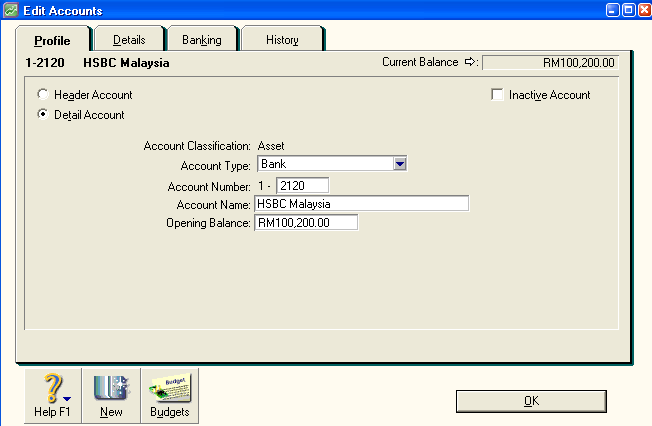
Please Note: Spend Money and Receive Payments transactions default to the cheque book account that has the lowest Account Number. For example, if there are two cheque book accounts, numbered 1-2000 and 1-2100, when opening the Spend Money window, the account number 1-2110 will be displayed in the Account field adjacent to the Pay from Account option.
How do I use a cheque book/credit card type account?
Deposits - Receive Money and Receive Payments
- Open Receive Money or Receive Payments.
- Click on the Deposit to Account option, then select the desired cheque book or credit card account in the adjacent Account field.
- Enter the transaction details as required and click Record.
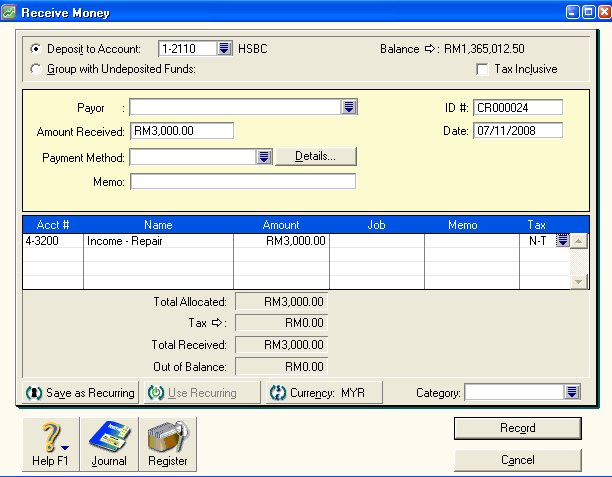
- The Window below shows account number 1-2110 General Cheque Account selected for a Receive Money transaction.
Payments - Spend Money, Pay Bills and Pay Employees
- Open Spend Money, Pay Bills or Pay Employees.
- Click on the Pay from Account option, and then select the desired cheque book or credit card account in the adjacent Account field.
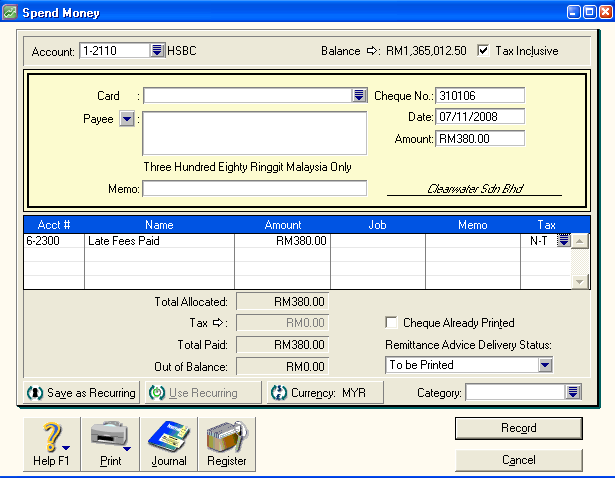
- The window below shows account number 1-2110 General Cheque Account selected for a Spend Money transaction.
How are cheque book and credit card accounts reconciled?
Cheque book and credit card accounts are easily reconciled by using the Reconcile Accounts function in the Banking command centre.
- Go to the Banking command centre.
- Click on Reconcile Accounts.
- Enter your cheque book or credit card account number in the Account field.
- Enter the Bank Statement Date (the bank statement's closing balance date)
- Place a check mark against the transactions that have been presented to the bank.
- Enter the bank statement's closing balance in the New Statement Balance field, and then press the <Tab> key.
- If the Out of Balance amount is zero, click Reconcile.
- You will then receive a prompt to print the Reconciliation Report. Click Print, and then click the Reconcile button again.
The window below shows the Reconcile Accounts window.
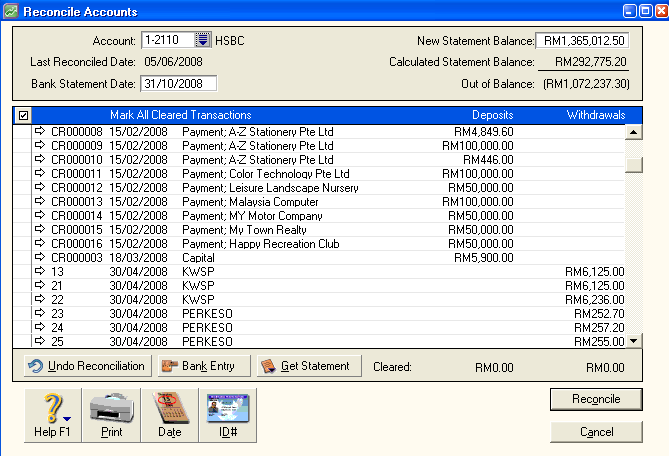
Please note: Reconciling an account will be prevented if the Out of Balance amount is not zero.
If you are experiencing difficulties in reconciling your cheque book or credit card account, please refer to our support note titled Finding transactions that cause out of balance amounts.
Comments
0 comments
Please sign in to leave a comment.