

This support notes are suitable for:
- ABSS Accounting
- ABSS Premier
|
Introduction ABSS allows the user to convert from other computerized accounting packages or even a manual accounting system halfway through a financial year. To successfully convert onto ABSS midyear and achieve accurate financial figures for the entire fiscal year, follow the instructions below. |
What steps do I follow to setup my accounts in ABSS?
Step 1 Setting up the data file
Setup your new data file using ABSS‘s Setup Interview. As Brett is moving onto ABSS in the month of February, make the Conversion Month February. Be sure the correct conversion month is selected. Once the conversion month is confirmed, it cannot be changed.
Step 2 Prepare financial reports
Prepare a Profit and Loss Sheet and Balance Sheet up till the time of conversion using the previous method. In Brett's case she will require a Profit & Loss Statement from the lst July till 31st lanuary and a Balance Sheet as at 31 st January.
Step 3 Enter account opening balances
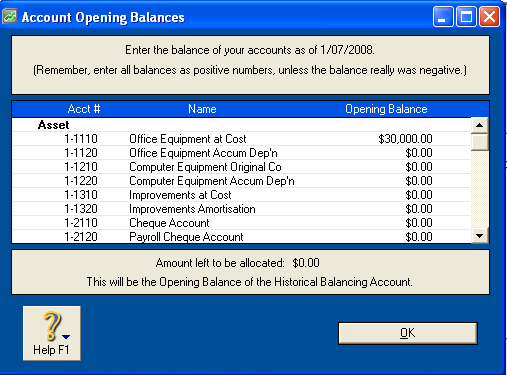
Enter the Account Opening Balances from the Setup, Balances drop-down menu. As the conversion month is not the first month of the financial year, ABSS will allow us to enter figures into Income, Cost of Sales, Expense, Other Income and Other Expense categories. If the conversion month was the first month of the financial year, the ability to place amounts into these accounts would NOT be available.
Step 4 Entering historical data
To obtain monthly Profit & Loss and Balance Sheet reports, it is not necessary that we recreate all data for the period from the start of the fiscal year to the conversion month in ABSS. Select the History button from the Chart of Accounts window. End of month balances for all Profit & Loss and Balance Sheet items can be entered here. ABSS will allow you to insert end of month balances for accounts in the current financial year.
End of month balances for all Profit and Loss and Balance Sheet items can be entered as follows:
- Go to the Accounts command centre, click Account List.
- Click the white zoom arrow next to an account and click the History tab.
- Enter the closing balance for the months listed in the Last FY column.
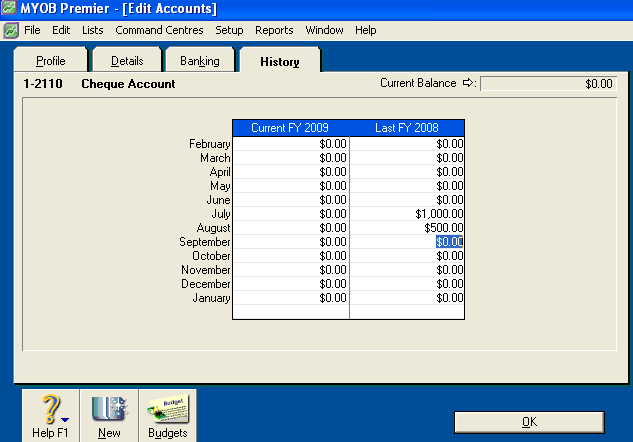
The balance of Profit & Loss accounts in the month prior to the conversion month equals the account opening balance discounted by any amounts placed in the proceeding months balances for the current fiscal year. For example Brett places an amount of $5,000 in Account Opening Balances for the Advertising expense account. Amounts totalling $3,700 are placed in Account Historical Balances for the months of luly to December. If we view Account Historical Balance for the month of lanuary we will find the balance of $1,300 remaining.
ABSS also allows the user to enter Account Historical Balances up to 12 months prior to the current fiscal year. By entering historical data prior to the current fiscal year, This Year versus Last Year Balance Sheet and Profit and Loss reports will become available.
Step 5 Entering Historical information for cards and inventory
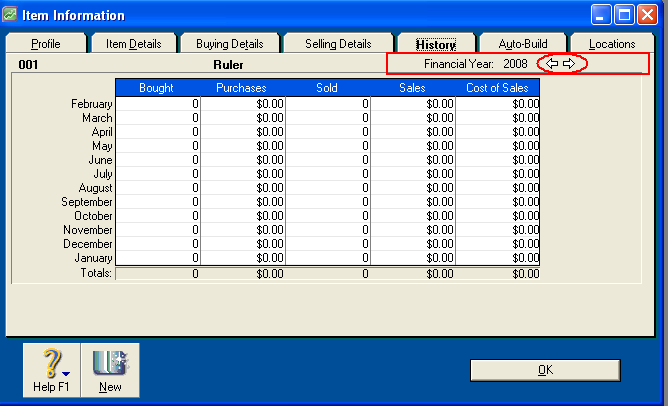
Enter sales history for Customers, Items and Employees. This information will allow you to produce analyse sales reports by Customer, Items and Salesperson including this year versus last year. The history button is found in the relevant Employee, Item or Customer information window. The history button is only available if track sales history is crossed for the relevant item, customer or employee.
Step 6 Entering balances for control accounts and bank
Enter opening Trade Debtors, opening Trade Creditors, outstanding Cheques and Deposits not yet credited.
Comments
0 comments
Please sign in to leave a comment.