

This Support Note is suitable for:
- ABSS Premier
- ABSS Accounting
|
Introduction Default credit terms are the terms that are automatically applied to every new customer or supplier created in the card file. If the default credit terms do not apply to a particular customer or supplier,individual terms can be set up in their card. This support note how these different credit terms operate. |
How does I set up default customer terms?
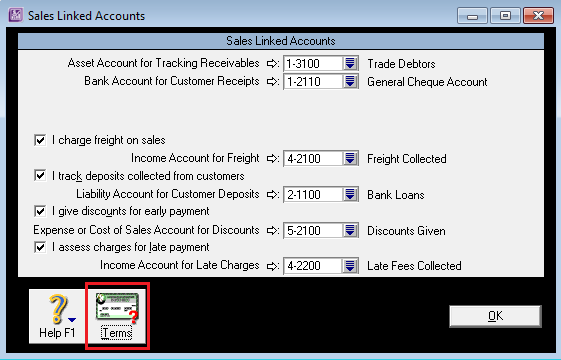
Open your Company File and go to the Setup menu > Linked Accounts > Sales Accounts
In the Sales Linked Accounts > click term

Payment is due
this menu allows you to choose from a variety of options:
- COD
- Prepaid
- In a given number of days
- On a day of the month
- # of days after EOM ( End Of Month)
- Day of month after EOM ( End of Month
Discount Days
Enter the number of days within which payment must be made for the customer to be eligible for a discount. If payment is recorded on the Discount Date or earlier, the discount is calculated on the invoice value.
Balance Due Days
Enter the number of days within which payment must be made, calculated from the date of sale.
% Discount for Early Payment
If you give a discount for early payment, enter the discount percentage as a whole number and not as a decimal. For example, enter 2% as '2' not '0.02‘. The discount is only calculated if the total of the invoice is paid within the discount period.
% Monthly Charge for Late Payment
If you charge for late payment, enter the monthly charge percentage as a whole number and not as a decimal. For example, enter 2% as '2' not '0.02‘.
Tax Code
Enter a tax code by clicking on the Search icon and selecting a tax code from the Use Customer's Tax Code: Tick this box if you want the customer's tax code to override an item's
Use Customer's Tax Code
Tick this box if you want the customer's tax code to override an item's tax code in an item sale, or the allocation account tax code in a non-item sale to this customer. Credit Limit - This is a dollar amount that a customer's outstanding invoices total may reach. You will be alerted if you record a sale that exceeds that customer's limit.
How does I set up default supplier terms?
Open your ABSS Company file and go to the Setup menu> choose Linked Accounts and click Purchases Accounts. Click on the Terms button.The Supplier term options are the same for those that are listed above for Customers.
How does I set up individual credit terms for one of my Customers and suppliers?
The default credit terms will automatically be applied to every new card that is setup for you customers and suppliers. To set specific terms for individual debtors/creditors, open their card and click on Selling Details or Buying Details. The terms for that card will appear in the lower portion of the window. The options in this window will be the same as listed above for the default Customer terms.
If I change the default terms, will it change the terms on all my customer or supplier cards?
Changing the default terms won't change the terms on your existing customer and supplier cards. The new term settings will only apply to customer or supplier cards that are created after the default terms are changed.
If I change the terms for one of my customers or suppliers, will those changes carry through to sales or purchases that have already been recorded using that card?
Changing the terms of a customer or supplier's card won't affect the terms of invoices or purchases that have already been recorded. The changes will only apply to sales or purchases that are recorded after the change.
How do I change the terms on invoices and purchase orders?
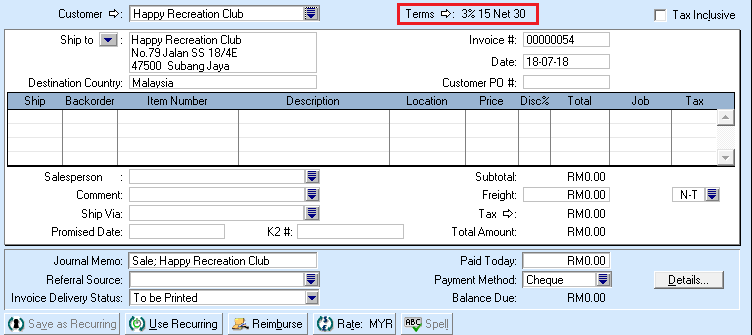
With the invoice or purchase order open, click on the arrow next to the Terms at the top of the window. This will open the Terms Information window where the terms for this transaction can be changed.
Comments
0 comments
Please sign in to leave a comment.