

This support notes are suitable for:
- ABSS Premier
- ABSS Accounting
|
Intorduction It is common for businesses to receive a partial payment as a deposit against an order placed by a customer. Conversely, orders placed with a supplier may involve paying and tracking a deposit to the supplier in question. In your ABSS software, these orders and deposits are treated in a particular way. |
At the time that you begin to use MYOB software or if at anytime you decide to create a new company file, you need to take certain steps so that any deposits paid or received are accurately reflected in your file. This support note outlines and guides you through these steps.
- Select the supplier Card and enter the Conversion Date in the Date field.
- Enter the deposit amount in the Amount field then enter the same amount in Amount Applied field against the Order. Click Record.
What are pre-conversion deposits?
Pre-conversion deposits are:
- Deposits which were collected or paid in the pre-conversion period
- Have not yet been convened to a sale or purchase.
The pre-conversion period refers to the period prior to your company data file's Conversion Month and Current Financial Year. To view this information go to Setup and choose Company Information.
How are pre-conversion deposits entered when setting up my company data file?
Pre-conversion deposits need to be entered using a process that will update your card file and general ledger.
There are only four steps to entering pre-conversion deposits.
Step 1 - Setup your ledger accounts
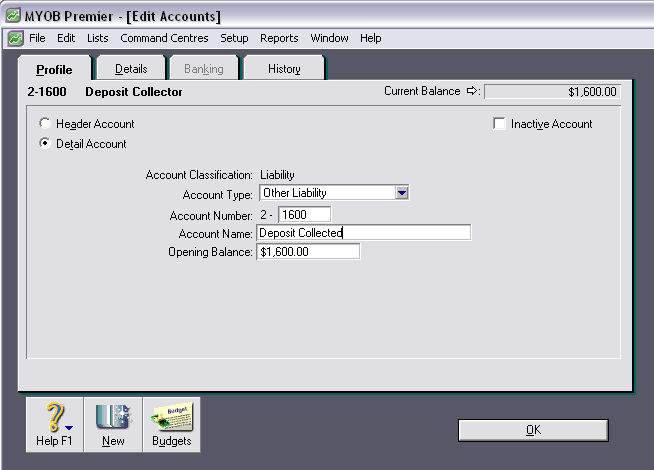
Customer Deposits
- Go to the Accounts command centre and click Account List.
- Select the Liability tab and click New.
- Name the account Deposits Collected.
- Click OK.
Please note:
- You will need to select an Account Number suited to your accounts list.
- Account Opening Balance - enter the value of your outstanding deposits.
Supplier Deposits
Use the same steps as above to setup a separate Deposits Paid ledger account. This account needs to be setup as an Asset account.
Clearing Account
This account will be used for applying the pre-conversion deposits to their respective cards.
- Go to the Accounts command centre and click Account List.
- Select the Asset tab and click New.
- Make sure you select Bank in the Account Type drop-down menu.
- Give the account a unique number that suits your account list.
- Name the account Clearing Account.
- Click OK.
Step 2 - Link your deposits collected and deposits paid accounts.
Linked accounts are used by MYOB to automate your journal postings. This both saves time and reduces the possibility of errors.
Customer Deposits
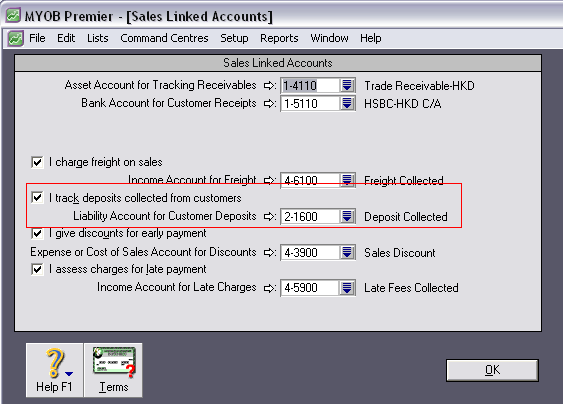
- Go to Setup choose Linked Accounts and click Sales Accounts.
- Mark the option labeled I track deposits collected from customers.
- Select the Deposits Collected liability account in the Liability Account for Customers Deposits field.
- Click OK.
Supplier Deposits
- Go to Setup choose Linked Accounts and click Purchases Accounts.
- Mark the option labeled I track deposits paid to suppliers.
- Select the Deposits Paid asset account in the Asset Account for Supplier Deposits field.
- Click OK.
Step 3 - Record the sales/purchase orders
Open the Enter Sales or Enter Purchases window and select Order from the type drop down list Enter the sale/purchase details as required then click on Record. Do not enter any amount in the Paid Today field.
Please note: Enter your Conversion Date in the Date field.
Step 4 - Transfer the deposit balances to the Clearing Account
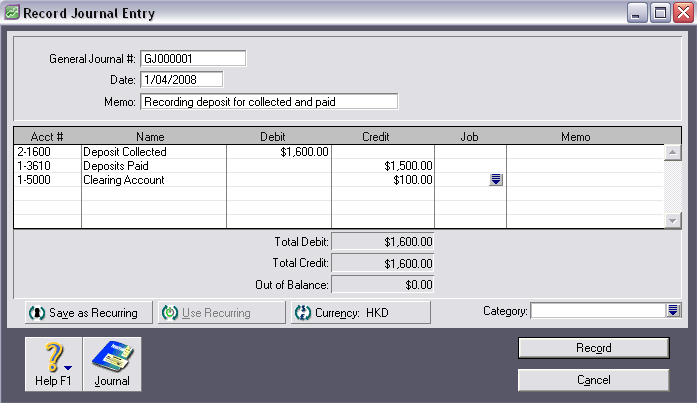
Record a general journal entry to post the balance of your Deposits Collected and Deposits Paid accounts to the asset Clearing Account.
The window below shows a sample of the transaction.
Please note:
- The Deposits Collected liability account is debited for its Opening Balance amount.
- The Deposits Paid asset account is credited for its Opening Balance amount.
- The resulting Clearing Account balance will be the total of the Deposits Collected and Deposits Paid accounts.
Click Record button to record this transaction.
Step 4 - Apply the deposits to the customer and supplier orders.
Customer Deposits
- Go to the Sales command centre and click Receive Payments.
- Choose the Deposit to Account option and select the Clearing Account in the adjacent Account field.
- Select the customer Card and enter the Conversion Date in the Date field.
- Enter the deposit amount in the Amount Received field then enter the same amount in Amount Applied field against the Order.
- Click Record.
- Repeat steps 2 - 5 for any remaining pre-conversion customer deposits.
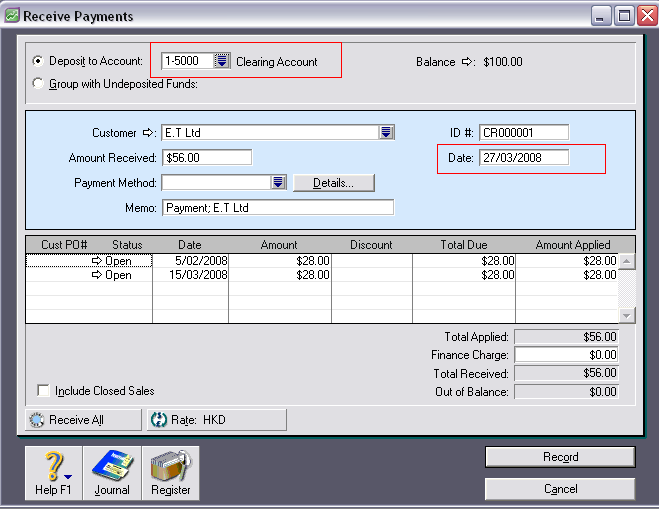
The above will debit the Clearing Account and credit the Deposits Collected liability account. The balance of the Clearing account will now be equal to the Deposits Paid.
In our example, the Clearing Account will be debited $1600, leaving it with a debit balance of $1500.
Supplier Deposits
- Go to the Purchases command centre and click Pay Bills.
- Choose the Pay from Account option and select the Clearing Account in the adjacent Account field.
- Select the supplier Card and enter the Conversion Date in the Date field.
- Enter the deposit amount in the Amount field then enter the same amount in Amount Applied field against the order.
- Click Record.
- Repeat steps 2-5 for any remaining pre-conversion supplier deposits.
The above will credit the Clearing Account and debit the Deposits Paid asset account. The balance of the Clearing account should now be zero.
In our example, the Clearing Account will be credited $1500, leaving it with a zero balance.
Comments
0 comments
Please sign in to leave a comment.