

This Support Note is suitable for:
- ABSS Accounting
- ABSS Premier
|
Introduction Use the Accounts tab of the Find Transactions window to perform an Advanced filter search of your Receivables and Finance charge accounts. Use the text 'Finance Charge' as a memo filter. Once you've located the transactions, delete them in the normal way. |
What happens when a finance charge is recorded?
When a finance charge is charged to a customer, ABSS records two transactions:
- A Receive Payments receipt
- A Corresponding Sales Invoice.
How do I locate and delete these transactions?
Prior to performing the steps in these instructions, we recommend taking a backup of your Company file.
- Identify and note your linked accounts for tracking receivables and tracking late charges. Go to Setup choose Linked Accounts then Sales Accounts and take a note of these account numbers. Click OK to close the Sales Linked Accounts window.
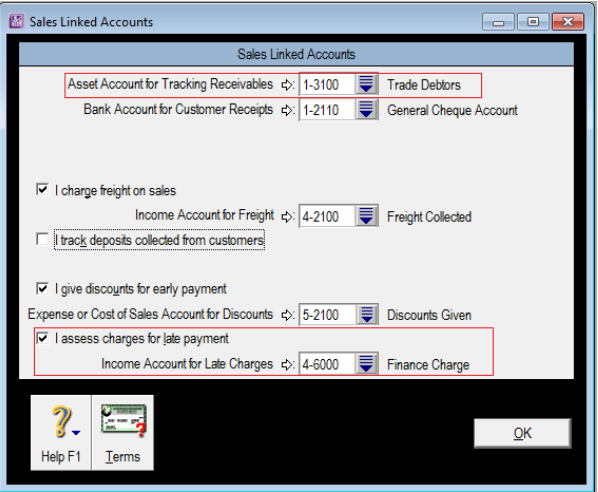
- Click Find Transactions along the bottom of your Command Centre and click the Accounts tab
- Enter the account number for your receivables account into the Account field. Enter an appropriate date range in the Dated From and to fields.
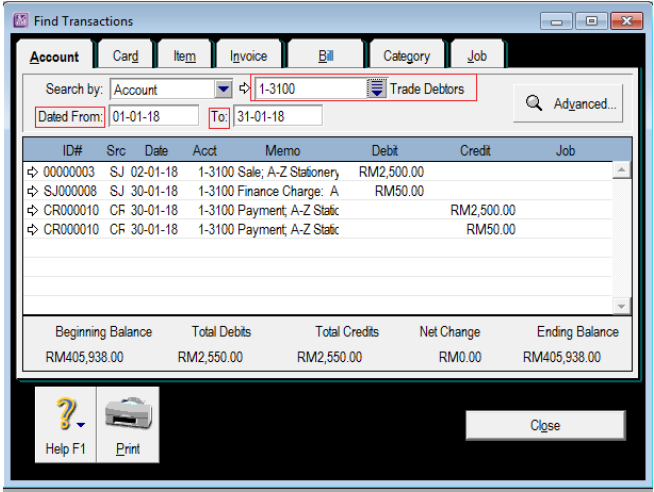
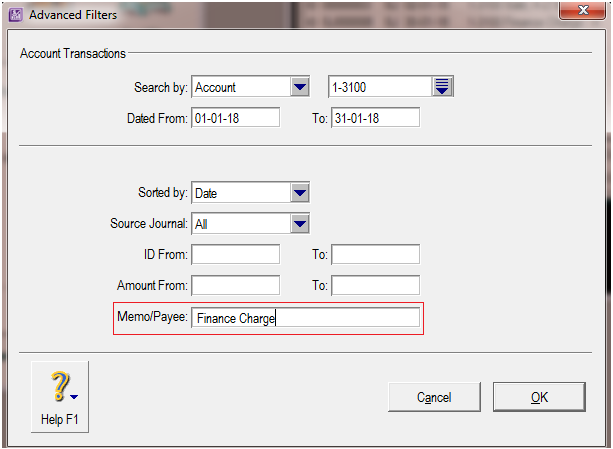
- Click the Advanced button.
- Type 'Finance Charge' in to the Memo/Payee field of the advanced filters window. Click OK.
- The result set will be displayed:
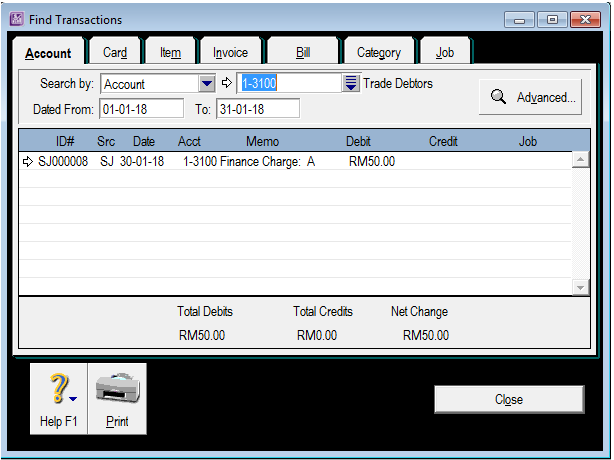
- Once you have located the transaction, note its date and then:
- Click the white arrow to display the transaction
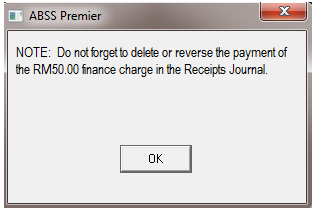
- Go to Edit and choose Delete. On doing so, you will receive a reminder to delete the associated Receipt.
- Repeat this process to delete the Finance Charge payment. Start from point 3 but this time:
- Set the Account field to your Linked Finance Charge account.
- Click Advanced Filters and clear the Memo/Payee field.
- Set both Date fields to the date noted earlier when deleting the Finance Charge.
- The Find Transactions window will now display the Finance Charge payment for you to delete. When deleting this transaction, ignore the reminder to delete the Finance Charge -simply click OK to close the message.
What if I have previously deleted one of these two transactions and one remains in the system?
If only one of these transactions is deleted and the other remains, your receivables account will be out of balance. Therefore rectifying this situation is a matter of locating and deleting the remaining transaction.
To do this, follow the instructions from page 1 on locating and deleting these transactions.
Once you have done this, if you display your Receivables Reconciliation report it should now show that the account is in balance.
What if I have not found any such transactions?
You may need to use a wider date range as the transaction may have been dated outside of the range you have entered in step 3.
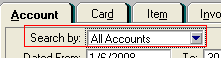
Another possibility is that the linked account for receivables or late charges may have been changed since this transaction was recorded. In that case perform the search again but this time choose the Search by All Accounts option.
It may be that you can still not locate the transaction in question. In this case, it is likely that the transaction took place in a previous financial year and it has subsequently been purged from your Company file.
To check the current financial year of your company file, go to the Setup menu and choose Company Information.
You may record a manual adjustment to correct the customer's Card Balance by following these steps:
Step 1 - Record a new Finance Charge
- Open Receive Payments and select the Customer's card.
- Select the Pay From Account option and select your general cheque account in the adjacent account field.
- Enter the Amount Received which is equal to the Finance Charge to be removed.
- Enter the Date and other transaction details. The transaction needs to be dated in the current financial year.
- Place your cursor in the Finance Charge field and enter the same amount that was entered in the Amount field.
- Click Record.
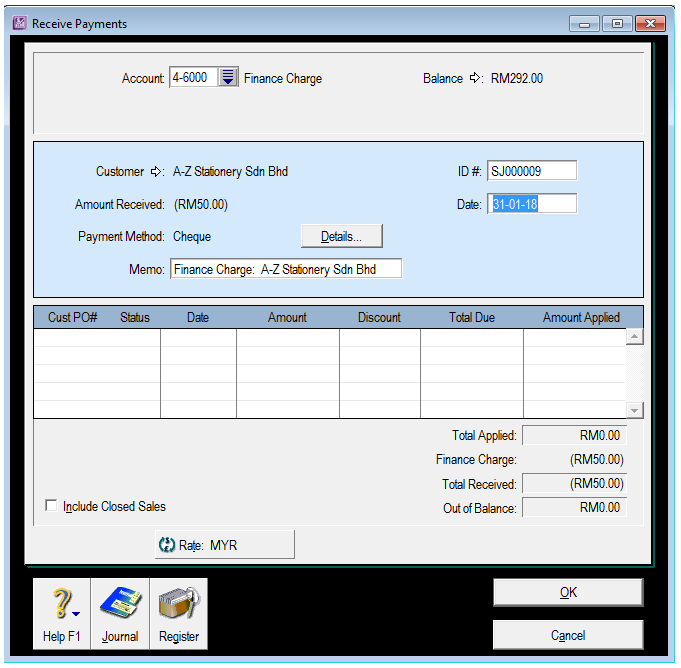
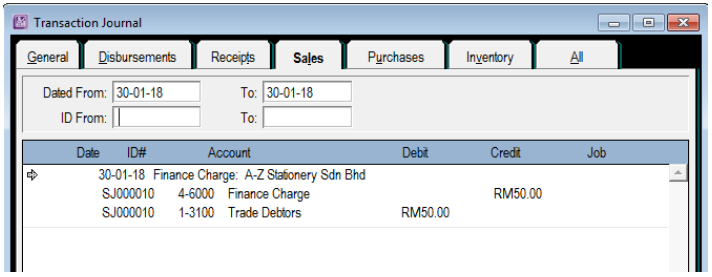
The window below shows a Finance Charge only transaction.
Please note:
- $50.00 is entered in both the Amount Received and Finance Charge fields.
The above transaction will record a deposit to the cheque account and a sale for the Finance Charge.
Step 2 - Reverse the Finance Charge
- Go to the Setup menu, choose preferences and click the Security tab. Mark the option Transactions CAN'T be Changed; They Must be Reversed [system-wide].
- Go to the Sales command centre and click Transactions Journal.
- Set the Date range to capture the Finance Charge.
The Window below shows the Find Transaction Window with the Finance Charge sale displayed.
- Click the zoom arrow next to the Finance Charge Transaction.
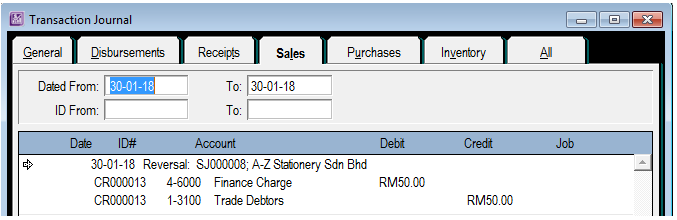
- Go to the Edit menu and click Reverse Payment.
- Set the date of the reversal then click OK.
- Click OK to the Reminder alert.
Step 3 -Delete the original Finance Charge
- Go to the Setup menu, choose preferences and click the Security tab. Clear the option Transactions CAN'T be Changed; They Must be Reversed [system-wide].
- Follow steps 2 to 4 from above.
- Go to the Edit menu and click Delete Payment.
The window below shows the original Finance Charge transaction.
Step 4 - Delete the Finance Charge only transaction
- With the Transaction Journal window open, click the Receipts tab.
- Click the zoom arrow next to the Finance Charge Receive Payments transaction.
- Go to the Edit menu, choose Delete Payment and click OK to the Reminder alert. The only transaction left should be the reversal under the Sales Tab in the Transaction Journal.
Step 5 - Check the Card balance.
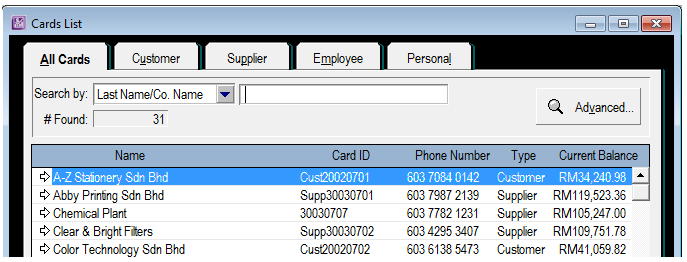
Go to the Card File command centre, click Cards List and check the Card's balance. The window below shows that the customer Cash Sales now has a zero balance.
What if the finance charge is from a previous financial year?
Scenario:
- A finance charge was entered through Receive Payments in a previous financial year
- The receipt journal of the finance charge only was also deleted in the previous year
This results in a balance showing on the customer card that includes the finance charge, but in Receive Payments the card balance does not include the finance charge, hence there is nothing to receive payments against.
Follow the steps below to fix this:
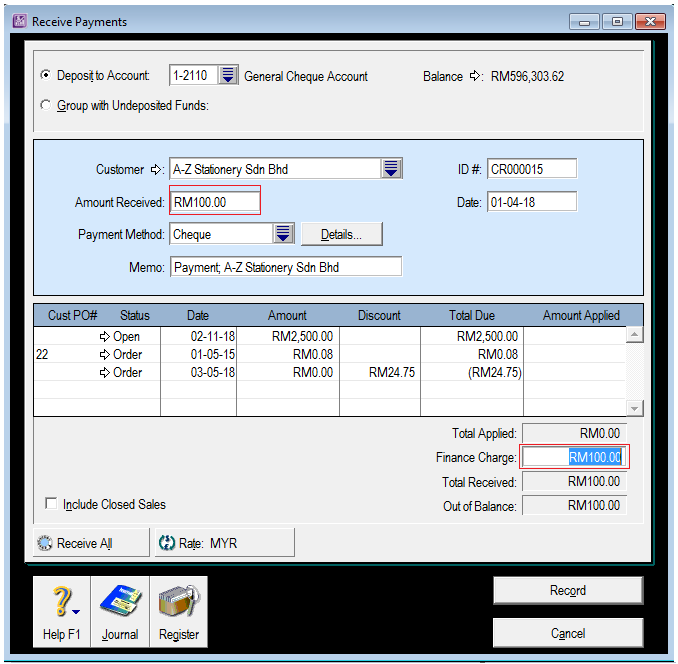
- Enter a finance charge only Receive Payment (dated in the current financial year) for the amount of the finance charge from the previous year. This will create a sales journal and a receipts journal.
- Delete the sales journal just created. This will leave the receipts journal to match up with sales journal created last year.
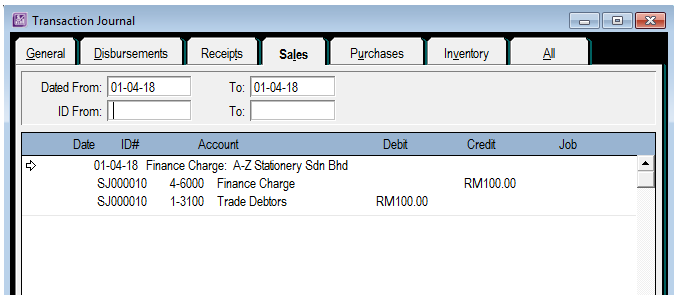
For example: The finance charge entered the previous year was $100. The following screen shots show how to enter the finance charge only Receive Payment in the current year and the journals created.
Why did this happen and how do I prevent it in future?
If this finance charge transaction was not intentional, it would have been recorded as a result of an incorrect Received Payment entry.
For example, a customer owes $390.00 but inadvertently you have recorded a payment of $3000.00. If you tab through the various fields of Receive Payments window, ABSS will automatically allocate the extra $500.00 to the Finance Charge field so that the transaction balances.
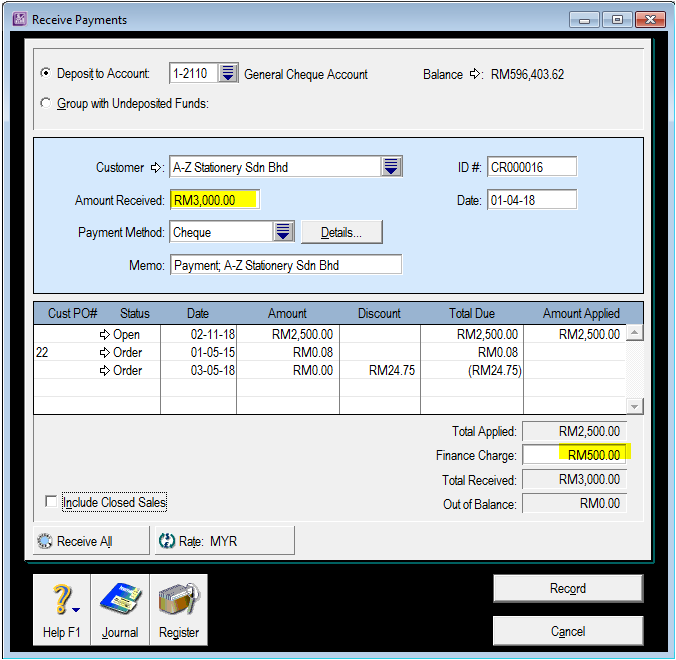
Therefore, unless the finance charge is intended, it's a good idea to always check that both the Finance Charge and Out of Balance fields show $0.00
If the Finance Charge is entered accidentally against an order and the order is then recorded as an invoice, then please refer to our support note for Reversing Customer or Supplier Deposits.
Comments
0 comments
Article is closed for comments.