

This support notes are suitable for:
- ABSS Premier
- ABSS Accounting
|
Introduction In the Receive Payments window, overwrite the Amount Applied field to match the Amount Received so that the Out of Balance and Finance Charge fields show $0.00. ABSS will automatically create a Credit Note. This can be settled in the Sales Register under the Returns & Credits tab. |
What options do I have when a customer over pays their account?
Your options are:
-
Apply the overpayment to another Invoice or
-
Refund the overpaid amount or
-
Issue a credit note.
Once you or your customer have decided on the appropriate action, you can then move forward and record it in ABSS.
How are customer overpayments recorded and settled in ABSS?
Settling customer overpayments requires two steps: record the overpayment, and then settle it.
Step 1 - Recording a customer overpayment
Customer overpayments are entered using Receive Payments.
-
Click Sales then Receive Payments.
-
Click the Card field drop down arrow and select the customer's Card.
-
Enter the customer's payment details, including the Date, Memo and the Amount
- Place your cursor in the Amount Applied field against the Invoice to be paid and ABSS will then automatically insert the outstanding Invoice amount. Overwrite the outstanding Invoice amount with the same amount that was entered in the Amount Received field.
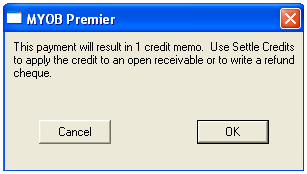
- Click Record and then click OK to the credit memo alert.
The window below shows the Receive Payments window and the application of a customer over payment.
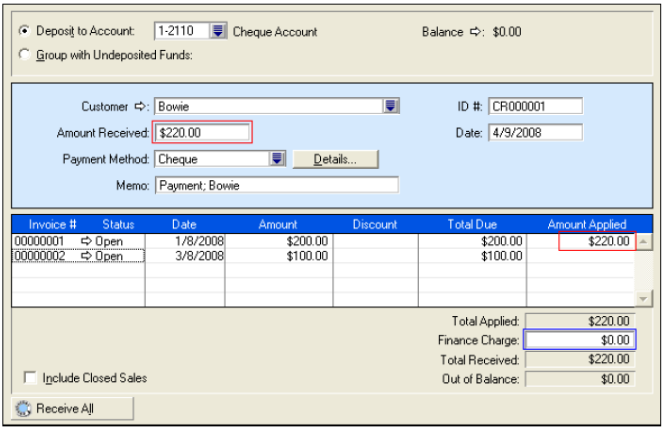
Please note: The balance owing on Invoice # 1 is $200.00, and the customer has paid $220.00. To record the $20.00 over payment, $220.00 must be entered in BOTH the Amount Received AND Amount Applied fields.
-
Important Note: Ensure the over payment amount is not included in the Finance charge
-
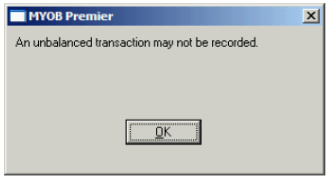
If the amounts entered in the Amount Received AND Amount Applied fields are different, an unbalanced transaction alert will be displayed when Record is pressed.
The window below shows the unbalanced transaction alert.
Step 2 - Settling the over payment Apply the over payment to another Invoice
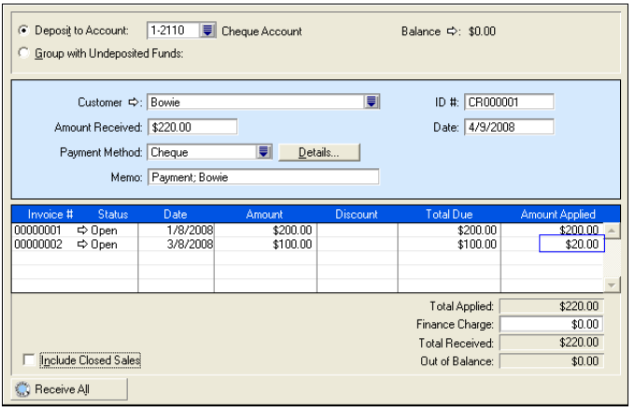
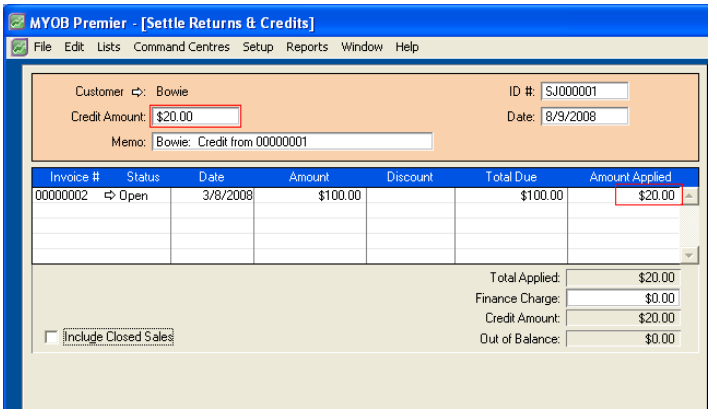
When applying the payment in Receive Payments, simply enter the over payment amount to another open Invoice. In the example on the previous page, $200.00 would be applied to Invoice # 1 and $20.00 would be applied to Invoice# 2.
Refund the over payment
Recording a payment with a value of greater than the invoice will result in a Credit Memo. You can access this Credit Memo by clicking Sales then Sales Register and clicking the Returns & Credits tab.
The window below shows the Returns & Credits tab of the Sales Register with a Credit Memo highlighted.
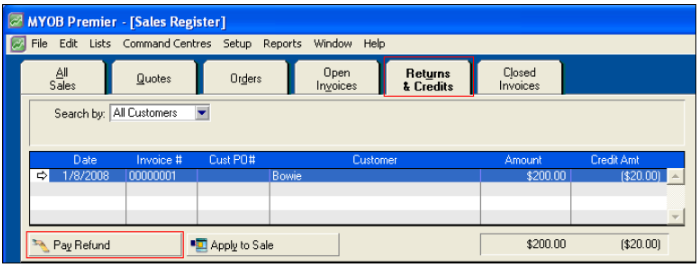
To refund the over payment, highlight the Credit Memo then click Pay Refund. ABSS will then display a refund cheque payment, confirm its details then click Record.
Comments
0 comments
Please sign in to leave a comment.