

This Support Note is suitable for
- ABSS Accounting
- ABSS Premier
- ABSS AccountEdge
|
Introduction Many business take advantage of reducing their outgoing cash flow by substituting goods/services for the payment of their account held with the other business. These contra type deals are easily tracked in for ABSS program. This support note explains what is involved. |
What Is A Contra Deal?
Contra deals are a convenient means by which two businesses trade between each other, using their goods/services supplied to each other as payment for those received.
For example: Jim Gardner owes you $500 for a new lawnmower. By arrangement, Jim cuts your lawns and trims some trees and his bill to you totals $170. You credit the cost of his service to the invoice for the lawnmower, leaving a balance of $330. He comes back the week after and mows your lawns again, and again the amount owing on the lawnmower is reduced by the amount he charges you.
Jim has effectively sold you his service and has used the income of the sale to pay for the lawnmower. Jim is now both a customer and a supplier. You need to record the sales, purchases and payments in such a way that a closing balance can be determined.
How Do I Set Up My Data File to Record Contra Deals?
Step 1 - Setup the Card File
Two cards will be required for the other business; a Customer card and a Supplier card.
Using the example above, as Jim is now also a supplier, you will need to create a Supplier card for him. If the other business is a supplier (such as you are to Jim) then a customer card for the other business will be needed.
To create a new card:
- Go to the Card File command centre, click Card File then click
- Click the Card Type drop down arrow and select Supplier or
- Enter the other business's details then click
Step 2 — Setup a Contra Clearing Account
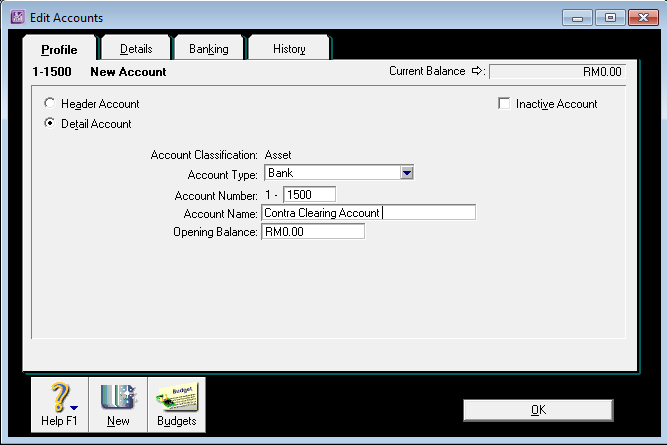
The Contra Clearing Account is setup as a cheque account and is used to pay the Bills and Invoices of the other business.
- Go to the Accounts command centre and click Account List.
- Select the Asset tab and click
- Make sure you select Bank in the Account Type drop-down menu.
- Give the account a unique number that suits your account list.
- Name the account Contra Clearing Account.
- Click OK.
How Are The Contra Sales and Purchases Recorded and Paid?
Step 1 - Recording the sales and purchases
Record the sales and purchases to the other business using Enter Sales and Enter Purchases. Enter these transactions as they would normally be entered.
Referring back to Jim Gardner, the sales/purchases entered in your ABSS company file are:
- A sale for $500.
- Two purchases - one for $170 and another for $90.
Jim now owes you $240 and is therefore a debtor. From Jim's perspective, he owes you and we are therefore a creditor.
Step 2 - Recording the contra deal payments
Receive Payments
Payments received from the other business are in the form of the goods/service they provided you. Therefore, you need to credit this as a payment to their account.
- Go to the Sales command centre and click Receive Payments.
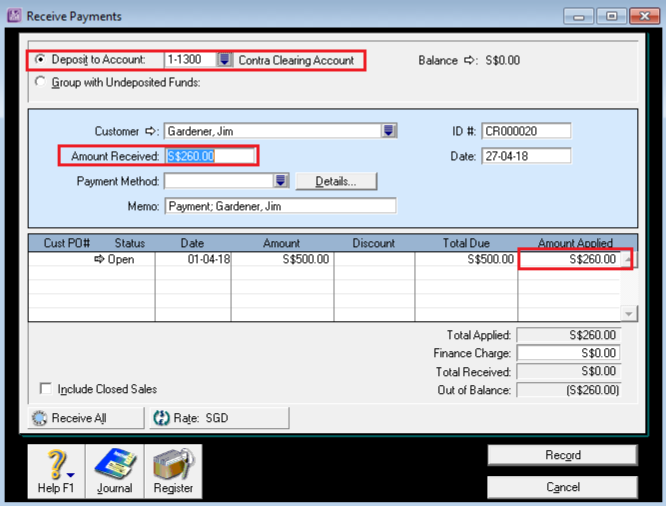
- Click the Deposit to Account option then select the Contra Clearing Account in the adjacent Account field.
- Select the Customer then enter the Amount Received. This needs to be the value of the goods/service supplied to you.
- Enter the Memo, Date and set the Payment Method to Other.
- Place your cursor in the Amount Applied field and if necessary enter the amount.
- Click Record.
The window below shows the Receive Payments transaction. This will result in a deposit of $260 into the Contra Clearing Account.
Pay Bills
Again, although you won't be paying for the service/goods we received, a payment still needs to be applied to the Bill.
- Go to the Purchases command centre and click Pay Bills.
- Click the Pay From Account option then select the Contra Clearing Account in the adjacent Account field.
- Select the Supplier then enter the Amount - the value of the service/goods they supplied you.
- Enter the Memo and Date then apply the payment to the open Bills.
- Click Record.
The window below shows the Pay Bills transaction for the services Jim supplied you.
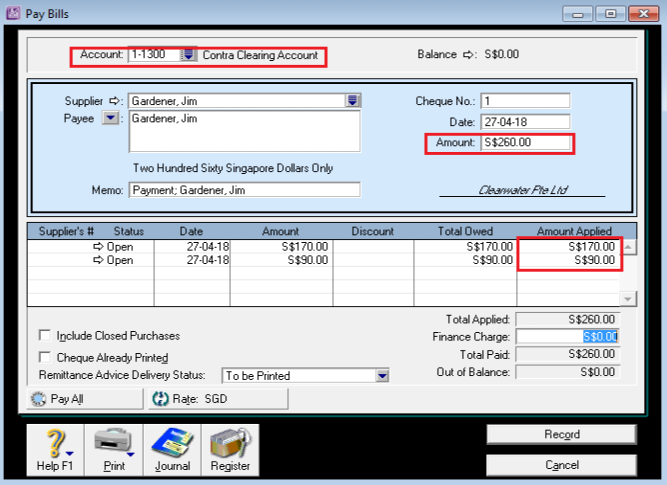
This will result in a withdrawal of $260 from the Contra Clearing Account. It will therefore offset the $260 Receive Payments deposit, leaving the Contra Clearing Account with a zero balance. This can be quickly checked by viewing the Contra Clearing Account balance in the Accounts List window.
Who Owes Who?
This is determined by using a combination of the Receivables Aging Detail report and the Payables Aging Detail report. Both these reports will list the activity and account balance for the other business.
In our example, the Receivables Aging Detail report will show that Jim's account has an outstanding balance of $240. Whereas the Payables Aging Detail report will show that Jim's bills to you have been paid. Therefore, a payment of $240 is required by Jim to close the contra deals.
If you were to view the Payables Aging Detail report in Jim's ABSS company file, it would show that he owed you.
The window below shows the final payment received from Jim. This needs to be entered using Receive Payments and applied to the open invoice. Similarly, Jim would use Pay Bills.
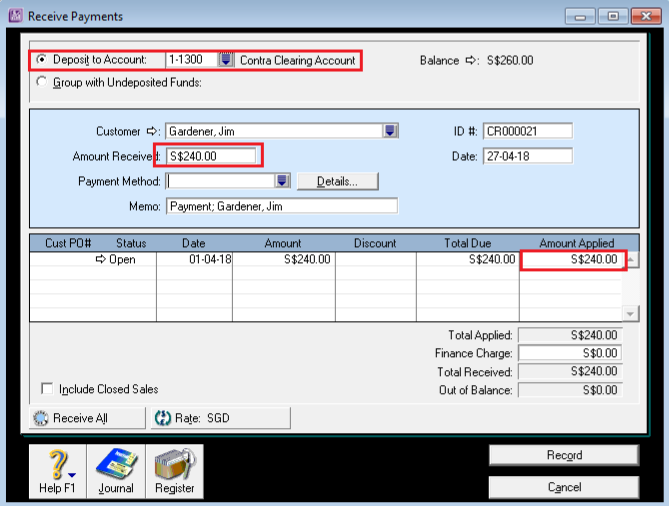
Please Note: The Deposit To Account option is selected and the General Cheque Account is entered in the adjacent account field. This needs to be deposited into your cheque account and not the Contra Clearing Account.
Disclaimer: This information is of a generic nature. For specific advice regarding your particular circumstances please seek assistance from your Accountant
Comments
0 comments
Please sign in to leave a comment.